
Tracking progress can seem complicated but here’s a quick way to show percent complete using progress bar on a Gantt chart.
Tip
If you’d like help with creating a Gantt chart, see Use a wizard to create a Gantt chart.
- On the Gantt chart, click a task and click Task and the percentage complete you want to show.
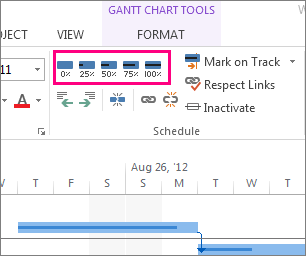
For example, to show a task as 25 completed, click Task > 25% Complete. - To see the task progress, point to the dark line inside the bar.
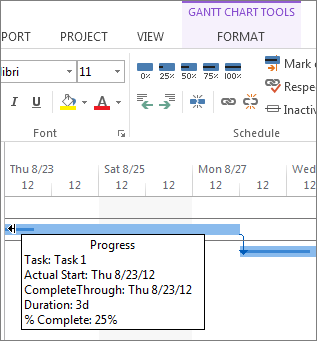
If you want show more than the percent complete for tasks, you might want to learn about tracking linked critical tasks or using highlight to show linked tasks.
For tracking progress of schedules, take a look at how Project schedules tasks behind the scenes.