
Add words to your vocabulary in Dragon Medical One
Dragon Medical One recognizes most of your usual word choices, including places and common names. However, every organization has certain words, phrases, or specific names that Dragon Medical One doesn't recognize. Sometimes, you need to teach Dragon Medical One new words.
Manage Vocabulary saves you time when using Dragon Medical One. You can add custom words and phrases, including abbreviations, and revise them if needed.
Commands to add words to your vocabulary
Choose a language
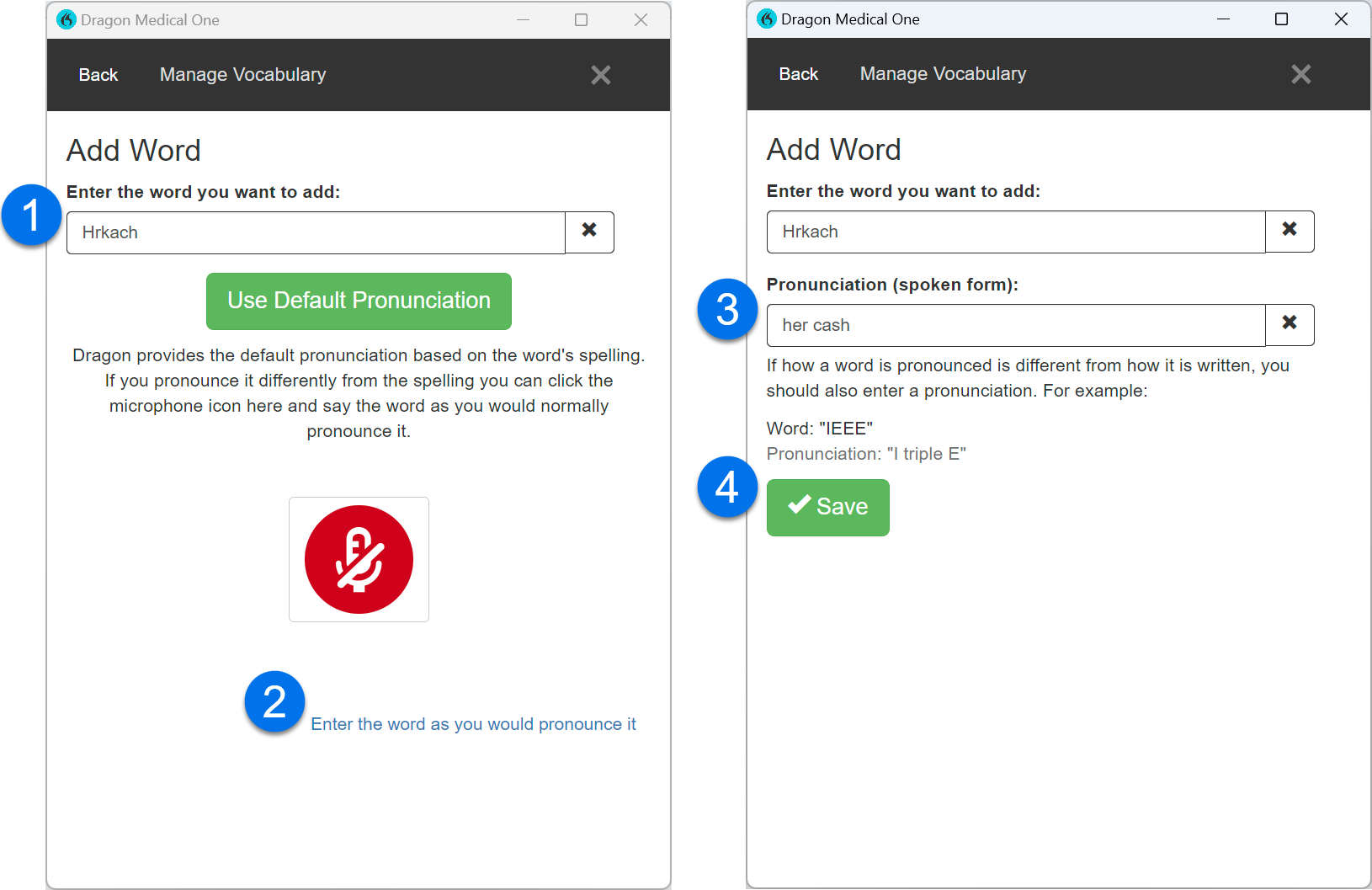
Say add word or manage vocabulary to open the Add Word window. Select the plus icon [+], and follow the steps to add a word or phrase.
Say add that to vocabulary to open the Add Word window with the selected text already inserted in the Add Word box.
Add words or phrases
To add a custom word, phrase, abbreviation, or acronym, use the appropriate voice command or manage your vocabulary from the DragonBar menu.
- Enter the correct spelling in the first box. This is what Dragon Medical One types when you dictate.
- Select the link to enter the word as you pronounce it.
- Enter your pronunciation. This is what it sounds like when you say the word or abbreviation.
- Select Save.
When you go back to manage vocabulary, your new word is in your vocabulary list.
Edit words
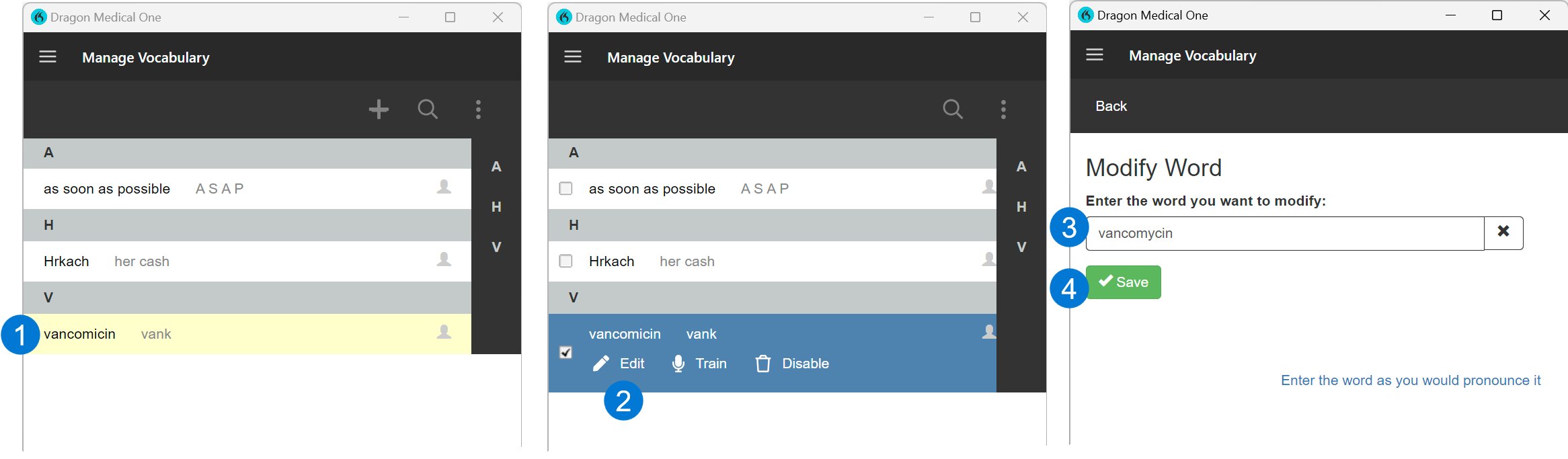
To edit a word you added to your vocabulary, use the appropriate voice command or manage your vocabulary from the DragonBar menu.
- Select a word from your vocabulary list.
- Select Edit.
- Modify the word or pronunciation.
- Select Save.
Important
You can't edit a word that you already trained. A gear icon next to the entry identifies trained words.
Custom words for your organization
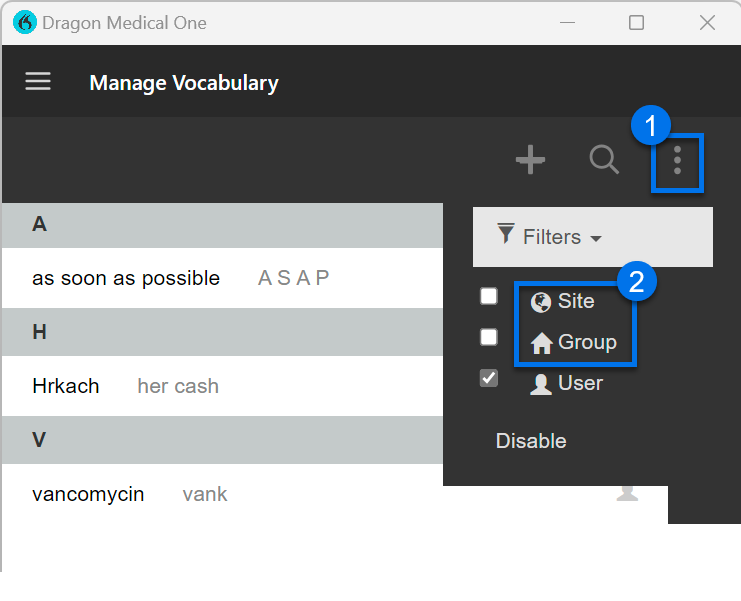
Some organizations add specific words for all of their users. You can see these words in your vocabulary list alongside any words you add yourself. Say the voice command to manage your vocabulary to display all custom words available to you. Follow these steps once the window is open:
- Select the three vertical dots
 in the upper right corner of the vocabulary window.
 - Under the Filters menu, select Site or Group to see words on your vocabulary list in addition to any words you add yourself.
Related topics
How to train a word in Dragon Medical One