
An Office product key uses a combination of 25 letters and numbers in this format:
XXXXX-XXXXX-XXXXX-XXXXX-XXXXX
 Product keys include hyphens, but you can omit them when you enter your product key.
How to share your Microsoft 365 Family subscription with up to 5 other people
To allow other people to install Microsoft 365 or Office, please share your subscription by email or link as described in How to share your Microsoft 365 Family subscription benefit.
How to enter your product key for Office 2019 or Office 2016
Select your version below:
How to enter your product key for Office 2019 or Office 2016 (for personal use)
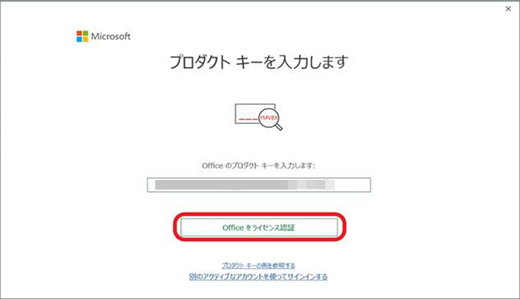
Enter your Office product key and select, Activate Office.
Either upper case or lower case works. Lower case will be converted to upper case.
You don't need to enter "-" because it's automatically added.
Note
If you see the message "This product key has already been used" This means your product key has already been redeemed, and you no longer need this product key to activate Office. Instead, select the Sign in with an active account instead link and sign in using the Microsoft account that you used to redeem the product key.
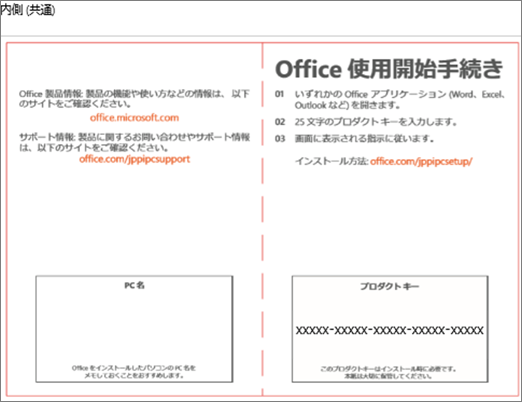
Your product key is written in a product key card that is enclosed in your PC.
Product key card that is enclosed with your PC (except Surface)
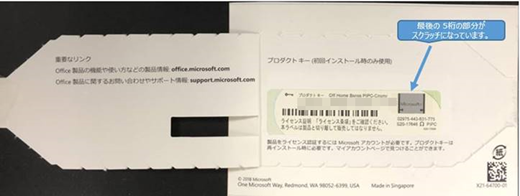
Product key card that is enclosed with your Surface
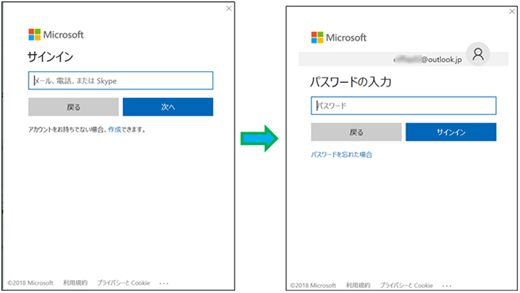
Sign in with a Microsoft account that you want to associate with Microsoft 365 or Office. If you don't have a Microsoft account, select Create account.
This screen won't appear if you signed in to Windows with a Microsoft account.

Type your Microsoft account and password.
This screen won't appear if you signed in to Windows with a Microsoft account.
Select Accept.
By selecting Yes, I will receive the latest information about Office products and services from Microsoft box, you will receive the latest information by email.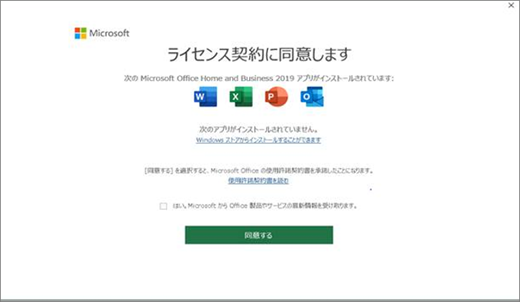
Confirm Microsoft's statement about privacy and select Next.
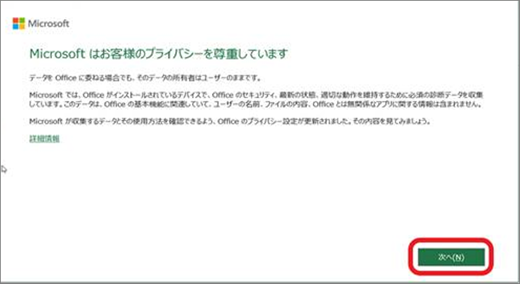
Select Yes or No, and then select Confirm.

The Make the most use of Office window opens.
To purchase the product version of Microsoft 365 Family or Microsoft 365 Personal, select Purchase Microsoft 365. If you want to use the trial version of Microsoft 365, you can go through the procedures by selecting Subscribe trial version. To use Office apps without the service, select Notify me later or select the X button on the top right corner.

Office installation ends. If you don't select Purchase Office 365 in the step above, the message below will appear after you open an Office app.
If you don't need it, select Notify me later or select the X button.

How to enter your product key for Office 2019 or Office 2016 (for commercial use)
Enter your Office product key and select Activate Office.
Your product key is written in a product key card that is enclosed in your PC.- Either upper case or lower case works. Lower case will be converted to upper case.
- You don't need to enter "-" because it's automatically added.
Select Accept to accept the license agreement.
By selecting Yes, I will receive the latest information about Office products and services from Microsoft box, you will receive the latest information by email.
Confirm Microsoft's statement about privacy and select Next.
Select Yes or No, and then select Confirm.
Note
If your device isn't connected to the Internet, the Activation Wizard appears so you can activate by phone. Follow the prompts in the wizard to complete the activation process.
Contact support about my product key
If you've followed the guidance in this article and still need help, visit our Microsoft support page for assistance.
Tip
If you're a small business owner looking for more information on how to get Microsoft 365 set up, visit Small business help & learning.