
概要
Windows.old フォルダーには、デバイス上の以前のバージョンの Windows が含まれています。 アップグレード後に以前のバージョンを削除する場合、最も簡単な方法は、設定アプリでストレージ センサーを使用することです。 Windows オペレーティング システムのバージョンについては、次の手順に従います。
Windows 10 の場合
- [設定] を開きます。
- [システム] を選択します。
- [ ストレージ] を選択します。
- [ ストレージ センサー ] セクションで、[ 領域を自動的に解放する方法を変更する] を選択します。
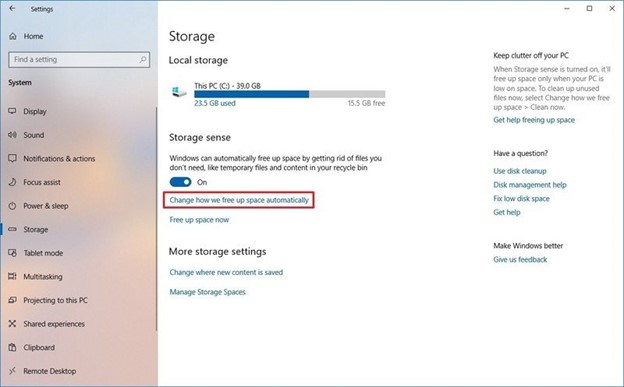
- [今 すぐ空き領域を増 やす] セクションで、[ 以前のバージョンの Windows を削除 する] チェック ボックスをオンにします。
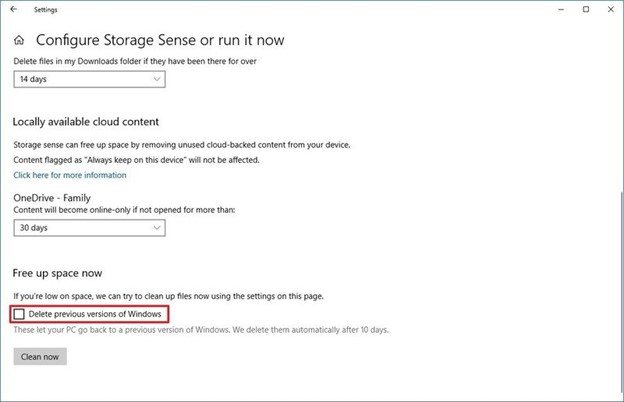
- 次に、[ 今すぐクリーンアップ ] ボタンを選択します。
Windows 11
- [設定] を開きます。
- [システム] を選択します。
- [ ストレージ] を選択します。
- [ クリーンアップの推奨事項] を選択します。
- [ 以前の Windows インストール] チェック ボックスをオンにします。
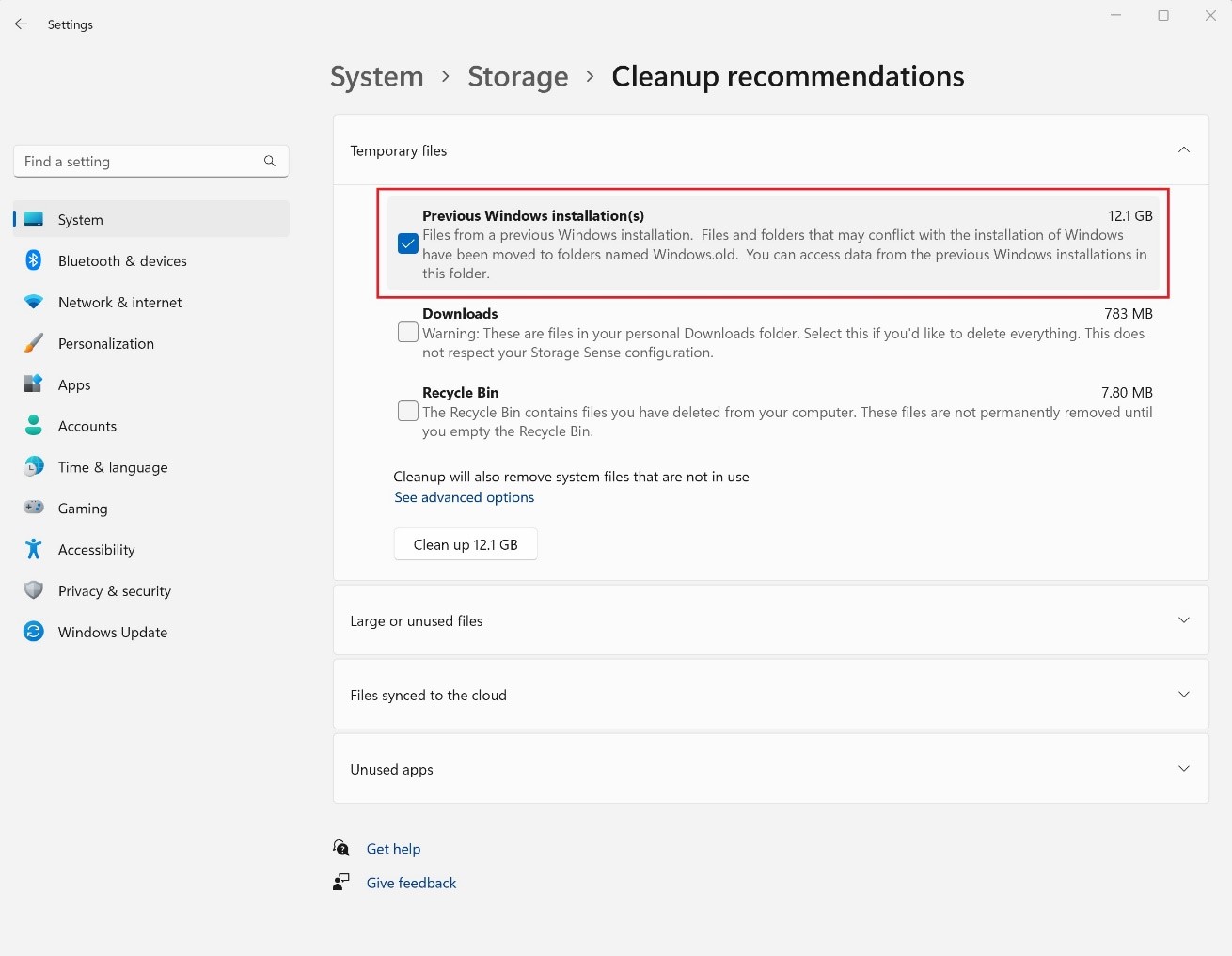
- 次に、ファイル サイズを表示する [ クリーンアップ ] ボタンを選択します。