
If someone in your organization is sharing a mailbox with you, you might want the ability to manage the settings (such as Categories, Notifications, Rules, and Automatic Replies) for that mailbox. You can do this in new Outlook by adding the mailbox as an account.
Note
Adding a mailbox as an account may not be available in your version of new Outlook at this time.
To add a shared mailbox as an account, you must have Full Access permission granted by your organization's IT admin. If you're an admin, learn more about this at Manage permissions for recipients.

Add a shared mailbox as an account in new Outlook
In new Outlook, select the File tab, then Account info or Settings > Accounts > Shared with me. From the Shared with me pane, you can see the name of the folder and the person who shared it with you.
Auto-mapped mailboxes
If the shared shared mailbox was auto-added (automapped) by your IT admin, you'll see the mailbox on the Shared with me page. Select the mailbox to expand it.
To add the mailbox as an account, select Convert. This automatically adds the mailbox as an account.
If the Mailbox wasn't auto-added, but you previously added the mailbox to Outlook, follow the same steps as above to Promote it to a full account:
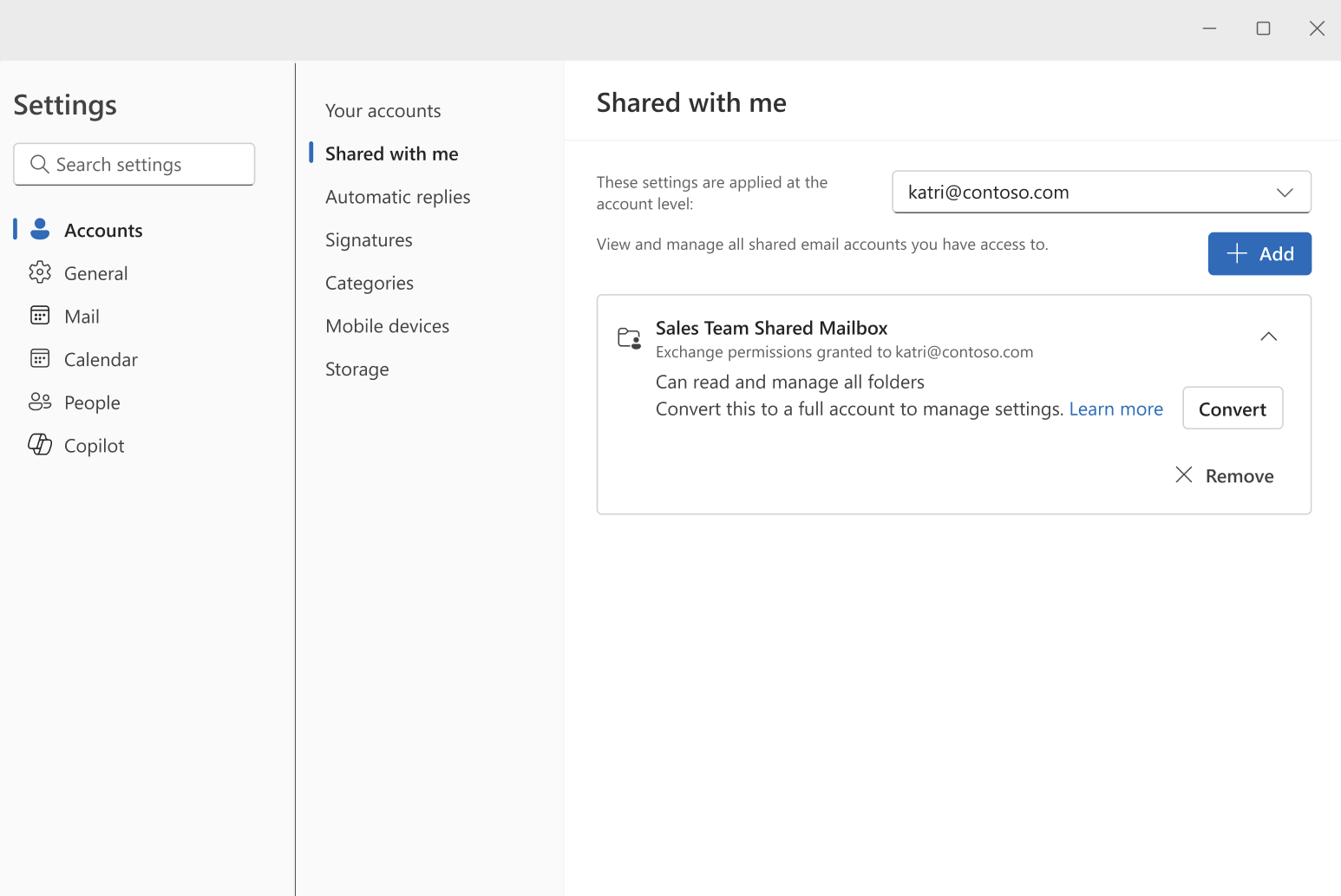
Non auto-added mailboxes
If the Mailbox wasn't auto-added and you didn't already add it to Outlook, select + Add on the Shared with me page and follow the prompts. New Outlook automatically adds the mailbox as an account as long as you have the necessary permissions:

Confirm that the Shared Mailbox is added as an account
Shared mailboxes that are correctly added as accounts will show on the Your accounts page like other user accounts. If the Shared mailbox does not appear on the Your accounts Settings page, you may need to go back to a previous step, or check the permissions you have on the shared mailbox.

Reduce your permission on a shared mailbox
If you do not want to use the shared mailbox as a full account, you can change it back to a shared folder. To change a shared mailbox that was added as an Account into a shared folder, select
 More on the Shared mailbox you want to change, and the select Use as shared folder:

Manage settings for the shared mailbox
When a shared mailbox is added as an account, it appears in the Account selector for each of the settings that are supported for shared mailboxes such as Categories, Notifications, Rules, and Automatic Replies.

Known gaps for Shared Mailboxes as Accounts
| Known gaps | Status |
|---|---|
| Searching for Calendar events within a shared mailbox. (Note: Searching for emails works as expected) | Coming soon |
| Shared mailboxes support in People | Backlog |
| Ability to share Contacts | Backlog |
| Notes folder for Shared mailboxes | Backlog |
| Tasks for shared mailboxes | Backlog |
| Add-ins for shared mailboxes | Coming soon for Shared mailbox supported add-ins |
| Archive folder for shared mailboxes | Coming soon |