
Last Updated: April 6, 2022
ISSUE
After you install Windows 10 update KB5008212, or upgrade to Windows 11, recent emails may not appear in search results.
This issue mostly affects users with POP, IMAP, and offline Exchange accounts due to search using the local Windows Search service to index email. Microsoft 365 hosted email and connected Exchange accounts use Service Search which is not affected by this issue.
STATUS: RESOLVED
Windows 11 fixes shipped as part of the Windows public updates listed below:
Windows 11: March 28th 2022 updates, KB5011563
Windows Server 2022: March 22nd 2022 updates, KB5011558
Windows Server 2019: March 22nd 2022 updates KB5011551
Windows 10: March 22nd 2022 updates, KB5011543
Note
Some users did not see immediate resolution after installing the update. If you do not see the issue resolved try rebuilding the Search Index. It could take a couple days for the Index to rebuild.
Rebuild the Search Index:
- From Outlook select File, Options, Search.
- Select Indexing Options, select Advanced.
- Under Troubleshooting select Rebuild.
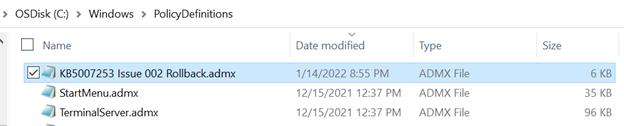

TEMPORARY WORKAROUND
You can work around the issue by disabling Windows Desktop Search which will cause Outlook to use its built-in search. The built-in search will display the following to indicate it is not using the Windows Search service:
- Search performance will be impacted because a group policy has turned off the Windows Search service.

To disable Windows Desktop Search Service for Outlook, do the following:
Important
The following steps show you how to modify the registry. However, serious problems might occur if you modify the registry incorrectly. Please make sure that you follow these steps carefully. For added protection, back up the registry before you modify it. Then, you can restore the registry if a problem occurs. For more information about how to back up and restore the registry, go to How to back up and restore the registry in Windows.
In Windows, right-click Start, and then select Run. In the Open: box type regedit, and then choose OK. This will open the registry editor.
Find this subkey in the registry and then click it:
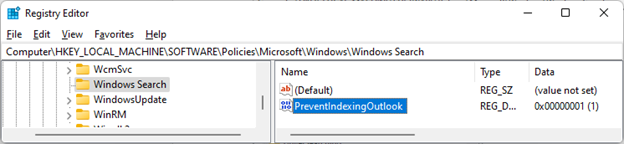
- HKEY_LOCAL_MACHINE\SOFTWARE\Policies\Microsoft\Windows
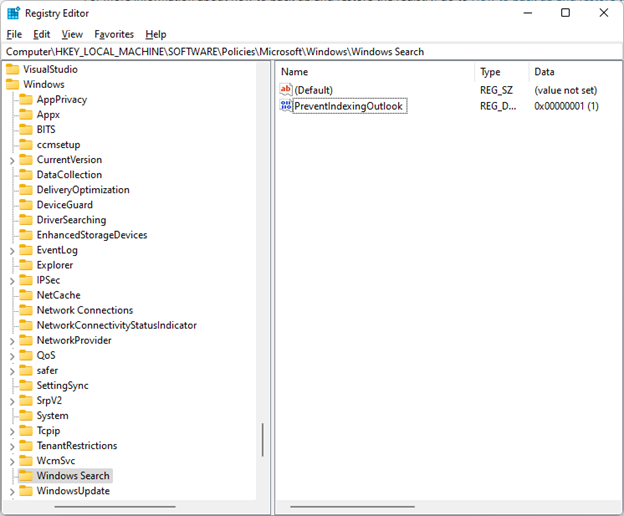
Select Edit > New > Key and name the new key Windows Search.
Choose the new Windows Search key.
Select Edit > New > DWORD Value.
Type PreventIndexingOutlook for the name of the DWORD, and then press Enter.
Right-click PreventIndexingOutlook, and then choose Modify.
In the Value data box, type 1 to enable the registry entry, and then select OK.
Exit Registry Editor, and then restart Outlook.
Note
To disable the PreventIndexingOutlook setting, type 0 (zero), and then click OK.
More Resources
 Ask the experts
Connect with experts, discuss the latest Outlook news and best practices, and read our blog.
 Get help in the community
Ask a question and find solutions from Support Agents, MVPs, Engineers, and Outlook users.
 Suggest a new feature
We love reading your suggestions and feedback! Share your thoughts. We're listening.