
원래 게시 날짜: 2026년 11월 3일
KB ID: 5134574
Windows 버전에 따라 2026년 업데이트는 Windows PowerShell 및 Windows PowerShell ISE 레이블에 버전 정보를 추가합니다. 자세한 내용은 영향을 받는 플랫폼을 참조하세요. 기존 장치에서 일부 시작 메뉴 바로 가기는 업데이트 후에도 이전 이름을 유지할 수 있습니다.
이 문서에서는 이름 변경, 기존 사용자에게 표시되는 내용 및 영향을 받는 두 콘솔 바로 가기를 다시 만드는 선택적 작업에 대해 설명합니다.
영향을 받는 플랫폼
이 변경 내용은 Windows 11 버전 25H2 및 26H2(KB5127936)와 Windows 11 버전 26H1(KB5127653)의 2026년 10월 미리 보기 업데이트에 적용됩니다. 또한 Windows 11 버전 24H2 및 2026년 11월 보안 업데이트의 Windows 11 Enterprise LTSC 2024에도 적용됩니다.
고객에게 미치는 영향
이는 Windows 버전용 업데이트를 설치하는 기존 장치에 적용됩니다. 자세한 내용은 영향을 받는 플랫폼을 참조하세요.
업데이트를 설치하면 Windows PowerShell 및 Windows PowerShell ISE 레이블에 버전 5.1이 포함됩니다.
기존 장치에서는 두 개의 사용자별 Windows PowerShell 콘솔 바로 가기가 이전 이름을 유지할 수 있습니다. 이러한 바로 가기는 자동으로 새 이름으로 업데이트되지 않습니다.
오래된 바로 가기 이름만으로는 업데이트를 설치하지 못했습니다.
Windows PowerShell은 기존 위치에 유지됩니다. 바로 가기를 다시 만들어도 Windows PowerShell이 이동되거나 다시 설치되지 않습니다.
영향을 받는 바로 가기
선택적 재생성 절차는 다음 두 Windows PowerShell 콘솔 바로 가기의 이름을 업데이트합니다.
| 기존 바로 가기 이름 | 선택적 바로 가기 재생성 뒤의 이름 |
|---|---|
| Windows PowerShell | Windows PowerShell 5.1 |
| Windows PowerShell (x86) | Windows PowerShell 5.1(x86) |
업데이트 전:
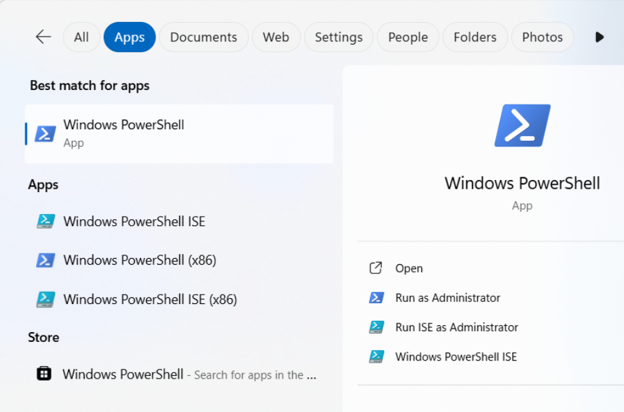
Windows PowerShell, Windows PowerShell(x86), Windows PowerShell ISE 및 Windows PowerShell ISE(x86)를 보여 주는 시작 메뉴 검색 결과.
업데이트 후:
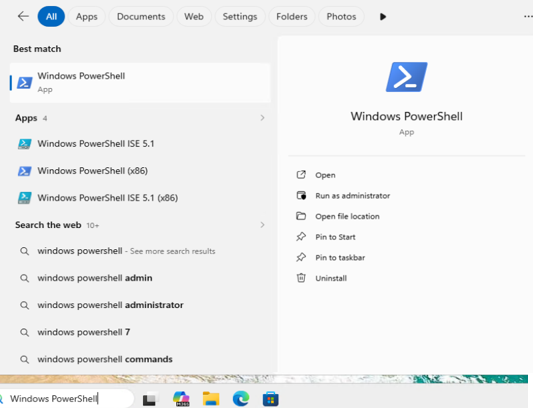
Windows PowerShell ISE 5.1 및 Windows PowerShell ISE 5.1(x86)을 보여 주는 시작 메뉴 검색 결과. 콘솔 바로 가기에는 여전히 Windows PowerShell 및 Windows PowerShell(x86)이 표시됩니다.
바로 가기를 다시 만든 후
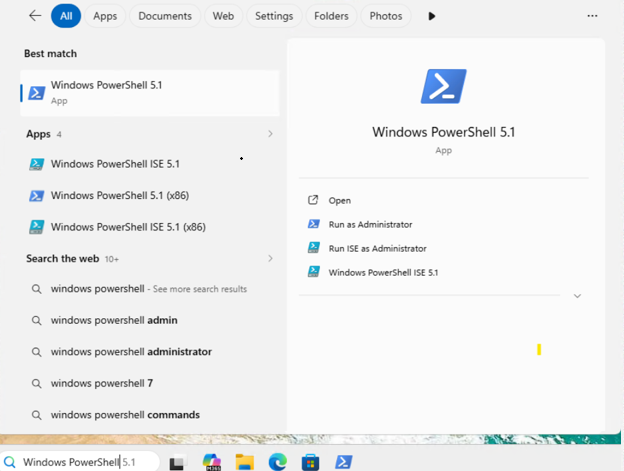
Windows PowerShell 5.1, Windows PowerShell 5.1(x86), Windows PowerShell ISE 5.1 및 Windows PowerShell ISE 5.1(x86)을 보여 주는 시작 메뉴 검색 결과.
수행해야 할 작업
바로 가기를 다시 만드는 것은 선택 사항입니다.
두 개의 Windows PowerShell 콘솔 바로 가기가 버전 5.1을 표시하도록 하려면 기존 바로 가기를 백업한 다음 이 섹션의 단계에 따라 다시 만듭니다.
Windows PowerShell ISE 바로 가기를 다시 만들 필요가 없습니다.
다음 단계는 이 폴더에 있는 사용자 프로필의 바로 가기에 적용됩니다.
"%APPDATA%\Microsoft\Windows\Start Menu\Programs\Windows PowerShell"
AppData 폴더에서 이러한 사용자별 바로 가기를 업데이트하는 작업은 각 사용자에 대해 한 번만 수행되며 관리자 권한이 필요하지 않습니다. 모든 사용자 ProgramData 폴더의 바로 가기를 업데이트하려면 관리자 권한이 필요합니다.
Windows PowerShell 바로 가기 다시 만들기
각 단계에는 스크립트된 메서드와 수동 메서드가 포함됩니다. 둘 다 동일한 결과를 생성합니다.
1단계: 바로 가기 위치 확인
스크립트
\$dir = "\$env:APPDATA\Microsoft\Windows\Start Menu\Programs\Windows PowerShell"
if (Test-Path -LiteralPath \$dir) {
Get-ChildItem -LiteralPath \$dir -Filter \*.lnk \| ForEach-Object {
\$s = (New-Object -ComObject WScript.Shell).CreateShortcut(\$\_.FullName)
"{0} -\> {1}" -f \$\_.Name, \$s.TargetPath
}
} else { "Not found in %APPDATA% — check C:\ProgramData\Microsoft\Windows\Start Menu\Programs\Windows PowerShell (All Users, needs an elevated shell)." }
수동
파일 탐색기를 열고 %APPDATA%\Microsoft\Windows\Start Menu\Programs\Windows PowerShell을 주소 표시줄에 붙여넣은 다음 Enter 키를 누릅니다.
Windows PowerShell 및 Windows PowerShell(x86) 바로 가기가 표시되는지 확인합니다.
바로 가기가 이 폴더에 없으면 %ProgramData%\Microsoft\Windows\Start Menu\Programs\Windows PowerShell 모든 사용자 폴더에 있을 수 있습니다. 이 경우 나머지 단계에서 해당 경로를 사용하고 관리자 권한으로 실행합니다.
2단계: 기존 바로 가기 백업(권장)
스크립트
\$dir = "\$env:APPDATA\Microsoft\Windows\Start Menu\Programs\Windows PowerShell"
\$backup = "\$dir.bak-\$(Get-Date -Format yyyyMMdd-HHmmss)"
Copy-Item -LiteralPath \$dir -Destination \$backup -Recurse -Force
"Backed up to: \$backup"
수동
Windows PowerShell 폴더에서 두 바로 가기를 모두 선택한 다음 복사를 선택합니다.
한 수준 위로 올라가 프로그램 폴더로 이동하고 Windows PowerShell.bak라는 새 폴더를 만든 다음 두 개의 바로 가기를 붙여넣습니다.
3단계: 기존 바로 가기 삭제
스크립트
\$dir = "\$env:APPDATA\Microsoft\Windows\Start Menu\Programs\Windows PowerShell"
foreach (\$n in @("Windows PowerShell.lnk","Windows PowerShell (x86).lnk")) {
\$p = Join-Path \$dir \$n
if (Test-Path -LiteralPath \$p) { Remove-Item -LiteralPath \$p -Force; "Deleted: \$p" }
}
수동
Windows PowerShell 폴더에서 Windows PowerShell 및 Windows PowerShell(x86) 바로 가기를 삭제합니다.
4단계: 이름이 바뀐 바로 가기 만들기
스크립트
\$dir = "\$env:APPDATA\Microsoft\Windows\Start Menu\Programs\Windows PowerShell"
New-Item -ItemType Directory -Path \$dir -Force \| Out-Null

\$targets = @{
"Windows PowerShell 5.1.lnk" = "C:\Windows\System32\WindowsPowerShell\v1.0\powershell.exe"
"Windows PowerShell 5.1 (x86).lnk" = "C:\Windows\SysWOW64\WindowsPowerShell\v1.0\powershell.exe"
}

\$wsh = New-Object -ComObject WScript.Shell
foreach (\$n in \$targets.Keys) {
\$p = Join-Path \$dir \$n
if (Test-Path -LiteralPath \$p) { Remove-Item -LiteralPath \$p -Force }
\$lnk = \$wsh.CreateShortcut(\$p)
\$lnk.TargetPath = \$targets\[\$n\]
\$lnk.IconLocation = "\$(\$targets\[\$n\]),0"
\$lnk.Save()
"Created: \$p"
}
수동(64비트)
파일 탐색기에서 C:\Windows\System32\WindowsPowerShell\v1.0\로 이동합니다.
powershell.exe를 마우스 오른쪽 단추로 클릭하고 기타 옵션 표시를 선택한 다음 바탕 화면으로 > 보내기(바로 가기 만들기)를 선택합니다.
바탕 화면에서 바로 가기의 이름을 Windows PowerShell 5.1로 바꿉니다.
바로 가기를 %APPDATA%\Microsoft\Windows\Start Menu\Programs\Windows PowerShell로 이동합니다.
수동(32비트, x86)
파일 탐색기에서 C:\Windows\SysWOW64\WindowsPowerShell\v1.0\으로 이동합니다.
powershell.exe를 마우스 오른쪽 단추로 클릭하고 기타 옵션 표시를 선택한 다음 바탕 화면으로 > 보내기(바로 가기 만들기)를 선택합니다.
바탕 화면에서 바로 가기 이름을 Windows PowerShell 5.1(x86)으로 바꿉니다.
바로 가기를 %APPDATA%\Microsoft\Windows\Start Menu\Programs\Windows PowerShell로 이동합니다.
5단계: 바로 가기 확인
스크립트
\$dir = "\$env:APPDATA\Microsoft\Windows\Start Menu\Programs\Windows PowerShell"
\$sh = New-Object -ComObject Shell.Application
\$fld = \$sh.Namespace(\$dir)
Get-ChildItem -LiteralPath \$dir -Filter \*.lnk \| ForEach-Object {
\$s = (New-Object -ComObject WScript.Shell).CreateShortcut(\$\_.FullName)
\[PSCustomObject\]@{ File = \$\_.Name; DisplayName = \$fld.GetDetailsOf(\$fld.ParseName(\$\_.Name), 0); Target = \$s.TargetPath }
} \| Format-Table -AutoSize
수동
시작 메뉴를 열고 Windows PowerShell 5.1및 Windows PowerShell 5.1(x86)이 올바르게 표시되고 열리는지 확인합니다.
시작 메뉴에 이전 이름이 계속 표시되면 Windows Explorer를 다시 시작합니다. 작업 관리자에서 Windows Explorer를 선택한 다음 다시 시작을 선택합니다. 다음 명령을 실행할 수도 있습니다. Explorer가 자동으로 다시 시작되고 열려 있는 모든 파일 탐색기 창이 닫힙니다.
Stop-Process -이름 탐색기 -Force
원래 바로 가기 복원(선택 사항)
원래 바로 가기 이름으로 돌아가려면 2단계에서 만든 백업에서 복원합니다.
스크립트
\$dir = "\$env:APPDATA\Microsoft\Windows\Start Menu\Programs\Windows PowerShell"
\$backup = Get-ChildItem "\$env:APPDATA\Microsoft\Windows\Start Menu\Programs" -Directory \`
-Filter "Windows PowerShell.bak-\*" \| Sort-Object Name -Descending \| Select-Object -First 1
Remove-Item -LiteralPath \$dir -Recurse -Force
Copy-Item -LiteralPath \$backup.FullName -Destination \$dir -Recurse -Force
"Restored from: \$(\$backup.FullName)"
수동
Windows PowerShell 폴더에서 두 개의 Windows PowerShell 5.1 바로 가기를 삭제합니다.
Windows PowerShell.bak 폴더에서 원래 바로 가기를 다시 복사합니다.
IT 관리자용: 여러 장치에 배포하려면 Microsoft Intune 또는 구성 관리자 같은 기존 배포 도구를 통해 사용자 컨텍스트당 한 번씩 3단계와 4단계를 실행합니다.
FAQ(질문과 대답)
Q: 업데이트를 설치한 후에도 이전 이름이 계속 표시되는 이유는 무엇인가요?
기존의 두 사용자별 Windows PowerShell 콘솔 바로 가기는 자동으로 새 이름으로 업데이트되지 않습니다. 업데이트가 실패했음을 의미하지는 않습니다. 원하는 경우 바로 가기를 다시 만들어 Windows PowerShell 5.1 및 Windows PowerShell 5.1(x86)을 표시할 수 있습니다.
Q: 바로 가기를 다시 만들어야 하나요?
아니요. 바로 가기를 다시 만드는 것은 선택 사항입니다. 이 두 바로 가기에서 5.1 버전을 표시하려면 이 작업을 수행합니다.
Q: Windows PowerShell ISE 바로 가기를 다시 만들어야 합니까?
아니요. 업데이트를 설치한 후 Windows PowerShell ISE 레이블에 이미 버전 5.1이 표시되어 있습니다. 이 문서의 선택적 단계는 두 개의 Windows PowerShell 콘솔 바로 가기만 다룹니다.
Q: 바로 가기를 다시 만들면 Windows PowerShell이 다시 설치되거나 이동됩니까?
아니요. Windows PowerShell은 기존 위치에 유지됩니다. 이 단계는 시작 메뉴 바로 가기만 다시 만듭니다. Windows PowerShell을 다시 설치하지 않습니다.
Q: 관리자 권한이 필요한가요?
AppData 폴더의 사용자별 바로 가기에는 적용되지 않습니다. 모든 사용자 ProgramData 폴더의 바로 가기를 업데이트하려면 관리자 권한이 필요합니다.
추가 정보
Windows PowerShell 5.1에 대한 자세한 내용은 about_Windows_PowerShell_5.1을 참조하십시오.