
Create and use step-by-step commands in Dragon Medical One
Dragon Medical One enables you to create custom commands for just about anything you can do with your keyboard: press a combination of keys, navigate to and open a website, enter text into a search box... the possibilities are endless! In Dragon Medical One, they're called step-by-step commands.
Create a step-by-step command
To create a step-by-step command, say Create command or choose Manage Step-by-step Commands from the DragonBar menu.
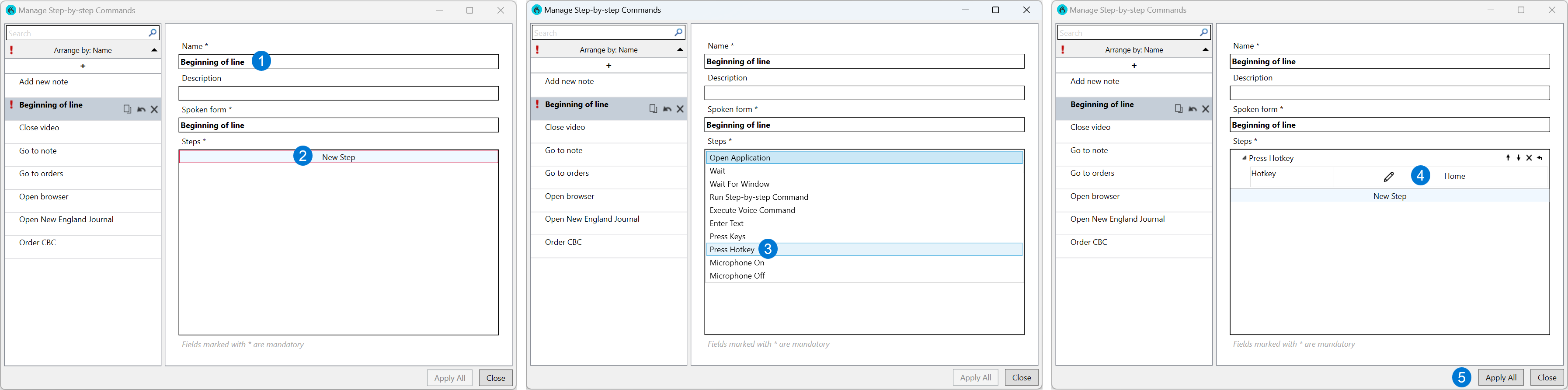
Name the command. This name also populates the Spoken form field, which is what you say to use the command.
Select New step.
Select the step you want to add. In this example, select Press Hotkey.
Select the pencil icon and then on your keyboard, press the Home key.
Select Apply All.
Copy a step-by-step command
To copy a step-by-step command, say Manage commands or choose Manage Step-by-step Commands from the DragonBar menu.
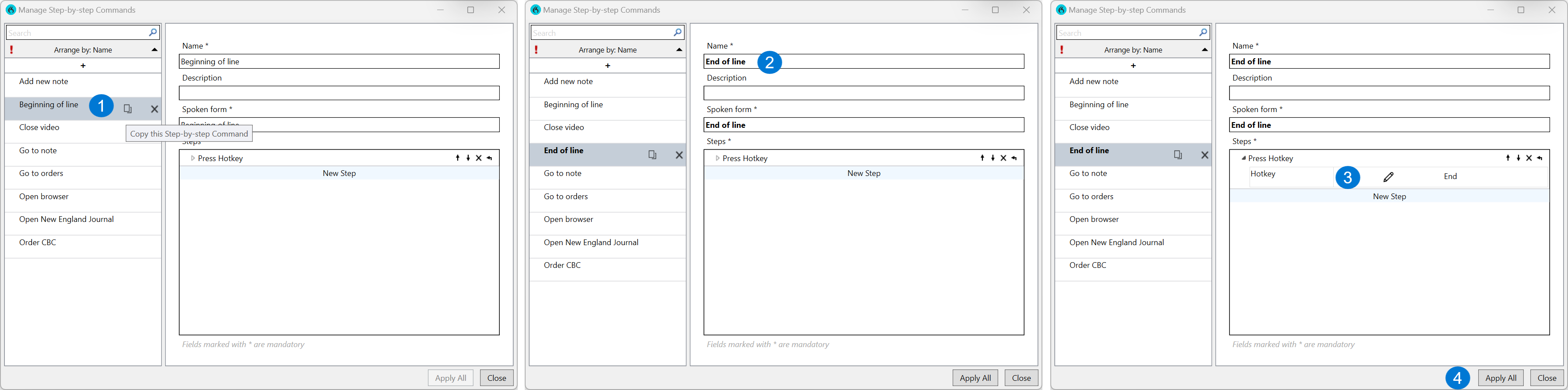
Select the Copy this Step-by-step command icon for the command you want to copy.
Name the command. This name also populates the Spoken form field, which is what you say to use the command.
Revise as needed.
Select Apply All.
Edit a step-by-step command
To edit a step-by-step command, say Manage commands or select Manage Step-by-step Commands from the DragonBar menu.
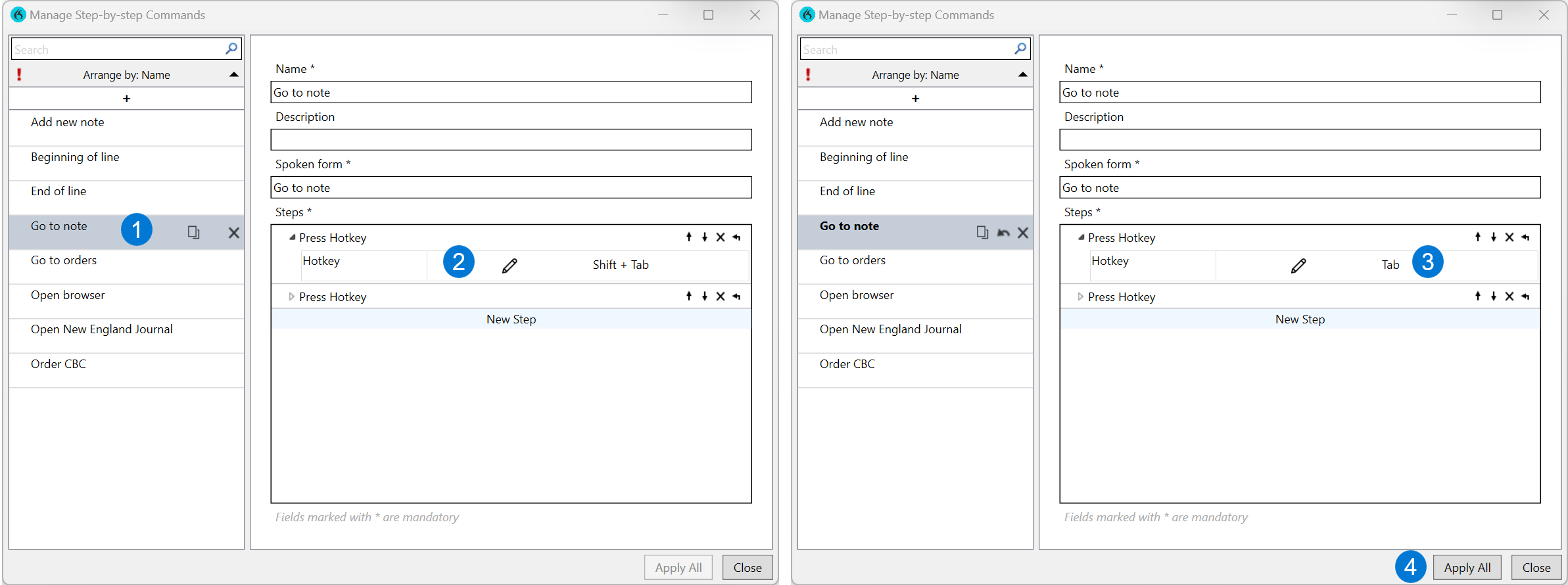
Select the command you wish to edit.
Select the step and then select the edit icon
 to make a change to an existing step. You can also add or delete steps as needed. Use the following icons:
 Select the up or down arrows to move the step up or down in the list.ist.
 Select X to delete the step.
 Select the left pointing arrow to insert a new step.
Revise as needed.
Select Apply All.
Delete a step-by-step command
To delete a step-by-step command, say Manage commands or select Manage Step-by-step Commands from the DragonBar menu.
- Select
on the command you want to delete.
- Select Apply All.
Note
If you decide you do not want to delete the command, select the Restore icon
 .
.
Best practices for working with step-by-step commands
- Create step-by-step commands to automate keystrokes you make frequently.
- Be creative. Remember, if you can use a keyboard shortcut, you can create a step-by-step command.
- Pause before and after saying the name of the step-by-step command to help Dragon separate the command from spoken text.
Warning
Don't use step-by-step commands to enter passwords or sensitive information.
Open the DragonBar menu to view or edit commands
- Find the commands you create in Manage Auto-texts or Manage Step-by-step Commands.
- Your organization's Dragon administrator puts shared commands under Auto-texts or Custom Commands in What You Can Say.
Learn more
Dragon Medical One can simulate many types of keystrokes or actions that you can string together to create a step-by-step command.
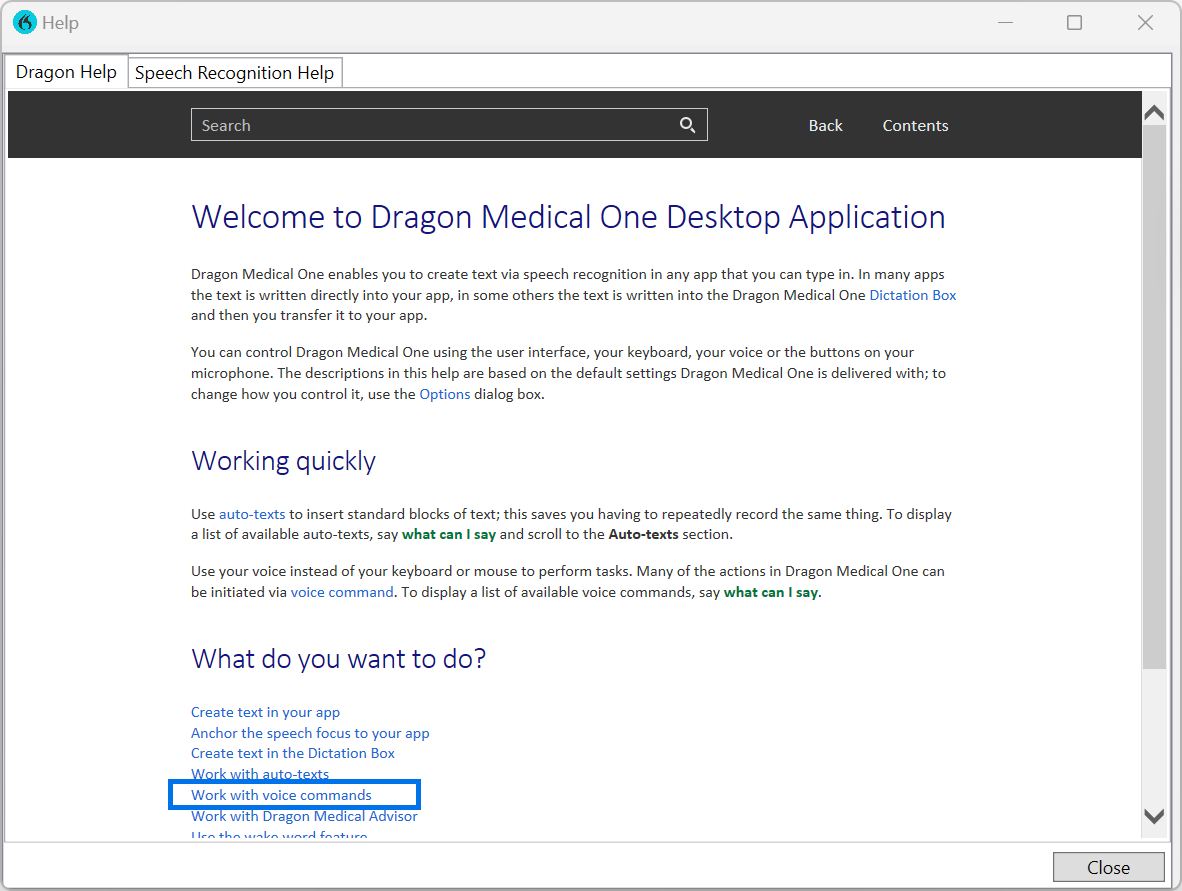
For more information on creating step-by-step commands and to see a list of step types and press keys and modifiers that you can use, check out Dragon Medical One's Help section.
Say Open help or select Help from the DragonBar menu, and then choose Work with voice commands.
Related topics
Step types for Dragon Medical One Step-by-step commands
Press keys shortcuts for Dragon Medical One Step-by-step commands