Corte uma imagem para aparar bordas externas desnecessárias.
- Se, em vez disso, você quiser remover o plano de fundo de uma imagem, consulte Remover o plano de fundo de uma imagem.
- Se você quiser aumentar ou diminuir uma imagem, consulte Alterar o tamanho de uma imagem.
Importante
Partes cortadas da imagem não são removidas do arquivo e podem ser vistas por outras pessoas; Incluindo mecanismos de pesquisa se a imagem cortada for publicada online. Se houver informações confidenciais na área que você está cortando, certifique-se de excluir as áreas cortadas (veja abaixo) e salve o arquivo.
Além do corte básico de margem, você também pode cortar imagens em formas e taxas de proporção específicas, ou cortar preenchimentos de imagem dentro de uma forma (no Microsoft 365 para Mac e em versões mais recentes do Office).
Cortar as margens de uma imagem
- Use **Inserir** > **Imagem** para adicionar a imagem a um arquivo do Microsoft 365 (como um documento do Word, uma apresentação do PowerPoint ou uma pasta de trabalho do Excel).
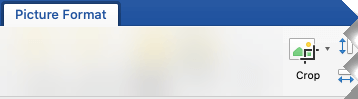
Selecione a imagem e, na guia Formato da imagem , selecione o botão
 corte .
Alças de corte pretas aparecem nas bordas e cantos da imagem.
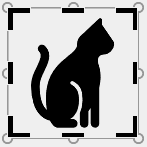
Para recortar uma imagem, siga um dos procedimentos abaixo:
Descrição Ação Cortar um lado Arraste a alça de corte lateral para dentro Cortar dois lados adjacentes ao mesmo tempo Arraste a alça de corte do canto para dentro Cortar igualmente dois lados paralelos ao mesmo tempo Mantenha a tecla Ctrl pressionada enquanto arrasta a alça de corte lateral para dentro Você também pode fazer um corte negativo ou adicionar uma margem ao redor da imagem arrastando as alças de corte para fora, em vez de para dentro.
(Opcional) Para reposicionar a área de corte, altere a área de corte arrastando as bordas ou os cantos do retângulo de corte ou mova a imagem.
Quando terminar, pressione Esc ou clique em qualquer lugar fora da imagem dentro do documento.
Observação
As ferramentas de corte não estão disponíveis para formas, mas você pode redimensionar uma forma e usar a ferramenta Editar Pontos para obter um efeito semelhante ao corte ou personalizar a forma. Consulte Usar pontos de edição para editar ou cortar a forma para obter mais informações.
Recortar em uma forma, como um círculo
Vá para Cortar uma imagem para ajustá-la a uma forma.
Outros tipos de corte
Selecione o título de uma seção abaixo para abri-la e conferir as instruções detalhadas.
Recortar para uma taxa de proporção comum
Recortar uma imagem para um tamanho ou taxa de proporção comum permite que ela se encaixe facilmente em um porta-retratos padrão. Você também pode usar essa ferramenta para visualizar como uma imagem se ajustará a uma proporção específica antes de cortar.
- Use Inserir>Imagem para adicionar a imagem a um arquivo do Microsoft 365 (como um documento do Word, uma apresentação do PowerPoint ou uma pasta de trabalho do Excel).
- Selecione a imagem.
- Selecione Formato da Imagem e, no grupo Tamanho , selecione a seta em Cortar.
- No menu que aparece, selecione Taxa de proporção e, em seguida, selecione a proporção desejada.
Um retângulo de corte aparece mostrando como a imagem será exibida quando cortada para a proporção selecionada. - Se desejar, ajuste a área de corte usando as alças de corte.
- Quando terminar, pressione Esc ou clique em qualquer lugar fora da imagem dentro do documento.
Cortar para ajustar ou preencher uma forma
Vá para Iniciar com uma forma e adicione uma imagem a ela.
Recortar uma imagem sem usar o Microsoft 365
Os aplicativos Paint (em várias versões do Windows) e Paint 3D (no Windows 10) ajudam você a cortar uma imagem. Abra a imagem no aplicativo e você verá um botão Cortar na barra de ferramentas. Confira esta rápida visão geral em vídeo sobre alguns recursos do aplicativo Paint 3D.
Excluir áreas cortadas de uma imagem
Por padrão, depois de cortar uma imagem, as áreas cortadas permanecem parte do arquivo, ocultas. No entanto, você pode reduzir o tamanho do arquivo removendo as áreas cortadas do arquivo de imagem. Isso também ajuda a impedir que outras pessoas visualizem as partes da foto que você removeu.
Importante
Se você excluir as áreas cortadas e depois mudar de ideia, poderá selecionar o botão Desfazer para restaurá-las. As exclusões podem ser desfeitas até que o arquivo seja salvo.
Para remover áreas cortadas do arquivo de imagem:
Selecione a imagem ou imagens das quais você deseja excluir áreas cortadas.
Selecione Formato da Imagem e, no grupo Ajustar , selecione Compactar Imagens. Uma caixa de diálogo é exibida mostrando as opções de compactação.

Se você não tiver a guia Formato da Imagem , verifique se você selecionou uma imagem. Talvez seja necessário clicar duas vezes na imagem para selecioná-la e abrir a guia Formatar Imagem.Em Opções de Compactação, certifique-se de que a caixa de seleção Excluir áreas cortadas das imagens esteja marcada.

Para remover cortes somente da(s) imagem(ns) selecionada(s) e não de todas as imagens do arquivo, marque a caixa de seleção Aplicar somente a esta imagem.
Se desejar, selecione uma opção de Resolução.Selecione OK.
Dica
Para saber mais sobre como reduzir o tamanho de arquivo das imagens e como compactá-las, confira Reduzir o tamanho de arquivo de uma imagem.
Confira também
Recortar ou cobrir parte de uma imagem
Adicionar um desenho a um documento do Word
Reduzir o tamanho de arquivo de uma imagem