No Visio, pode personalizar o aspeto das formas ao alterar as respetivas cores de texto, tipo de letra, cores e padrões de preenchimento, espessura e estilo de linha ou sombra.
Aplicar formatação rapidamente utilizando estilos de formas
A forma mais rápida de adicionar cor a uma forma é com o menu de estilos de formas predefinidos.
- Selecione a forma que pretende alterar.
- Na barra de ferramentas, aceda a>Estilos de Formas De Base:
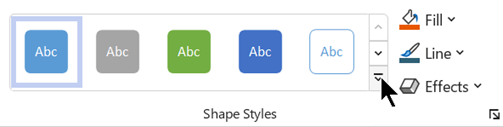
- Abra a galeria de estilos e selecione uma opção que corresponda ao tema de cor do desenho. As opções incluem cores, gradações e estilos de linha diferentes.
Aplicar formatação manualmente
Pode aplicar a formatação com mais precisão através do painel Formatar Forma, conforme descrito abaixo:
- Selecione a forma ou formas que pretende alterar.
- Clique com o botão direito do rato na forma e selecione Formatar Forma.
É aberto o painel Formatar Forma. - No
 (Preenchimento & Linha), selecione o tipo de preenchimento e, em seguida, selecione uma cor.
 - Se quiser um limite na forma, em Linha, selecione o tipo de linha e a cor. Em seguida, selecione quaisquer outras opções que pretenda, como Transparência, Largura, Tipo de traço e Tipo de tampa.
- Para aplicar um efeito (como Sombra, Reflexo, Brilho ou aspeto 3D , selecione o
 (Efeitos) na parte superior do painel e explore as opções disponíveis.
Escolher uma cor personalizada a aplicar
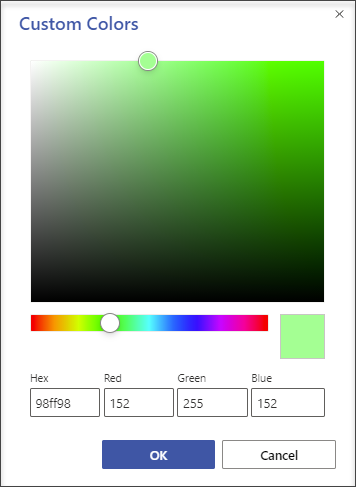
Pode aplicar uma cor personalizada ao especificar uma combinação de cores vermelho-verde-azul ou um código de cor hexadecimal ou ao escolher a partir da tela de cores.
- Selecione uma ou mais formas.
- Selecione o>

- Selecione Mais Cores > Personalizadas.
- Pode especificar uma combinação de cores vermelho-verde-azulado ou um valor hexadecima para uma cor personalizada ou pode escolher uma cor diretamente a partir do mapa de cores.
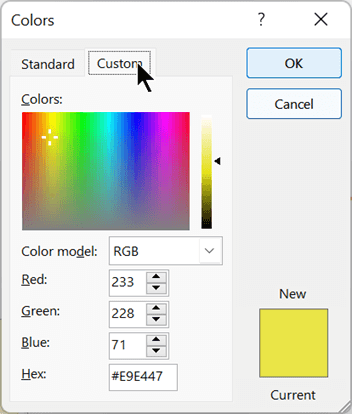
- Para selecionar uma cor de destaque personalizada, selecione>
 daLinha Principal. e, em seguida, selecione Mais Cores.
Alterar a espessura da linha de uma forma
Selecione a forma.
No separador Base, na secção Estilos de Forma, selecioneEspessura da Linha> e, em seguida, selecione a espessura que pretende.
(O menu Linha também lhe permite alterar o estilo de linha. Utilize a opção Traços ou Setas para escolher o tipo de linha que pretende.)Sugestão
Para um dimensionamento mais preciso da espessura da linha, pode clicar com o botão direito do rato numa forma e selecionar Formatar Forma e, em seguida, selecionar Linha e escolher a Largura exata que pretende, em incrementos de 0,25 pts.