
Observação
Copilot no Outlook só está disponível na versão mais recente do Outlook para Mac. Não há suporte para o Outlook herdado. Consulte Outlook para Mac.
Copilot no Outlook pode fazer sugestões e transformar seu rascunho bruto ou tópico em um email completo para que você gaste menos tempo em comunicação por email.
No Outlook para Mac, escolha uma mensagem da sua lista de mensagens.
Selecione o
 nas opções de resposta. Selecione Responder com Copilot.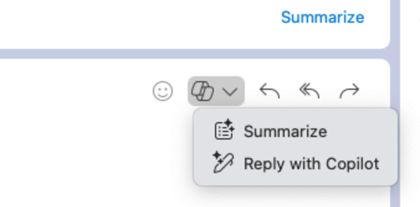
Escolha uma opção de resposta ou crie sua própria.
Para alterar o tom e o comprimento da resposta:
- Selecione Direto para ver uma lista de opções de tom.
- Selecione Curto para alterar o comprimento.
Escolha a seta gerar para criar um rascunho.
Selecione Inserir para adicionar a saída copilot ao email.
Saiba mais
Resumir um thread de email com o Copilot para Microsoft 365 no Outlook