
Crearea de foldere într-o bibliotecă de documente SharePoint este o modalitate de a grupa și a gestiona fișierele. Puteți crea foldere de pe dispozitiv atunci când sincronizați sau din bara de comenzi de pe web.
Crearea unui folder în SharePoint
Accesați site-ul SharePoint și, unde doriți să creați un folder nou, deschideți biblioteca de documente SharePoint.
Pe bara de meniu, selectați + Nou, apoi selectați Folder.
Dacă nu aveți Folder ca opțiune în meniul + Nou , este posibil ca acesta să fie dezactivat. Un proprietar de bibliotecă sau un utilizator cu permisiuni de proiectare poate activa comanda Folder .
Notă
Ecranul dvs. arată diferit de imaginile din acest articol? Administratorul SharePoint poate avea experiența SharePoint clasică setată în biblioteca de documente.
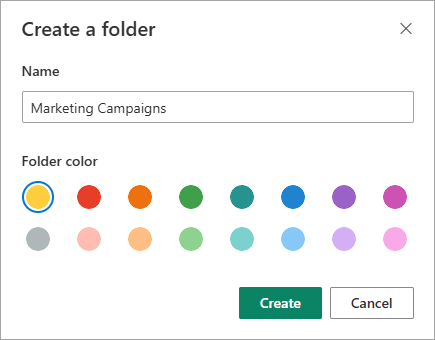
În caseta de dialog Creare folder , introduceți un nume de folder în caseta Nume , apoi selectați Creare.
Notă
Pentru a modifica ulterior numele folderului, selectați tasta ... (puncte de suspensie) de lângă numele folderului, apoi selectați Redenumire. Modificați numele folderului în caseta de dialog Redenumire , apoi selectați Actualizare. Pentru mai multe informații, consultați Redenumirea unui fișier, a unui folder sau a unui link într-o bibliotecă de documente.
Când terminați, ar trebui să vedeți folderul nou în biblioteca de documente și să începeți să adăugați fișiere sau să creați subfoldere în acesta. Pentru a adăuga un fișier nou, consultați Crearea unui fișier nou într-o bibliotecă de documente. Pentru a încărca fișiere existente, consultați Încărcarea, vizualizarea și eliminarea fișierelor sau documentelor de proiect.

Dacă nu vedeți folderul nou în bibliotecă, reîmprospătați browserul.
În unele cazuri, puteți să luați în considerare utilizarea vizualizărilor în locul folderelor. Puteți să filtrați, să grupați și să sortați fișierele în vizualizări. Dacă aveți o bibliotecă mare, o combinație de vizualizări și foldere poate funcționa cel mai bine.
Activarea folderelor în SharePoint sau SharePoint Server 2019
Folderele sunt activate implicit, dar, dacă sunt dezactivate și aveți permisiuni, urmați acești pași:
- Deschideți biblioteca unde doriți să începeți să adăugați foldere.
- Selectați Setări
 , apoi selectați Setări bibliotecă.

- Selectați Setări complexe.
- În secțiunea Folder, pentru Faceți comanda "Folder nou" disponibilă,asigurați-vă că este selectată opțiunea Da .
- Selectați OK și navigați înapoi la bibliotecă.
Notă
Proiectanții pot modifica în mod semnificativ un site din punct de vedere al aspectului și al navigării. Dacă nu reușiți să găsiți o opțiune, cum ar fi o comandă, un buton sau un link, contactați administratorul.
Creați un folder într-o bibliotecă de experiență SharePoint clasică
Accesați site-ul SharePoint care conține biblioteca SharePoint în care doriți să adăugați folderul.
Selectați titlul bibliotecii pe bara Lansare rapidă pentru a o deschide sau selectați
 și selectați Conținut site, apoi selectați titlul bibliotecii la care doriți să adăugați foldere.
Notă
Proiectanții pot modifica în mod semnificativ un site din punct de vedere al aspectului și al navigării. Dacă nu reușiți să găsiți o opțiune, cum ar fi o comandă, un buton sau un link, contactați administratorul.
Pe panglică, selectați Files, apoi, în grupul Nou, selectați Folder nou.

Notă
În cazul în care comanda Folder nou nu este disponibilă, o puteți reactiva cu permisiunile corespunzătoare. Pe fila Bibliotecă din panglică, selectați Setări bibliotecă, apoi selectați Setări complexe. În secțiunea Folder, pentru Puneți la dispoziție comanda "Folder nou", asigurați-vă că este selectată opțiunea Da .
Notă
Pentru a modifica ulterior numele folderului , selectați ... (puncte de suspensie) în caseta de dialog, apoi selectați Redenumire. Modificați numele folderului în caseta Nume , apoi selectați Salvare.
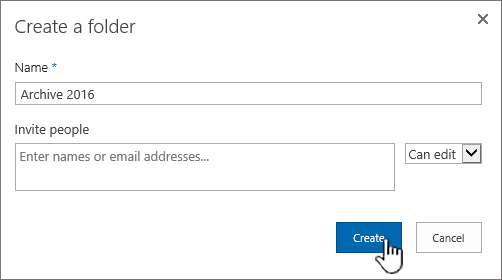
În caseta de dialog Creați un folder , introduceți un nume de folder în câmpul Nume , apoi selectați Creare.
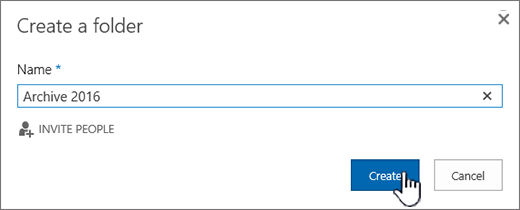
Opțional, puteți invita persoane să partajeze folderul.

Pentru mai multe informații, consultați Partajarea fișierelor sau folderelor SharePoint.
În funcție de situația dvs., este util să luați în considerare utilizarea vizualizărilor în locul folderelor, deoarece acestea permit filtrarea, gruparea și sortarea conținutului în mai multe moduri. Dacă aveți o bibliotecă mare, o combinație de vizualizări și foldere poate funcționa cel mai bine. Pentru mai multe informații despre vizualizări, consultați Video: Crearea și editarea vizualizărilor publice ale unei liste sau biblioteci.

Alte subiecte despre foldere și fișiere
Mutarea sau copierea fișierelor în SharePoint
Ștergerea unui fișier, a unui folder sau a unui link dintr-o bibliotecă de documente SharePoint
Crearea unui folder într-o listă
Ștergerea unui folder dintr-o listă
Lăsați-ne un comentariu
A fost util acest articol? Îi lipsește conținutul? Dacă da, vă rugăm să ne spuneți ce este confuz sau ce lipsește în partea de jos a acestei pagini. Includeți versiunea de SharePoint, sistemul de operare și browserul. Vom utiliza feedbackul dvs. pentru a verifica datele, a adăuga informații și a actualiza acest articol.