
Da biste omogućili potvrdu identiteta/verifikaciju u 2 koraka:
- Idite na Outlook.com veb sajt i prijavite se.
- Kliknite na ikonu zupčanika.
- Idite na Opcije > Detalji o nalogu (vrh liste). Možete biti upitani da se prijavite.
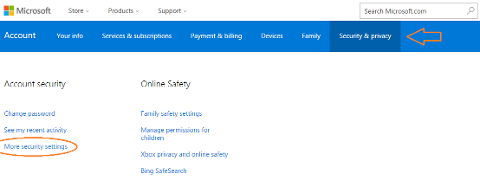
- Kada se stranica account.live.com otvori, izaberite Bezbednost & Privatnost, idite na Više bezbednosnih postavki, pomerite se nadole i izaberite stavku "Podesi verifikaciju u dva koraka".
- Imaćete opciju da potvrdite identitet putem e-pošte, telefona ili aplikacije Microsoft naloga. Pošto dovršite ovaj korak, moraćete da koristite lozinku specifičnu za aplikaciju da biste se prijavili putem aplikacije Outlook.
- U okviru Bezbednost & Privatnost > – dodatne bezbednosne postavke, pomerite se nadole i izaberite stavku "Kreiraj novu lozinku za aplikaciju". Za prijavljivanje koristite novogenerisanu lozinku.
Pogledajte dolenavedenu sliku koja prikazuje gde da odete u odeljku Bezbednost & privatnost.
Pronađite više informacija o potvrdi identiteta u dva koraka sa drugim nalozima: