为正在使用的 Outlook 版本选择以下选项卡选项。
我的 Outlook 是哪个版本?
注意
如果“ 新建 Outlook ”选项卡下的步骤不起作用,则可能尚未使用新的 Outlook for Windows。 选择 “经典 Outlook ”,然后改为执行这些步骤。
本文内容:
更改视图 | 更改周开始日期 | 设置工作时间和位置| 查看两个时区
注意
Calendar 速览,列表视图和计划视图目前在新 Outlook 中不可用。
在新 Outlook 中更改为“日”、“工作周”、“周”或“月”视图
- 在导航栏上,选择
 Calendar。
- 在“ 开始 ”选项卡上,选择所需的视图。

在新 Outlook 中选择不同的开始日以开始一周
- 选择Calendar。
- 在“视图”选项卡中,选择“Calendar设置”。
- 在“Calendar外观”下,选择“将一周的第一天显示为:”下的下拉列表,然后选择“星期一”。
- 选择“保存”。
在新 Outlook 中更改工作时间和位置
注意
此功能只能用于具有符合条件的Microsoft 365 订阅的工作或学校帐户。
选择Calendar。
在“视图”选项卡中,选择Calendar设置>“工作时间和位置”。
在 “工作时间和位置 ”下,选择工作周的天数。
单击“保存”。
在新 Outlook 中查看Calendar视图中的两个时区
- 选择Calendar。
- 在“视图”选项卡中,选择“Calendar设置”。
- 选择 “添加时区”。
- 在“ 其他时区 ”列表中,选择要添加的时区。
- 在“ 标签 ”框中键入位置或时区。
- 选择“保存”。
要查看其他内容?
使即将推出的日历项目在经典 Outlook 中保持可见
通过打开邮件一侧的Calendar查看,使即将到来的约会和会议保持查看状态。
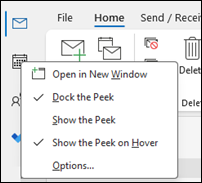
在“邮件”或“Calendar”中,右键单击导航栏上的“Calendar”,然后选择“停靠速览”。
注意
若要停靠邮件和Calendar的速览,需要分别选择每个选项。
详细了解如何 始终查看日历、约会和会议。
更改为具有星期一开始日期的“月”视图,并在经典 Outlook 中显示美国假日
按月查看Calendar,了解你正在执行的操作。 查看日历的一种常见方法是将工作周设置为从美国假日开始的星期一开始。
- 选择“日历”。
- 选择“ 家庭>安排>月份”。
- 选择“文件”选项卡。
- 选择“选项”,然后Calendar。
- 在 “工作时间”下,对于 “一周的第一天”,选择“ 星期一”。
- 在“Calendar选项”下,对于“向Calendar添加假日”,选择“添加假日”。
- 选择“美国”,然后选择“确定”。
详细了解如何将 假日添加到日历。
在经典 Outlook 中将“工作周”视图更改为具有 12 小时 (非传统工作周) Sunday-Tuesday
如果按非传统工作时间安排工作,则可以将 “工作周” 视图设置为仅显示这些工作时间。 例如,如果你是一名护士,你可能只想查看你的周日到星期二,医院的 12 小时轮班。
- 选择“日历”。
- 选择“ 家庭>安排>工作周”。
- 选择“文件”选项卡。
- 选择“选项”,然后Calendar。
- 在 “工作时间”下,对于“ 开始时间”,选择“ 上午 6:00”。
- 在“ 工作时间”下,对于“ 结束时间”,选择“ 下午 6:00”。
- 对于“工作周”,请选择“周日”、“星期一”和“星期二”,并清除任何其他选定的检查框。
- 对于 “一周的第一天”,选择“ 星期日”。
- 选择“确定”。
提示
若要在“工作周”视图中查看长时间轮班期间的所有工时,请使用Calendar下角的“缩放”将其缩小。
在经典 Outlook 的“周”视图中查看两个时区
与位于不同时区的合作伙伴合作时,在 “周 ”视图中查看这两个时区会很有帮助。 例如,从东部时区安排会议时,可以在布里斯班时区) 查看澳大利亚同事的日程安排 (,这样就不会在非工作时间预订。
- 选择“日历”。
- 选择“ 家庭>安排>周”。
- 选择“文件”选项卡。
- 选择“选项”,然后Calendar。
- 在“时区”下,在“标签”框中键入“东部时区”。
- 在 “时区 ”列表中,选择 (UTC-05:00) 美国东部时间 (加拿大 &) 。
- 选择 “显示第二个时区”。
-
在“标签”框中键入布里斯班。
- 在 “时区 ”列表中,选择 “ (UTC+ 10:00) 布里斯班”。
- 选择“确定”。
详细了解 时区规范化的工作原理。
要查看其他内容?
如果你发现自己筛选日历项目或修改字段,则可以在经典 Outlook 中轻松创建自定义视图,以便始终提供所需的信息。
- 选择“视图”。
- 在“ 当前视图 ”组中,选择“ 更改视图”,然后选择 “管理视图”。
- 选择“新建”。
- 在“新视图的名称”框中,键入视图的名称。
- 在“ 视图类型 ”框中,选择视图类型。
- 若要更改视图的可用位置,请在“ 可以使用”下选择一个选项,然后选择“ 确定”。
- 在 “高级视图设置:新建视图 ”对话框中,选择要使用的选项。
- 选择完选项后,选择“ 确定”。
- 若要立即使用该视图,请选择“ 应用视图”。
相关文章
同时查看多个日历