There are three areas in Microsoft Office where you may want to change the language.
- Editing or Authoring is the language in which you write and edit your content. You may need to install an associated keyboard for this language via Windows settings.
- Proofing tools are spelling and grammar check. Typically, you'll set this language to be the same as the editing or authoring language.
- Display language is for all the buttons, menus, and controls in Office.
You can set the display and editing or authoring languages independently from each other. For example, you may want the display language to be English, but the document you're writing or editing is in French.
Note
If you want to completely change Office, permanently, to a different language you'll get the best results if you first set that to be your default display language in Windows as well. For more info, see Manage the language and keyboard/input layout settings in Windows.
Configure Office language
Tip
To prevent having to manually configure the proofing language with each new document in Word, switch on the option to detect the language you're writing. On the Review tab, go to Language. Select Language, choose Set Proofing Language, and then pick Detect language automatically.
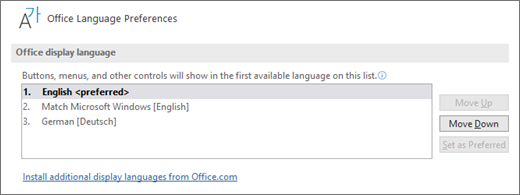
In Office, the language options are in the Office Language Preferences dialog box. The display and authoring languages can be set independently. For example, you could have everything match the language of your operating system, or you could use a combination of languages for your operating system, authoring, and display.
To configure the display language:
On the File tab, select Options and choose Language.
Under Office display Language, make sure the display language you want Office to use is listed.
Select the language you want, and then select Set as Preferred. If you want your Office display language to match the display language you have for Windows, select Match Microsoft Windows [Language].
If the language you want is not listed, select Add a Language and follow the instructions there.
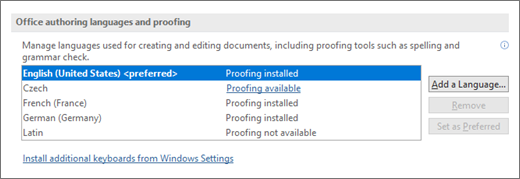
To configure the authoring and proofing language:
Within any Office application, On the File, select Options and choose Language.
Under Office authoring languages and proofing, make sure the language you want to use for authoring your document is listed.
If the language you want appears in the list, select it, and then select Set as Preferred. If the language you want is not listed, select Add a language, and then follow the instructions in the Add an authoring language dialog box.
If the language accessory pack includes proofing tools for that language, its status appears as Proofing installed. If the status is Proofing available, click the link to install the proofing tools.
If the language you want isn't available...
Download the proper Language Accessory Pack for the language you want to use from this page: Language Accessory Pack for Office. The Language Accessory Pack contains the display and proofing tools for most languages, but you can still choose to have your display in one language and editing or authoring in another.
See Also
Set up or change the languages used to check spelling and grammar
What languages are supported in Office?
Translate text into a different language