If you have a simple diagram and you’re not sure about the best way to arrange it, you can try out some different layouts in just a few clicks.
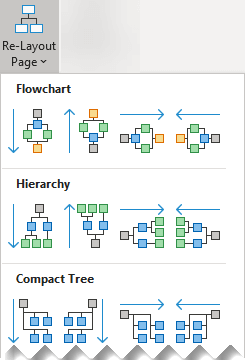
The Design tab of the Ribbon has a gallery of layout options to choose from:
Flowchart, Hierarchy, Compact Tree, Radial, and Circular
Create the diagram for editing.
Optionally, select the portion of the diagram that you want to change. Otherwise, the entire diagram will be affected by the layout option you choose.
Select Design > Layout > Re-Layout Page.
Point the mouse at a layout option in the gallery to see a live preview of how the layout will look.
When you find a satisfactory layout, click to select it.
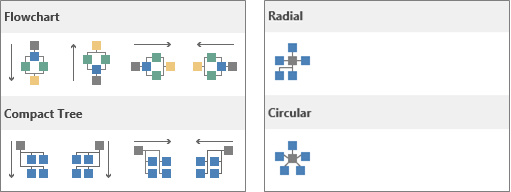
The Design tab of the Ribbon has a gallery of layout options to choose from:
Flowchart, Compact Tree, Radial, and Circular
Create the diagram for editing.
Optionally, select a portion of the diagram that you want to change. Otherwise, the entire diagram will be affected by the layout option you choose.
Select Design > Layout
.
Select a pattern from the gallery.
If you don’t like the results, press Ctrl+Z to undo the arrangement, and then repeat steps 3 and 4 to try a different layout.
See Also
Align and distribute shapes in Visio for the web
View, create, and edit a diagram in Visio for the web
Select, copy, and move shapes in Visio for the web
Visio for the web help