如果您需要變更圖表中的資料,您可以從其來源這麼做。
試試看!
你所做的改變會立即顯示在圖表中。 右鍵點擊你想更改的項目並輸入資料——或輸入新的標題——然後按 Enter 鍵在圖表中顯示。
要在圖表中隱藏分類,請右鍵點擊圖表並選擇 「選擇資料」。 取消選取清單中的項目,然後選擇 確定。
要在圖表中顯示隱藏項目,請右鍵點擊「 選擇資料 」,然後在列表中重新選取,然後選擇 確定。
試試看!
你可以在 Word、macOS 的 PowerPoint 和 Excel 中更新原始 Excel 試算表中的圖表資料。
可從 Word 或 PowerPoint for macOS 存取原始資料表
在 macOS 的 Word 或 PowerPoint 中顯示的圖表,起源於 Excel。 當你編輯 Excel 試算表的資料時,變更會顯示在 Word 或 macOS 的 PowerPoint 圖表中。
Word
- 選擇檢視>列印版面。
- 選取圖表。
- 選擇圖表 設計>編輯 Excel 中的資料。
Excel 隨即會開啟並顯示圖表的資料表。
macOS 版 PowerPoint
- 選取圖表。
- 選擇圖表 設計>編輯 Excel 中的資料。
Excel 隨即會開啟並顯示圖表的資料表。
編輯圖表資料
在 Excel 表格中選擇原始資料表。
注意
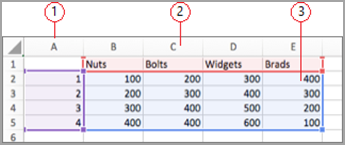
Excel 會醒目提示用於圖表的運算列表。
- 灰色填滿表示用於類別座標軸的列或欄。
- 紅色填滿表示包含資料數列標籤的列或欄。
- 藍色填滿表示在圖表中繪製的資料點。
 資料欄位
資料欄位
做出改變。
改變圖表中的列數和欄數——將指標放在選取資料右下角,然後拖曳選取以增加或減少所需資料。
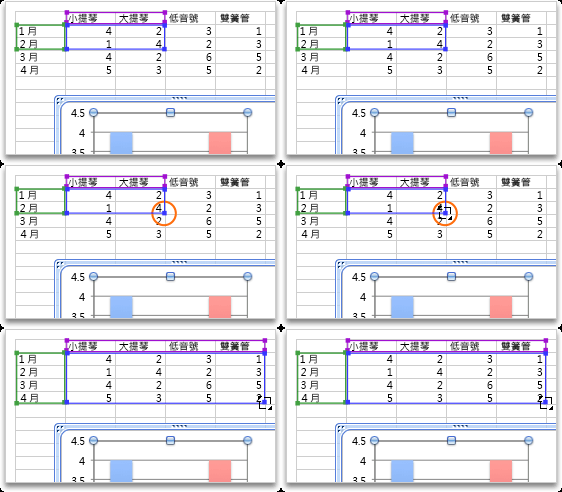
新增或編輯儲存格——選擇儲存格並進行更改。
變更要強調的圖表座標軸
你可以改變表格列和欄在圖表中繪製的方式。 圖表將表格中資料列繪製在圖表垂直 (值) 軸上,以及橫向 (類別) 軸上顯示資料列。 你可以反過來調整圖表的繪製方式。
範例:
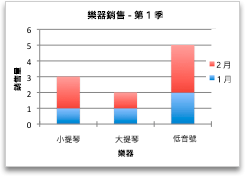
強調按儀器銷售
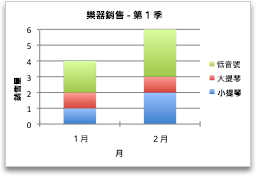
強調按月銷售
- 選取圖表。
- 選擇 圖表設計>,切換行/欄。
變更資料數列的順序
你可以在包含多個資料序列的圖表中更改資料序列的順序。
在圖表中選擇一個資料系列。 舉例來說,在直條圖中,按一下某個資料欄,便會選取該資料數列的所有資料欄。
選擇 圖表設計>選擇資料。
在 [選取資料來源] 對話方塊中的 [圖例項目 (數列)] 旁邊,使用向上鍵和向下鍵以在清單中上下移動數列。
視圖表類型而定,某些選項可能無法使用。
注意
針對大部分的圖表類型,變更會影響圖例和圖表本身的資料數列順序。
選取 [確定]。
變更資料數列的填滿色彩
- 在圖表中選擇一個資料系列。 舉例來說,在直條圖中,按一下某個資料欄,便會選取該資料數列的所有資料欄。
- 選取 [格式]。
- 在 圖表元素樣式中,選擇形狀 填充
 並選擇顏色。
新增資料標籤
您可以新增標籤,以在圖表中顯示來自 Excel 工作表的資料點值。
- 選擇圖表,然後選擇 圖表設計。
- 選擇 新增圖表元素>資料標籤。
- 例如,選擇資料標籤的位置 (選擇 外部端) 。
視圖表類型而定,某些選項可能無法使用。
新增資料表
- 選擇圖表,然後點擊分頁。
- 選擇 圖表設計>新增圖表元素>資料表。
- 選擇選項。
根據圖表的類型而定,部分選項可能無法使用。
另請參閱
建立圖表的完整流程
取得 Microsoft 圖表範本
