如果您有一個簡單的圖表,但不確定它的最佳排列方式,只需點擊幾下即可嘗試一些不同的佈局。
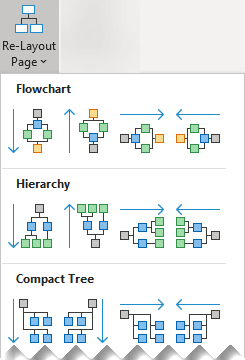
功能區的 [ 設計 ] 索引標籤有版面配置選項圖庫供您選擇:
流程圖、階層圖、精簡樹狀結構、放射狀圖和圓形圖
建立要編輯的圖表。
您可以選擇要變更的圖表部分。 否則,整個圖表會受到您選擇的版面配置選項影響。
選取 [設計>版面配置>] 重新版面配置頁面。
以滑鼠指向圖庫中的版面配置選項,以查看版面配置外觀的即時預覽。
當您找到滿意的版面配置時,請按一下以將其選取。
流程圖、 精簡樹狀結構、 放射狀和 圓形
您可以選擇選取您要變更的圖表部分。 否則,整個圖表會受到您選擇的版面配置選項影響。
選取 [設計>版面配置
從圖庫中選取圖樣。
如果您不喜歡結果,請按 Ctrl+Z 復原排列,然後重複步驟 3 和 4 以嘗試不同的配置。
在 Visio 網頁版中對齊和分散圖形
在 Visio 網頁版中檢視、建立及編輯圖表
在 Visio 網頁版中選取、複製及移動圖形
Visio 網頁版說明

![] [版面配置] 按鈕。](media/vo-layout-icon.png)
