
Get more out of your email with Outlook.com. We've streamlined search to make it easier than ever to find what you're looking for. New features like Files and attachment previews let you see your pictures and files without leaving your inbox. And now you can add emojis and GIFs to your messages.
Note: This site provides help for people using Outlook.com on a desktop computer or large tablet, mobile browser users click here.
Outlook.com support categories
Email | Calendar | People & Contacts | Files & attachments | To Do | Premium | Account | Troubleshoot
Trending topics in Outlook.com
To change your Mail settings so your inbox looks and behaves the way you want it to, see Personalize your new Mail experience in Outlook.com. Also check out the Outlook.com Community forum.
-
Select

-
Select Mail > Layout and under the Focused Inbox section, select Don't sort my messages.
-
Select
-
Select Mail > Layout and under the Reading pane section, choose Show on the right, Show on the bottom, or Hide.
-
Select
-
Select Mail > Layout and under the Message organization section, choose whether you want the newest messages to appear at the bottom or top of the thread. If you don't want your messages to be organized by conversation, select Show email as individual messages.
-
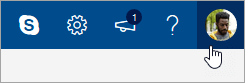
At the top of the page, select your name or account picture.
-
Select View account > Change password.
-
In the message list, select the message you want to attach.
-
Drag the message into the message compose pane.
-
Position the mouse below the subject line and release it. The message should be attached.
In the new Outlook.com, the default mode for viewing messages is conversation view. In this view, an email thread can include many items. If any item has an attachment associated with it, a paper clip icon appears next to that item in the message list.
To find the item with the attachment, scan the list of items in the thread. Look for the item with the paper clip next to it.
Currently, you can't directly create a meeting in the new Outlook.com. However, you can create a calendar event to which you can invite people.
-
At the bottom of the page, select

-
At the top of the page, select New event.
-
In the text box, enter a brief description of the event, including a title, date and time.
-
If you want to invite people to the event, select

-
Select Save if this is an appointment you created for yourself or Send if this is a meeting with attendees.
Outlook.com help and troubleshooting
Popular troubleshooting topics
Unblock my Outlook.com account
Fix Outlook.com email sync issues, including sign-in problems
Troubleshoot Outlook.com email issues that trigger a "delivery failed" error
Troubleshoot known issues with shared calendars in Outlook
Reconnect my Outlook 2016 or Outlook 2013 account to Outlook.com
Fix or work around transient known issues in Outlook.com
Windows Live Mail 2012 no longer connects to Outlook.com
Outlook.com no longer supports AUTH PLAIN authentication
You can also try the Microsoft Virtual Agent.
Explore Outlook.com features
Learn how to get more out of your connection with Outlook.com. We've streamlined search to make it easier than ever to find what you're looking for. The new Outlook Attachment Preview feature lets you see your pictures and files without leaving your inbox. And you can now add emojis and GIFs to your messages. Or how about customizing the look and feel of your mailbox? To effortlessly change your settings so that your inbox looks the way you want it to, see Personalize your new Mail experience in Outlook.com.
We'll take a deep dive into what's new in Outlook.com later in this article, but first let's clear up some of the confusion surrounding this service. Here's a quick summary of what you need to know:
-
Outlook.com is the current name for Microsoft's email service, which was formerly known as Hotmail (and later, as Windows Live Hotmail).
-
Outlook Mail is the web app that lets you browse your Outlook.com email account. It's part of the Outlook on the web suite of web apps. Outlook Mail is the front end while Outlook.com is the back end.
-
When Hotmail was rebranded as Outlook.com, existing Hotmail users were allowed to keep their @hotmail.com email addresses but new users could no longer create email accounts with that domain. Instead, new users could only create @outlook.com addresses, even though both domains used the same email service.
-
Outlook (or Office Outlook) is the Microsoft desktop email client. It can be used with Outlook.com email addresses or with any other email addresses.
Everything else—including Outlook Express, MSN Mail, and Windows Live Mail—is no longer relevant unless you're using outdated versions of Windows.
However, be aware of the Windows Mail app, one-half of an email-and-calendar offering that's bundled with a fresh install of Windows 10 (the other half being Calendar). This is a lightweight app designed to handle multiple accounts and fairly moderate email use. This is also the recommended replacement for Windows Live Mail 2012. For more info, see Mail and Calendar for Windows 10 FAQ.
When you sign in to Outlook.com, you’ll go straight to your Inbox.

|
Description |
Actions |
|
Message |
Create a new message by selecting New message. |
|
Folders list |
The list includes the folders in your mailbox. It may include other folders, such as Favorites, Drafts, Sent Items, and Archive. Select Expand Right-click an existing folder and select Create new subfolder. See Working with message folders in Outlook.com to learn more about available folders. |
|
Search box |
In the Search box, type the name or email address of a person or a keyword you want to search for, and press Enter or select
|
|
Message list |
Messages in the current folder are listed. There might also be a visual alert that a message is unread, has an attachment, or is flagged. At the top of the message list, you can choose how you want to view the list. Select Filter and choose from All, Unread, To me, Flagged, or Sort by. Each message also has a mini toolbar. For each message, you can delete it, mark it as unread, flag the message, or pin it to keep it at the top of your folder. |
|
Reading pane |
The message or conversation that you selected appears in the reading pane. Use the command bar above the reading pane to perform common actions such as deleting, archiving, sweeping, moving emails, or categorizing.
Select More |





Keep track of appointments, meetings, or any other event from anywhere. Add, edit, or delete events using daily, weekly, or monthly views. For more information about working with calendars in Outlook.com, go to Using the calendar in Outlook.com.
|
Description |
Actions |
|
New event |
Create a new event by selecting New event. Then, fill in information about the event. |
|
Your calendars |
Under Calendars, My calendar is the default selection and displays the calendar in Month view. You can move forward or backward through calendar months using the arrows above the calendar. You can add other calendars, for example a holiday calendar, by selecting Discover calendars in the left pane. After you add a new calendar, you can choose whether to display it by selecting or clearing the calendar option. If you decide you don't want the calendar you created, right-click the calendar and select Remove > Delete. |
|
Other calendars |
You can view more than one calendar at a time, add other calendars, choose which calendar to display, and create new calendars. |
|
View options |
Choose your calendar view: Day, Work week, Week, or Month. To return to today's date, select Today on the left side of the command bar above the calendar. |
|
Calendar pane |
When you select a specific day in the calendar, any appointment or event scheduled for that day is listed in this area. You also can select a day or time slot and create a new appointment or event. |
Use the People page to find, view, create, and edit contacts and contact lists. To learn more about managing contacts in Outlook.com, go to Create, view, and edit contacts and contact lists in Outlook.com.
|
Description |
Actions |
|
Search box |
Start typing in the search box to find a contact or contact list. |
|
Toolbar |
Add a contact to your Favorites by selecting a contact in the list, and then selecting Add to favorites. When you add someone as a favorite in People, they'll also show up under Favorites in Mail, and the other way around, provided that the contact has an email address. To import contacts from other email services, export contacts, or clean up duplicate contacts, select an option from the Manage menu. |
|
My contacts in the left pane |
Favorites: Shows contacts you've added as favorites, either in People or in Mail. All contacts: Shows your contacts from all folders. All contact lists: Shows your contact lists from all folders. Suggested: Suggested contacts, based on messages you've sent or received from addresses not in your contacts. Contacts under Folders: This is the default folder for contacts and contact lists. Select New folder to create more folders. 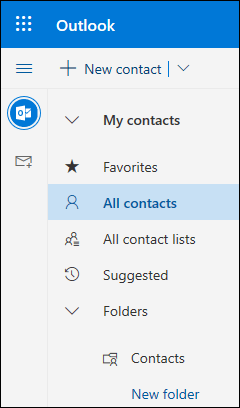 |
|
Contacts or Contacts lists |
Shows contacts or contact lists depending on what you selected in the left pane. Select a contact or contact list to view details in the contact card on the right. You can also select multiple contacts—for example, to send an email to the selected contacts. For contacts, you can select Filter in the upper right to select what to display in the list and how to sort. |
|
Contact card |
See or edit information about the contact or contact list. Contact someone directly by selecting Start chat or Send email. |

Use Tasks to create, manage, and track things you want to get done. You can learn more about the new and classic tasks in Outlook.com by going to Use Tasks in Outlook.com.
|
Description |
Actions |
|
Task lists |
Tasks includes four default lists, plus any other task lists that you create. |
|
Task list contents |
See and manage the tasks in the selected list from this window. Ths is also where you can create new tasks. Right-click a task for a list of options, or select a task to see and manage its details. |
|
Task details pane |
After you've selected a task, you can use the details pane to do things like add more information, add steps, or mark as important. |
Still need help?
You can also get support from other Outlook.com users in our Community forum, or get help by selecting Contact Support below:
|
|
To get support in Outlook.com, click here or select Help on the menu bar and enter your query. If the self-help doesn't solve your problem, scroll down to Still need help? and select Yes. To contact us in Outlook.com, you'll need to sign in. If you can't sign in, click here. |
|
|
|
For other help with your Microsoft account and subscriptions, visit Account & Billing Help. |
|
|
|
To get help and troubleshoot other Microsoft products and services, enter your problem here. |
|
|
|
Post questions, follow discussions and share your knowledge in the Outlook.com Community. |

For additional support, see How to get support for Outlook.com.








