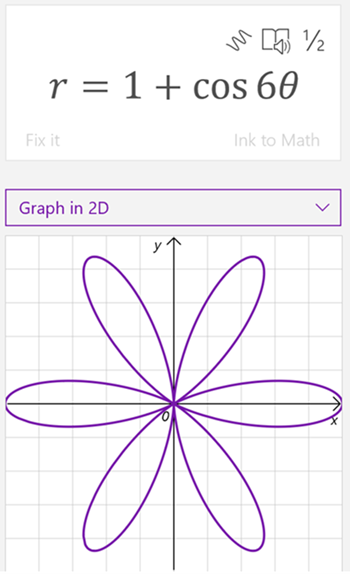
Grafy ručně psaných nebo zadaných rovnic pomocí Pomocníka pro matematiku ve OneNotu Můžete dokonce manipulovat s proměnnými, abyste viděli vizuální efekt změn. Pomocník pro matematický zápis se tak stane výkonným matematickým koučem.
Poznámka
Tato funkce je dostupná jenom ve OneNotu pro web nebo OneNotu pro Windows 10. Musíte mít platné předplatné Microsoft 365. Pokud máte předplatné Microsoft 365, ujistěte se, že máte nejnovější verzi Office.
- Otevřete desktopovou aplikaci OneNote nebo se přihlaste k Office.com a vyberte OneNote.
Tip:
Pokud OneNote hned nevidíte, otevřete  a najděte ho.
- Otevřete stávající poznámkový blok nebo vytvořte nový.
- Vyberte kartu Kreslení a napište nebo zadejte rovnici.
- Pomocí nástroje Laso nakreslete kolem rovnice kruh.
- Výběrem možnosti Matematika otevřete podokno Pomocník pro matematický zápis.
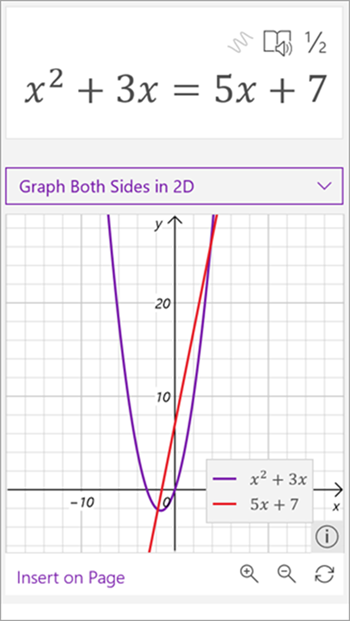
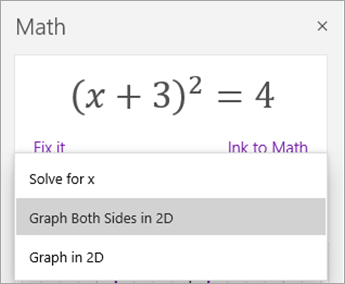
- Z rozevírací nabídky Vybrat akci v podokně Matematika vyberte Graf ve 2D nebo Oboustranný graf ve 2D.
Pokud chcete upravit graf generovaný Pomocníkem pro matematický zápis, proveďte některou z následujících akcí, pokud je k dispozici:
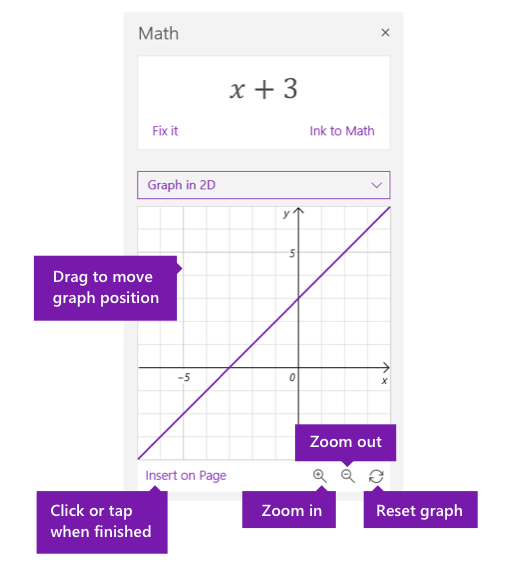
- Graf vyberte (nebo stiskněte a podržte) a přetáhněte v libovolném směru jeho pozici.
- Změňte hodnoty parametrů v rovnici výběrem nebo klepnutím na tlačítka lupy + a – pro přiblížení nebo oddálení.
Poznámka
Pokud používáte OneNote na zařízení s dotykovou obrazovkou, můžete graf upravit prsty. Graf můžete přesunout jedním prstem. Přiblížení stažením prstů změníte úroveň zvětšení. Ve OneNotu pro web můžete pomocí šipek po stranách grafu změnit jeho umístění.
- Výběrem nebo klepnutím na ikonu Resetovat s dvojitou šipkou obnovíte graf do původního stavu.
- Když graf vypadá tak, jak chcete, vyberte nebo klepněte na Vložit na stránce a umístěte ho na aktuální stránku jako snímek obrazovky.
Poznámka
Pokud chcete změnit způsob vyjádření grafu (stupeň, radián, gradián), vyberte nebo klepněte na Nastavení v otevřeném podokně Matematika.
Pokročilé funkce pro práci s grafy
V závislosti na typu grafu můžou být tyto funkce dostupné:
-
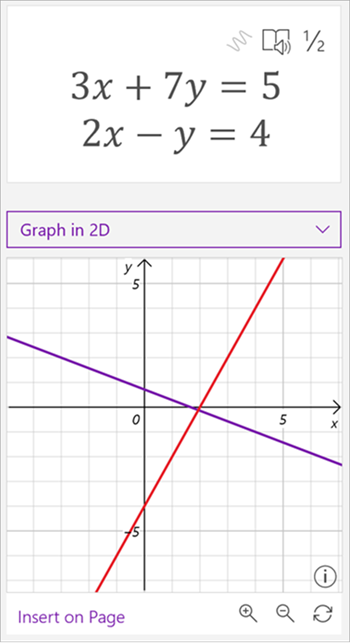
Čtení hodnot x-y: Když najedete myší na bod na čáře grafu, zobrazí se ve OneNotu pro Windows 10 hodnoty x a y. Čára ve OneNote pro web pro zobrazení hodnot

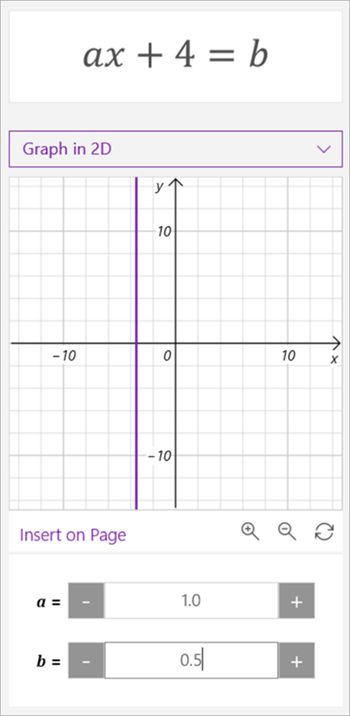
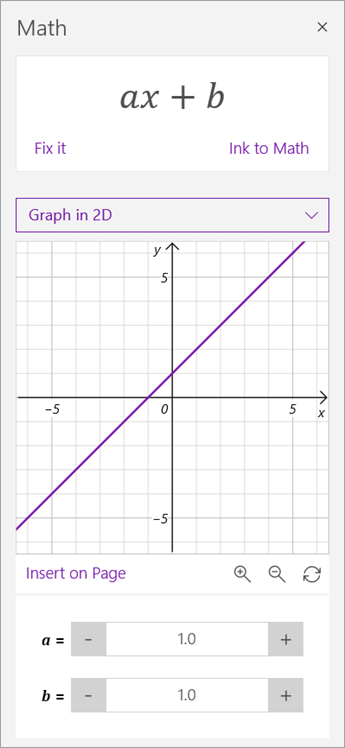
- Manipulace s parametry: Pokud máte rovnici s parametry, jako je ax+b, pomocí znaménka + a - pod grafem změňte hodnoty a a b.
-
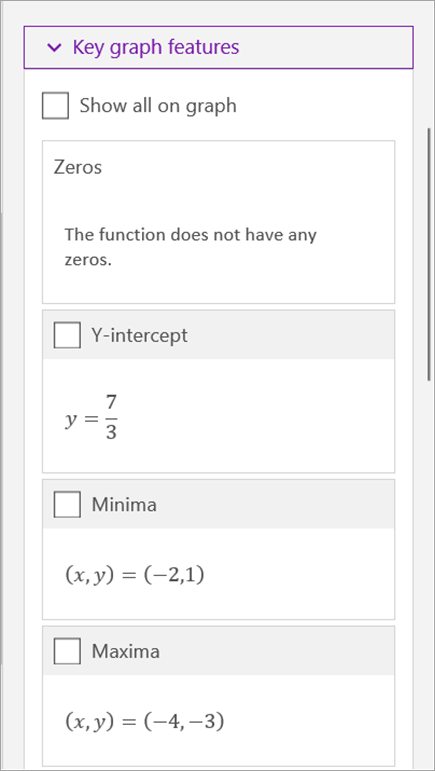
Klíčové funkce grafu: Pomocník pro matematický zápis vypočítává zajímavé informace o grafu, jako jsou nuly, průsečíky, minima, maxima a další. Pomocí zaškrtávacích políček vyberte funkce, které chcete v grafu zobrazit.
Další informace
Vytváření matematických rovnic pomocí rukopisu nebo textu pomocí Pomocníka pro matematiku ve OneNotu
Řešení matematických rovnic s Pomocníkem pro matematický zápis ve OneNotu