Om Office: Hvilken version af Office bruger jeg?

Gælder for
Excel til Microsoft 365 Word til Microsoft 365 Outlook til Microsoft 365 PowerPoint til Microsoft 365 Access til Microsoft 365 OneNote til Microsoft 365 Publisher til Microsoft 365 Excel til Microsoft 365 til Mac Word til Microsoft 365 til Mac Outlook til Microsoft 365 til Mac PowerPoint til Microsoft 365 til Mac OneNote til Microsoft 365 til Mac Excel 2024 Word 2024 Outlook 2024 PowerPoint 2024 Access 2024 OneNote 2024 Project Professional 2024 Project Standard 2024 Visio Professional 2024 Visio Standard 2024 Office 2024 Word 2024 til Mac Outlook 2024 til Mac PowerPoint 2024 til Mac OneNote 2024 til Mac Office 2024 til Mac Excel 2021 Word 2021 Outlook 2021 PowerPoint 2021 Access 2021 Project Professional 2021 Project Standard 2021 Publisher 2021 Visio Professional 2021 Visio Standard 2021 Office 2021 OneNote 2021 Word 2021 til Mac Outlook 2021 til Mac PowerPoint 2021 til Mac OneNote 2021 til Mac Office 2021 til Mac Excel 2019 Word 2019 Outlook 2019 PowerPoint 2019 Access 2019 Project Professional 2019 Project Standard 2019 Publisher 2019 Visio Professional 2019 Visio Standard 2019 Office 2019 Excel 2019 til Mac Word 2019 til Mac Excel 2016 Word 2016 PowerPoint 2016 Access 2016 OneNote 2016 Project Professional 2016 Project Standard 2016 Publisher 2016 Visio Professional 2016 Visio Standard 2016 Office 2016 OneNote til Mac Microsoft 365 til hjemmet Office 365 Small Business Office 365 drevet af 21Vianet – Small Business-administrator InfoPath 2013
  1. Åbn et hvilket som helst Office-program, såsom Word eller Excel, og vælg Konto.

    Bemærk

    Hvis du ikke kan se Konto eller hvis du allerede har en fil eller et dokument åbent, vælg Filer fra menuen, og vælg derefter enten Konto eller Hjælp fra listen til venstre.

  2. Under Produktoplysninger, får du vist dit Office-produkt, navn og, i nogle tilfælde, det fulde versionsnummer.

    Kontoside, der indeholder bruger- og produktinformation

    • 1 – Produktnavn, f.eks. Microsoft 365 ProPlus eller Office Home and Student.
    • 2 - Versionnummer, som indeholder version, byggenummer og typen af installation såsom Klik og kør eller Windows Store.
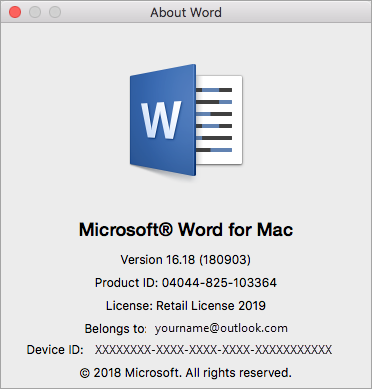
  3. For flere oplysninger, såsom bitversionen, vælg Om Excel. Der åbnes en dialogboks, der viser det fulde versionsnummer og bitversionen (32-bit or 64-bit).

Se også
Er du stadig ikke sikker?

Hvis trinnene ovenfor ikke virkede for dig, bruger du sandsynligvis en ældre version af Office. Se Finde oplysninger om andre versioner af Office for at finde ud af, hvilken version du har.