
This article explains how to create and run a make table query in Access. Use a make table query when you need to copy table data, archive data, or save query results as a table.
If you need to change or update part of the data in an existing set of records, such as one or more fields, you can use an update query. For more information about update queries, see Create and run an update query.
If you need to add records (rows) to an existing table, you use an append query. For more information about append queries, see Add records to a table by using an append query.
What do you want to do?
- Understand make table queries
- Create a make table query
- Learn more about query criteria and expressions
- Stop Disabled mode from blocking a query
Understand make table queries
A make table query retrieves data from one or more tables and loads the result set into a new table. That table can be in the current database, or you can create it in another database.
You typically create make table queries when you need to copy or archive data. For example, you might have one or more tables of past sales data that you use in reports. Those sales figures can't change because the transactions are at least one day old. Running a query every time you need the data can take time, especially if you run a complex query against a large data store. Loading the data into a separate table can reduce the workload and give you a convenient data archive. Remember that the data in the new table is only a snapshot. It has no relationship to the source table or tables.
The process of creating a make table query follows these broad steps:
- Enable the database if it isn't signed or if it doesn't reside in a trusted location. Otherwise, you can't run action queries such as append, update, and make table queries.
- In query Design view, create a select query and then modify that query until it returns the records that you want. You can select data from more than one table and, in a real sense, de-normalize your data. For example, you can place customer, shipper, and supplier data in a single table, something you wouldn't do in a production database with properly normalized tables. You can also use criteria in the query to further customize or narrow your result set. For more information about normalizing your data, see Database design basics.
- Convert the select query to a make table query, choose a location for the new table, and then run the query to create the table.
Do not confuse a make table query with an update or append query. You use an update query when you need to add or change data in individual fields. You use an append query when you need to add records (rows) to an existing set of records in an existing table.
Create a make table query
You create a make table query by first creating a select query and then converting it to a make table query. Your select query can use calculated fields and expressions to help return the data that you need. The following steps explain how to create and convert the query. If you already have a select query that fits your needs, you can skip ahead to the steps for converting the select query and running the make table query.
Create the select query
Note
If you already have a select query that produces the data that you need, go to the next steps.
- On the Create tab, in the Queries group, click Query Design.
- Double-click the tables from which you want to retrieve data. Each table appears as a window in the upper section of the query designer. Click Close when you finish adding the tables.
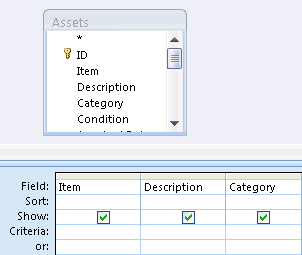
- In each table, double-click the field or fields that you want to use in your query. Each field appears in a blank cell in the Field row of the design grid. This figure shows the design grid with several table fields added.
- Optionally, add any expressions to the Field row.
- Optionally, add any criteria to the Criteria row of the design grid.
- Click Run to run the query and display the results in a datasheet.

- Optionally, change your fields, expressions, or criteria and rerun the query until it returns the data that you want to place in your new table.
Convert the select query
Open your select query in Design view, or switch to Design view. Access provides several ways to do this:
- If you have the query open in a datasheet, right-click the document tab for your query and click Design View.
- If the query is closed, in the Navigation Pane, right-click the query and click Design View on the shortcut menu.
On the Query Design tab, in the Query Type group, click Make Table. The Make Table dialog box appears.
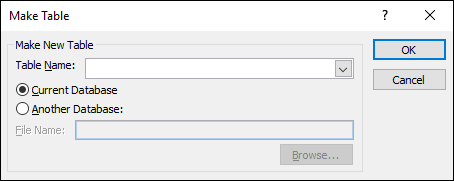
In the Table Name box, enter a name for the new table. -or- Click the down-arrow and select an existing table name.
Do one of the following:
Place the new table in the current database
If it isn't already selected, click Current Database, and then click OK.
Click Run, and then click Yes to confirm the operation.
Note
If you are replacing an existing table, Access first deletes that table and asks you to confirm the deletion. Click Yes, and then click Yes again to create the new table.
Place the new table in another database
Click Another Database.
In the File Name box, enter the location and file name of the other database. -or- Click Browse, use the new Make Table dialog box to locate the other database, and click OK.
Click OK to close the first Make Table dialog box.
Click Run, and then click Yes to confirm the operation.
Note
If you replace an existing table, Access first deletes that table and asks you to confirm the deletion. Click Yes, and then click Yes again to create the new table.
Learn more about query criteria and expressions
The steps in this article mentioned query criteria and expressions. A query criterion is a rule that identifies the records that you want to include in a query. Use criteria when you don't want to see all the records in a set of data. For example, the criterion >25 AND <50 returns values greater than 25 and less than 50. A criterion such as "Chicago" OR "Paris" OR "Moscow" returns only the records for those cities.
For more information about using criteria, see Examples of query criteria.
An expression is a combination of mathematical or logical operators, constants, functions, and the names of fields, controls, and properties that evaluates to a single value. You use an expression when you need data that doesn't reside directly in a table. For example, the expression [UnitPrice]*[Quantity] multiplies the value in the UnitPrice field by the value in the Quantity field. You can use expressions in many ways, and creating and using them can become quite complex.
For more information about creating and using expressions, see Build an expression.
Stop Disabled mode from blocking a query
By default, if you open a database that isn't saved in a trusted location or you haven't chosen to trust, Access prevents all action queries—append, update, delete, or make table queries—from running.
If you try to run an action query and it seems like nothing happens, check the Access status bar for the following message:
This action or event has been blocked by Disabled Mode.
When you see that message, do the following:
- On the Message Bar, just under the ribbon, click Enable Content.

- Run your query again.