By default, gridlines are displayed in worksheets using the color that is assigned to Automatic. To change the color of gridlines, you can use the following procedure.
Select the worksheets for which you want to change the gridline color.
On the File tab, select Excel and choose Options.
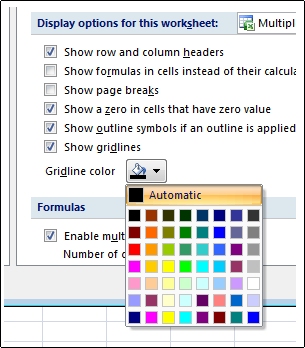
In the Advanced category, under Display options for this worksheet, make sure that the Show gridlines check box is selected.
In the Gridline color box, select the color you want.
Tip
To return gridlines to the default color, select Automatic.
Next steps
After you change the color of gridlines on a worksheet, you might want to take the following next steps:
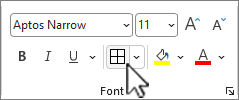
- Make gridlines more visible To make the gridlines stand out on the screen, you can experiment with border and line styles. Use the Border settings that are located in the Font group on the Home tab.
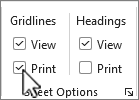
- Print gridlines By default, Excel does not print gridlines on worksheets. If you want gridlines to appear on the printed page, select the worksheet or worksheets that you want to print. On the Page Layout tab, in the Sheet Options group, select the Print check box under Gridlines. To print, press CTRL+P.