

If a workbook contains a Visual Basic for Applications (VBA) macro that you want to use elsewhere, you can copy the module that contains that macro to another open workbook by using the Visual Basic Editor (VBE).
Note
In Excel 2021 and newer, macros are disabled by default for security reasons. You might need to change macro security settings in Excel Change macro security settings in Excel before they can run.
You can find macros and VBA tools on the Developer tab. This tab is hidden by default, so the first step is to enable it.
- For Windows, go to File > Options > Customize Ribbon.
- For Mac, go to Excel > Preferences... > Ribbon & Toolbar.
- Next, in the Customize the Ribbon section, under Main Tabs, check the Developer check box.
Overview of macros and VBA
If you're unfamiliar with macros and VBA, the following information can help you get started.
A macro is an action or set of actions that you can use to automate tasks.
Use the Record Macro command on the Developer tab to record macros.
Macros are recorded in the VBA programming language.
You can inspect and edit your macros in the Visual Basic Editor, a window that Excel opens. Here's an example of the VBE window for Windows:
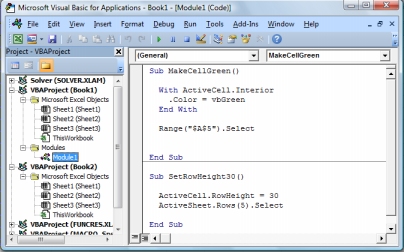
Macros named MakeCellGreen and SetRowHeight are in a module named Module1, which is stored in Book1.
To keep macros when saving your workbook, use a macro-enabled file format such as .xlsm or .xlsb. Standard .xlsx files don't save macros.
Copy a module from one workbook to another
Open both the workbook that contains the macro you want to copy and the destination workbook (with macros enabled).
On the Developer tab, select Visual Basic to open the Visual Basic Editor.
In the Visual Basic Editor, on the View menu, select Project Explorer
 or press Ctrl+R.
In the Project Explorer pane, drag the module containing the macro you want to copy to the destination workbook. In this case, you're copying Module1 from Book2.xlsm to Book1.xlsm.
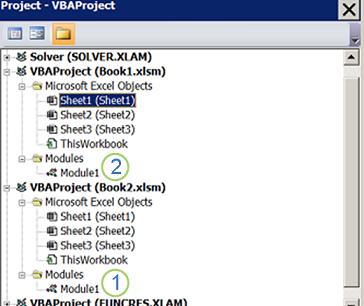
- Module1 copied from Book2.xlsm
- Copy of Module1 copied to Book1.xlsm
Note
- If macros are disabled, the copied module appears in the destination workbook but doesn't run until macros are enabled.
- In managed environments, IT policies might prevent macros or VBA features from running.
- You might encounter permissions, security settings, or blocked macro content that prevent copying modules between workbooks.
Need more help?
You can always ask an expert in the Excel Tech Community or get support in Communities.