

When you try to open a workbook in Microsoft Excel for the web, you might see an error message that tells you the workbook contains features that are not supported by Excel for the web. Unsupported features are content or functionality in a workbook that prevent the workbook from being opened for editing or, in some cases, viewing in the browser. This article provides steps to edit the workbook, depending on the nature of the unsupported features.
For details about feature support in Excel for the web, see Differences between using a workbook in the browser and in Excel.
In this article
- I can view the workbook, but not the unsupported features
- The workbook includes features that prevent it from being opened in Excel for the web
- Remove an XML map
I can view the workbook, but not the unsupported features
Objects such as comments, shapes, or ink can be used in Excel for the web. However, some older (legacy) shapes cannot be displayed in the browser and are not available to view or edit in Excel for the web.
When viewed in Excel for the web, workbooks containing tables linked to an external data source (query table) may display only the data that was most recently saved in the Excel desktop application. In most cases, this data will not be live. For refreshed data, open the workbook in the Excel desktop application.
If you try to edit the workbook, a message notifies you that the workbook can’t be edited in the browser. The message provides brief instructions for creating a copy of the workbook. Unsupported features are removed from the copy, allowing the copy to be edited in the browser.
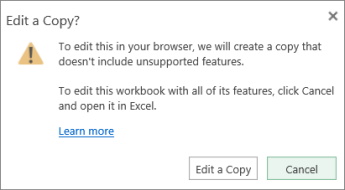
If you don’t mind removing these features so that you can edit in the browser, go ahead and make a copy. If you’d rather not work with a copy of the workbook, you can still use Excel for the web for storing and viewing a central copy of the workbook, and you can use Open in Desktop to edit the workbook in the Excel desktop application.
Follow the steps below.
If you want to be able to edit the workbook in Excel for the web, do the following:
In the message, select Edit a Copy.
Accept the name that Excel for the web suggests, or enter a different name, and then select Save.
Caution
If you enter the original workbook’s name and select Replace existing file, the original workbook is replaced when you select Save.
Edit the new copy of the workbook in the browser. The original copy is untouched.
If you’d rather not make a copy and would prefer to edit the workbook in the Excel desktop application, do the following:
- In the message, select Cancel.
- In Excel for the web, select Open in Desktop.
- Edit the workbook in the Excel desktop application. When you select Save, the workbook is saved to its original location.
The workbook includes features that prevent it from being opened in Excel for the web
Some features, such as VBA projects (macros) and XML maps, may prevent a workbook from being opened in Excel for the web.
When you try to view or edit a workbook like this in Excel for the web, a message notifies you that the workbook can’t be opened in the browser.
If you have permission to edit the workbook, you can open the workbook in the Excel desktop application. In the message, select Open in Excel.
Remove an XML map
The key to removing an XML map from a workbook so that it can be opened in the browser is to find the XML commands. Here's how:
Open the file that contains an XML map in the desktop version of Excel.
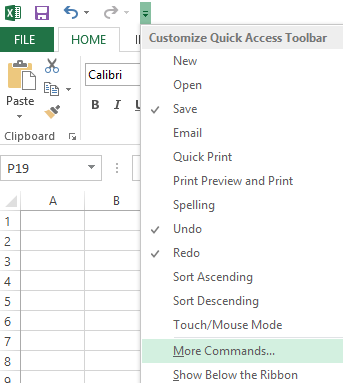
On the Quick Access Toolbar, select the arrow, and then select More Commands.
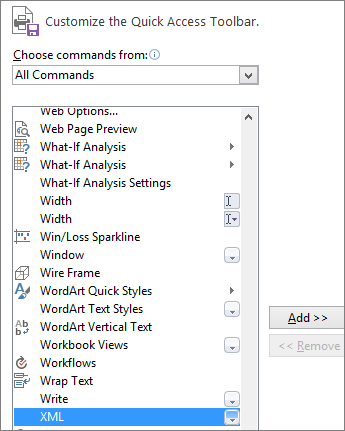
In the Choose commands from list, select All Commands, select XML, select Add, and then select OK.
On the Quick Access Toolbar, select XML > Source to open the XML Source task pane.
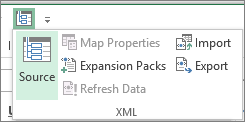
In the XML Source task pane, select XML Maps. Select the XML map, and then select Delete.