
If you’re new to touch devices, learning a few gestures will help you take maximum advantage of the touch capabilities.
Moving around in a file
| To… | Do this… | Gestures |
|---|---|---|
| Scroll | Touch the screen and slide your finger up and down, left and right. To quickly scroll through large worksheets, either horizontally or vertically, grab the scroll handle  .
. |
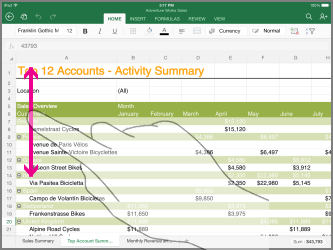
|
| Zoom in | Stretch two fingers apart. |
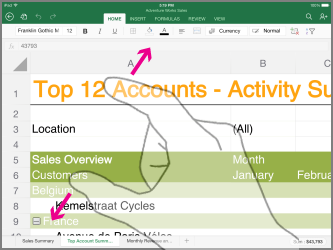
|
| Zoom out | Pinch two fingers together. |
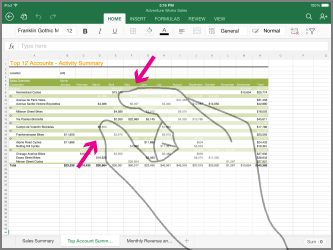
|
Making a Selection
| To… | Do this… | Gestures |
|---|---|---|
| Select a cell | Tap a cell. |
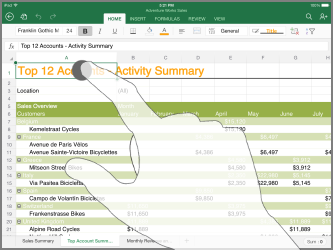
|
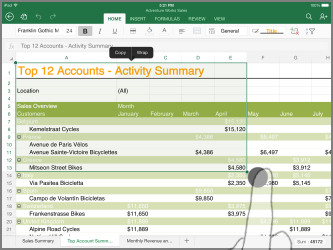
| Select multiple cells | Tap, then drag the selection handler. |
|
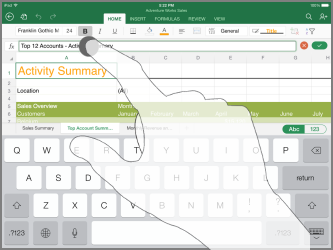
| Place the cursor | Tap in the formula bar. |
|
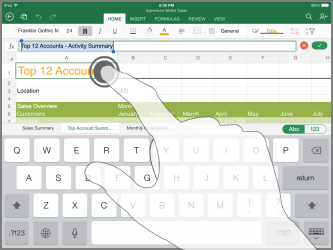
| Add or edit cell contents | Double-tap the cell, or tap in the formula bar. |
|
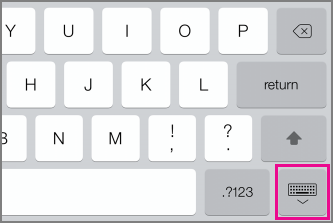
| Hide the onscreen keyboard | Tap the Keyboard key. |
|
| Open the Edit menu for a cell | Tap the cell. |
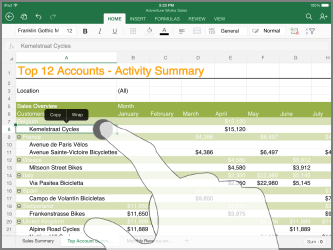
|
| Select all cells that contain data | Flick the selection handle down or to the right. |
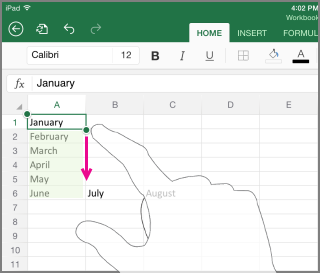
|
Working with Columns or Rows
| To… | Do this… | Gestures |
|---|---|---|
| Select or edit a column or row | Tap the column or row heading. |
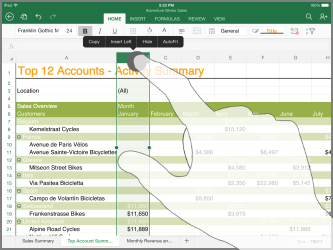
|
| Move one or more cells, or a column or row | Tap and hold a selected column or row, or a group of cells. Dotted lines animate when the item is ready to move. Drag and drop the selected data wherever you like. |
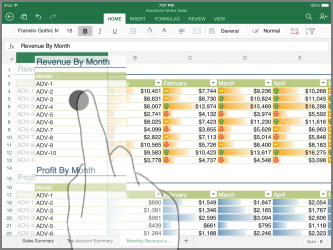
|
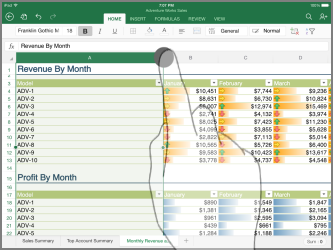
| Resize a column or row | Tap and drag the column or row heading. |
|
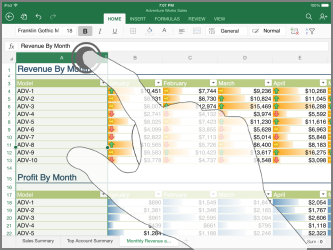
| AutoFit the column width or row height to the contents | Double-tap the column or row heading. |
|