

#CALC! errors occur when Excel's calculation engine encounters a scenario it doesn't support.
Common causes
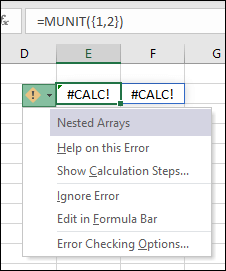
Nested array
Excel can't calculate an array within an array. The nested array error occurs when you try to input an array formula that contains an array. To resolve the error, try removing the second array.
For example, =MUNIT({1,2}) asks Excel to return a 1x1 array and a 2x2 array, which it doesn't support. =MUNIT(2) calculates as expected.
Array of ranges
Arrays can only contain numbers, strings, errors, Booleans, or linked data types. Range references aren't supported. In this example, =OFFSET(A1,0,0,{2,3}) causes an error.
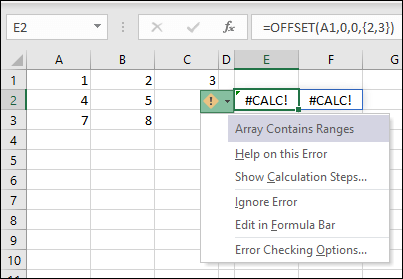
To resolve the error, remove the range reference. In this case, =OFFSET(A1,0,0,2,3) calculates correctly.
Empty array
Excel can't return an empty set. Empty array errors occur when an array formula returns an empty set. For example, =FILTER(C3:D5,D3:D5<100) returns an error because there are no values less than 100 in the data set.
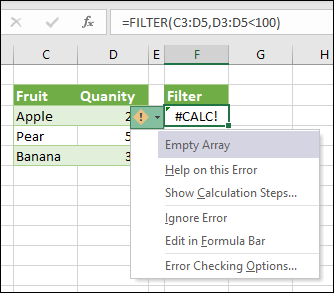
To resolve the error, either change the criterion or add the if_empty argument to the FILTER function. In this case, =FILTER(C3:D5,D3:D5<100,0) returns a 0 if there are no items in the array.
Too many cells
Excel for the web can't calculate custom functions that refer to more than 10,000 cells. Instead, it returns the #CALC! error. To fix this error, open the file in a desktop version of Excel. For more information, see Create custom functions in Excel.
Function failed
This function performs an asynchronous operation but unexpectedly failed. Try again later.
Cell contains a lambda
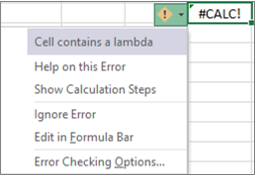
A LAMBDA function behaves a little differently than other Excel functions. You can't just enter it into a cell. You must call the function by adding parentheses to the end of your formula and passing the values to your lambda function. For example:
- Returns the #CALC error:
=LAMBDA(x, x+1) - Returns a result of 2:
=LAMBDA(x, x+1)(1)
For more information, see LAMBDA function.
Cell formula result is a function
You can't put a function in a cell without calling or invoking it. Call your function by adding parentheses and arguments. Or, add your function to the name manager and use the name as a function.
Other
This error occurs when Excel's calculation engine encounters an unspecified calculation error with an array. To resolve it, try rewriting your formula. If you have a nested formula, try using the Evaluate formula tool to identify where the #CALC! error occurs in your formula.
Python in Excel
Data error
An error occurred while processing your query. Please try again later.
Data limit exceeded
Your data exceeds the upload limit.
Python in Excel calculations can process up to 100 MB of data at a time. Try using a smaller dataset.
Grid query
Python formulas can only reference queries that rely on external data, not on spreadsheet data.
Invalid Python object
This Python object didn't come from the Python environment attached to this workbook.
Query in cell
The result of a formula can't be a query.
Source error
Something went wrong with Power Query. Please try again.
Too much data
The Python formula references too much data to send to the Python service.
Python in Excel calculations can process up to 100 MB of data at a time. Try using a smaller dataset.
Need more help?
You can always ask an expert in the Excel Tech Community or get support in Communities.