At any time, you can select Refresh to update the data for the PivotTables in your workbook. You can refresh the data for PivotTables imported from Power Query, such as a database (SQL Server, Oracle, Access, and so on), Analysis Services cube, a data feed, and many other sources. You can also refresh data from an Excel table, which automatically includes all changes to its external data source.
In older versions of Excel, PivotTables are not refreshed automatically, but you can specify that the PivotTable is automatically refreshed when you open the workbook that contains the PivotTable. In newer versions of Excel, PivotTables can automatically refresh when connected to local workbook data.
Note
PivotTable Auto Refresh is currently available to participants of the Microsoft 365 Insider program.
Manually refresh
Select the PivotTable to show the PivotTable Analyze tab.
Select
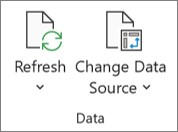
 Refresh in the Data group or press Alt+F5.
Tip
You can right-click the PivotTable and select Refresh.
To update all PivotTables in your workbook at once, on the PivotTable Analyze tab, select the Refresh arrow and choose
Refresh All.
If refreshing takes longer than you expect, on the PivotTable Analyze tab, select the Refresh arrow and choose Refresh Status to check the refresh status.
To stop refreshing, select Cancel Refresh.
If the column widths and cell formatting of your data adjust when you refresh the PivotTable data, and you don't want that to happen, make sure the following options are checked:
- On the PivotTable Analyze tab, select
 Options.
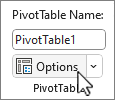
- On the Layout & Format tab, check the Autofit column widths on update and Preserve cell formatting on update boxes.
Refresh data automatically when opening the workbook
- Select the PivotTable to show the PivotTable Analyze tab on the ribbon.
- Select
Options.
- On the Data tab, check the Refresh data when opening the file box.
Refresh data automatically
New PivotTables created from local workbook data will have Auto Refresh on by default.
Note
If your workbook contains existing PivotTables with Auto Refresh turned off, any new PivotTables using the same source data will also have Auto Refresh off.
There are two ways to turn Auto Refresh on or off: through the PivotTable Analyze tab or the PivotTable Options.
Important
Auto Refresh is set per data source, so turning it on or off affects all PivotTables connected to that data source.
In the PivotTable Analyze tab:
- Select the PivotTable to show the PivotTable Analyze tab.
- Select
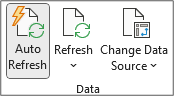
 Auto Refresh in the Data group to turn it on or off. Auto Refresh is on if the button has an outline around it.
In PivotTable Options:
- Select the PivotTable to show the PivotTable Analyze tab.
- Select
Options.
- On the Data tab, check or uncheck Automatically refresh when the data source changes.
Tip
To change the default Auto Refresh setting for new PivotTables: Go to File > Options > Data > Data Options, then select Edit Default Layout. In the PivotTable Options dialog, open the Data tab and uncheck Automatically refresh when the source data changes.
Manually refresh
Select the PivotTable to show the PivotTable tab on the ribbon.
Select the Refresh All down arrow in the data group and choose Refresh.
Tip
You can right-click the PivotTable and select Refresh.
To update all PivotTables in your workbook at once, on the PivotTable tab, select Refresh All.
Prevent column widths from adjusting
If the column widths of your data adjust when you refresh the PivotTable data, and you don't want that to happen, make sure the following option is checked:
On the PivotTable tab, select
Settings.
Tip
You might need to select Show in the ribbon to get to Settings.
In the PivotTable Settings pane on the right side, select Autofit column widths on refresh under Sort and display.
Refresh data automatically when opening the workbook
On the PivotTable tab, select
Settings.
Tip
You might need to select Show in the ribbon to get to Settings.
In the PivotTable Settings pane on the right side, select Refresh data on file open.
Refresh data automatically
New PivotTables created from local workbook data will have Auto Refresh on by default.
Note
If your workbook contains existing PivotTables with Auto Refresh turned off, any new PivotTables using the same source data will also have Auto Refresh off.
There are two ways to turn Auto Refresh on or off: through the PivotTable tab or the PivotTable Settings pane.
Important
Auto Refresh is set per data source, so turning it on or off affects all PivotTables connected to that data source.
In the PivotTable tab:
- Select the PivotTable to show the PivotTable tab on the ribbon.
- Select
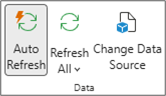
Auto Refresh to turn it on or off. Auto Refresh is on if the button has an outline around it.
In PivotTable Settings:
- On the PivotTable tab, select
Settings.
- In the PivotTable Settings pane on the right side, go to the Refresh and save section and check or uncheck Refresh data automatically.
Manually refresh
Select the PivotTable to show the PivotTable Analyze tab.
Select
Refresh.
Tip
You can control-click the PivotTable and select Refresh.
To update all PivotTables in your workbook at once, on the PivotTable Analyze tab, select the Refresh arrow and choose
Refresh All.
If refreshing takes longer than you expect, on the PivotTable Analyze tab, select the Refresh arrow and choose Refresh Status to check the refresh status.
To stop refreshing, select Cancel Refresh.
If the column widths and cell formatting of your data adjust when you refresh the PivotTable data, and you don't want that to happen, make sure the following options are checked:
- Select the PivotTable to show the PivotTable Analyze tab.
- Select Options, then Options again.
- On the Layout tab, select the Autofit column widths on update and Preserve cell formatting on update boxes.
Refresh data automatically when opening the workbook
- Select the PivotTable to show the PivotTable Analyze tab.
- Select Options, then Options again.
- On the Data tab, select Refresh data when opening the file.
Refresh data automatically
New PivotTables created from local workbook data will have Auto Refresh on by default.
Note
If your workbook contains existing PivotTables with Auto Refresh turned off, any new PivotTables using the same source data will also have Auto Refresh off.
There are two ways to turn Auto Refresh on or off: through the PivotTable Analyze tab or the PivotTable Options dialog box.
Important
Auto Refresh is set per data source, so turning it on or off affects all PivotTables connected to that data source.
In the PivotTable Analyze tab:
- Select the PivotTable to show the PivotTable Analyze tab.
- Select
Auto Refresh to turn it on or off. Auto Refresh is on if the button has an outline around it.
In PivotTable Options:
- Select the PivotTable to show the PivotTable Analyze tab.
- Select
Options.
- Select the Data tab and check or uncheck Automatically refresh when the data source changes.
Important
PivotTable on iPad is available to customers running Excel on iPad version 2.82.205.0 and above. To access this feature, please ensure your app is updated to the latest version through the App Store.
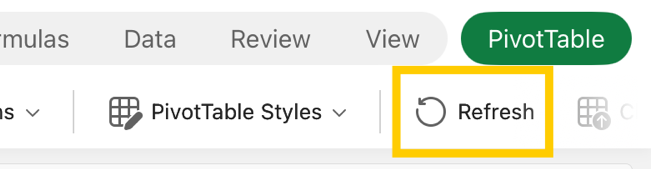
Tap anywhere in the PivotTable to show to the PivotTable tab on the ribbon, and then tap Refresh.
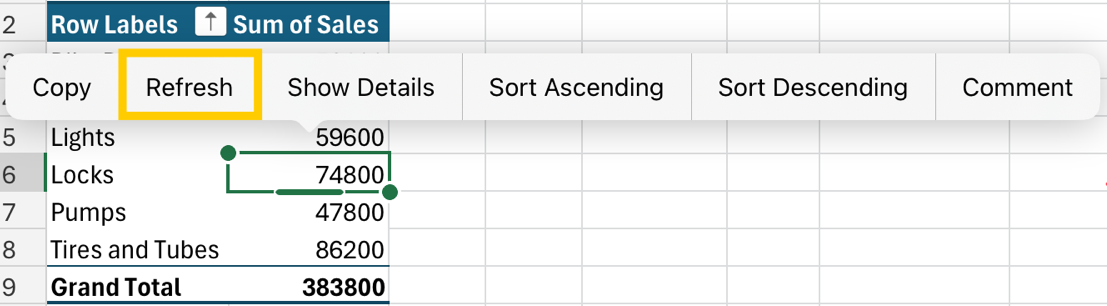
Alternatively, you can press and hold on a cell anywhere in the PivotTable range, and then tap Refresh.
Need more help?
You can always ask an expert in the Excel Tech Community or get support in Communities.

