The ribbon has multiple display options to fit your preferences, but with an errant click, you can unintentionally hide your ribbon.
- To quickly show the ribbon, click any tab, for example, the Home or Insert tab.
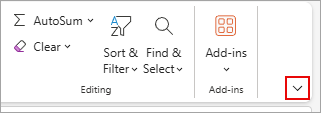
- To show the ribbon all the time, click the arrow on the lower-right corner of the ribbon.
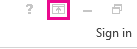
For more control of the ribbon, you can change your view and maximize the ribbon by accessing the Ribbon Display Options near the top of your Excel document.
Using the Ribbon Display Options button
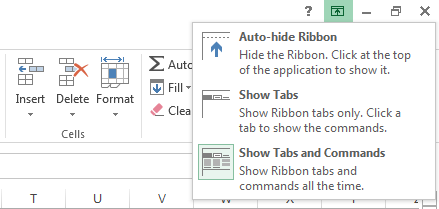
Select the Ribbon Display Options button in the lower-right corner of the ribbon.
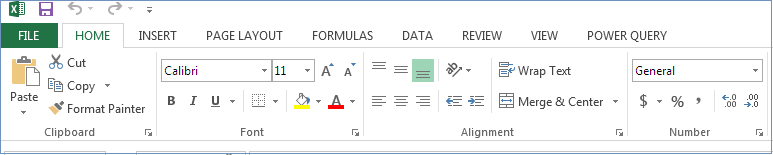
In the menu that opens, select Always show ribbon to show the ribbon with all tabs and full commands.
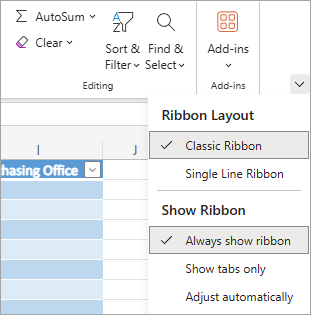
This option is the default view. While this option provides quick access to all the commands, it can limit the available screen space for your workbook.
Note
Press Ctrl+F1 to show and hide your commands in the ribbon.
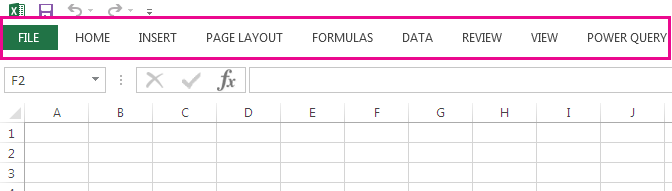
Select Single Line Ribbon or Show tabs only to display the ribbon tabs without the commands. To access the commands in the Single Line Ribbon option, select any of the tabs.

Try out different combinations of Show tabs only and Adjust automatically to find the display options you want for the tabs and commands. By using these options, you get the largest amount of screen space when you view your workbook.
Tip
You can customize the ribbon with your own tabs and commands for quick access to the toolbar features you use most.