To access Office files saved on your computer from your iPad, iPhone, Android device, or Windows Mobile device, upload them to OneDrive, Dropbox, or a Microsoft 365 team site. You can also email the files to yourself and open the attachments on your mobile device.
Upload and open files
On your computer, open your web browser and go to your OneDrive, Dropbox, or Microsoft 365 team site.
Tip
To set up a new online location, tap Open > Add a place, and select your service. To see additional locations that are available to you, tap Open > More.
Upload your file.
If you haven't already done so, sign in to your iPad or iPhone.
Tap the service where you saved the file, sign in if prompted, and then tap Open to find the file.

If you already have a file open, tap Back first.

Open email attachments
To open Word, Excel, PowerPoint, and Visio email attachments, do the following:
On your mobile device, open your mail app and find the email message with the attachment. You’ll see the attachments at the bottom of the message. You may have to tap the attachment once to download it.
Tap and hold the attachment until a group of icons appears.
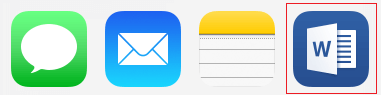
Tap the icon to open your file in Word, Excel, PowerPoint, or Visio.
Upload and open files
On your computer, open your web browser and go to your OneDrive, Dropbox, or Microsoft 365 team site.
Tip
To set up a new online location, tap Open > Add a place, and select your service. To see all locations that are currently available to you, tap Open > Browse.
Upload your file.
If you haven't already done so, sign in to your Android device.
Tap Open, tap the service where you saved the file, and then find the file.

If you already have a file open, tap the File icon or menu, tap Open, tap the service where you saved the file, and then find the file.

Open email attachments
On your Android device, open your email app and then open the email message with the attachment. You'll find the attachment at the bottom of the message. You may have to tap the attachment to download it.
Depending on its size, the download may take a few minutes. You'll see a progress window while the file is downloading.
Tap the attachment to open it in Word, PowerPoint, or Excel.
Upload and open files
On your computer, open your web browser and go to your OneDrive, Dropbox, or Microsoft 365 team site.
Tip
To see all locations that are currently available to you, tap Open > Browse.
Upload your file.
If you haven't already done so, sign in to your Windows Mobile device.
Tap the Word, PowerPoint, or Excel icon to open the app, locate your file, and then tap it to open it.
If you already have a file open, tap the File tab or menu, tap Open, and locate your file.

Open email attachments
- On your Windows Mobile device, open your email app and open the email message with the attachment. You'll find the attachment at the bottom of the message.
- Tap the attachment to open it in Word, PowerPoint, or Excel.

