
You can use a simple formula to sum numbers in a range (a group of cells), but the SUM function is easier to use when you’re working with more than a few numbers. For example =SUM(A2:A6) is less likely to have typing errors than =A2+A3+A4+A5+A6.
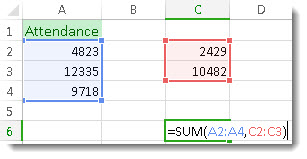
Here’s a formula that uses two cell ranges: =SUM(A2:A4,C2:C3) sums the numbers in ranges A2:A4 and C2:C3. You’d press Enter to get the total of 39787.
To create the formula:
- Type =SUM in a cell, followed by an opening parenthesis (.
- To enter the first formula range, which is called an argument (a piece of data the formula needs to run), type A2:A4 (or select cell A2 and drag through cell A6).
- Type a comma (,) to separate the first argument from the next.
- Type the second argument, C2:C3 (or drag to select the cells).
- Type a closing parenthesis ), and then press Enter.
Each argument can be a range, a number, or single cell references, all separated by commas.
- =SUM(A2:A4,2429,10482)
- =SUM(4823,A3:A4,C2:C3)
- =SUM(4823,12335,9718,C2:C3)
- =SUM(A2,A3,A4,2429,10482)
Tip
If you need to sum columns or rows of numbers next to each other, use AutoSum to sum numbers.
Give it a try
If you want to play around with our sample data, here’s some data to use.
You can see how the SUM function works by copying the following table into a worksheet and pasting it into cell A1.
| Data | ||
|---|---|---|
| -5 | ||
| 15 | ||
| 30 | ||
| '5 | ||
| TRUE | ||
| Formula | Description | Result |
| =SUM(3, 2) | Adds 3 and 2. | 5 |
| =SUM("5", 15, TRUE) | Adds 5, 15 and 1. The text value "5" is first translated into a number, and the logical value TRUE is first translated into the number 1. | 21 |
| =SUM(A2:A4) | Adds the values in cells A2 through A4. | 40 |
| =SUM(A2:A4, 15) | Adds the values in cells A2 through A4, and then adds 15 to that result. | 55 |
| =SUM(A5,A6, 2) | Adds the values in cells A5 and A6, and then adds 2 to that result. Because non-numeric values in references are not translated — the value in cell A5 ('5) and the value in cell A6 (TRUE) are both treated as text — the values in those cells are ignored. | 2 |
Need more help?
You can always ask an expert in the Excel Tech Community or get support in Communities.
