
Tip
Learn more about Microsoft Forms or get started right away and create a survey, quiz, or poll. Want more advanced branding, question types, and data analysis? Try Dynamics 365 Customer Voice.
When you create surveys, quizzes, polls, and other types of forms, you can print a blank form, summary of responses, or responses for specific individuals.
Print a blank form
You can print a blank form if you have a scenario that requires respondents to fill out a hard copy of it.
- Select More form settings
 > Print Form.
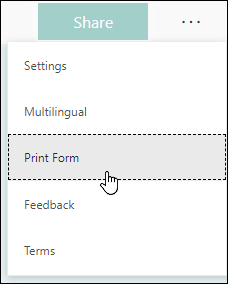
- Adjust your printer settings the way you want.
- Select Print.
Print a summary of responses
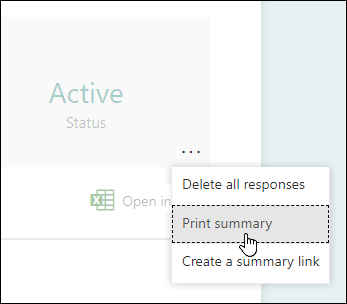
You can print a summary page of your form questions, number of responses, and a chart for each question that shows a breakdown of how respondents answered that particular question.
- Go to the Responses tab.
- Select More options
> Print summary.
Print responses for an individual
You can also print responses for specific individuals.
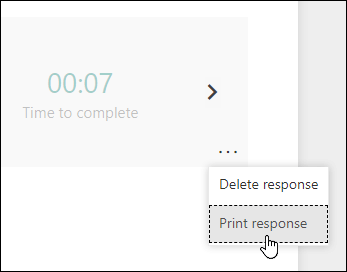
- On the Responses tab, select the View results button.
- Select More options
> Print response.
Feedback for Microsoft Forms
We want to hear from you! To send feedback about Microsoft Forms, go to the upper right corner of your form and select More form settings
> Feedback.
