Getting to the commands you use the most doesn’t need to be difficult. When you find a favorite command, right-click it, and then click Add to Quick Access Toolbar.
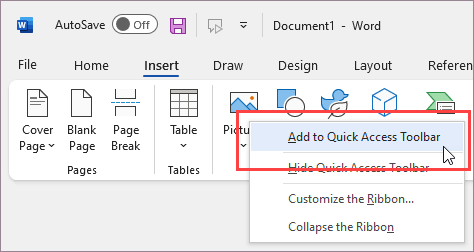
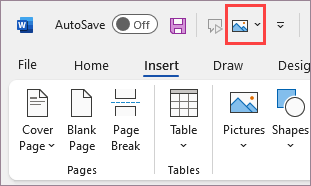
Now the command is only a click away.
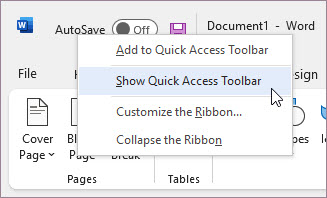
If the Quick Access Toolbar is hidden, you can show it by right-clicking in the upper right of the window above the ribbon, and from the list select Show Quick Access Toolbar.
For commands that you can’t right-click
If you frequently create PDFs, or do something else that requires going to the File tab, here’s how to add that command to the Quick Access Toolbar.
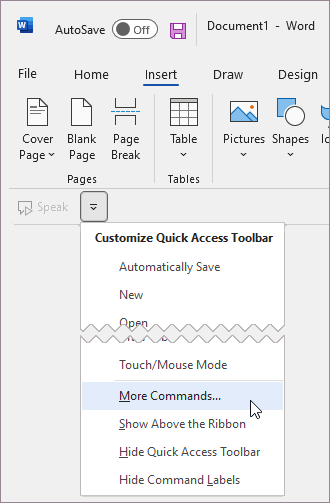
Click Customize the Quick Access Toolbar, and then click More Commands.
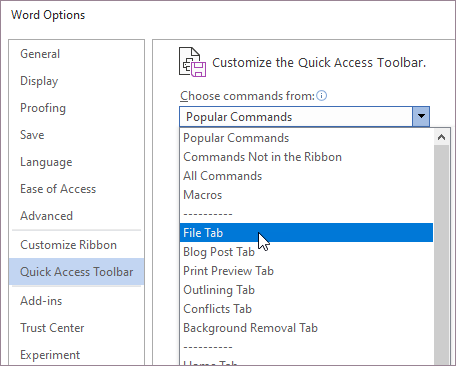
In the Choose commands from list, click File Tab.
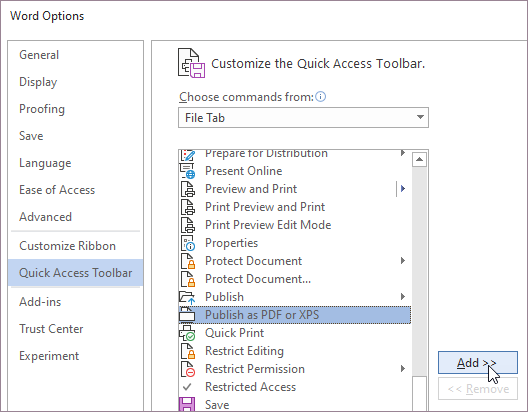
Choose the command, and then click Add.
Click OK.
When a command is no longer your favorite
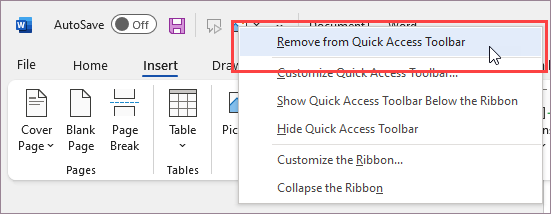
Remove a command by right-clicking it on the Quick Access Toolbar, and then clicking Remove from Quick Access Toolbar.