If you'd like to change the name or location of a file without creating a new copy, follow these steps.
If you're a Microsoft 365 subscriber, then the easiest way to rename or move an Office file is to open the file in your Microsoft 365 desktop application—such as Word—then select the file name on the title bar. In the menu that appears you can rename the file, select a new location to move it to, or see the version history for the file.
 If the file isn't a Microsoft Office file, or if you're not a Microsoft 365 subscriber, then the easiest way to rename or move a file is to use File Explorer in Windows.
Open File Explorer by going to My Computer, or by pressing Windows Key + E on your keyboard. Find the file you want to rename, select it and select Rename on the ribbon (or press F2 on your keyboard). Type the new name you want the file to have and press Enter.
If you're a Microsoft 365 subscriber, then the easiest way to rename or move an Office file is to open the file in your Microsoft 365 desktop application—such as Word—then select the file name on the title bar. In the menu that appears you can rename the file, select a new location to move it to, or see the version history for the file.

If the file isn't a Microsoft Office file, or if you're not a Microsoft 365 subscriber, then the easiest way to rename or move a file on your Mac is to use Finder. Find and select the file, then select File > Rename. Type the new name and press Enter.
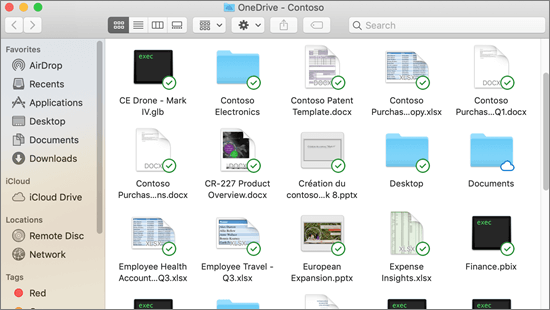
When you start a new, blank, document in Office for the web, your document gets a name like "Document4" or "Presentation2". To rename or relocate the document while you're editing it, select the file name near the top of the browser window, and type the name you want.
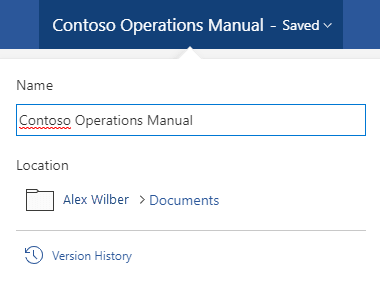
If nothing happens when you type, check to make sure you're in Editing view (select the View tab and look for a box that says Viewing or Editing. If it says Viewing, expand the box and select Editing).
Except in PowerPoint for the web, you won't be able to rename a file if other people are working on it at the same time as you. Wait until you're the only one in the document, then rename it.
To rename a file in Office on Android, simply open the file in the appropriate Office app (Word, Excel, etc.), then tap the file name at the top of the app. Type the new name you want and then tap Done on the keyboard.

You won't be able to rename the file if other people are working on it at the same time as you. Wait until you're the only one in the document, then rename it.
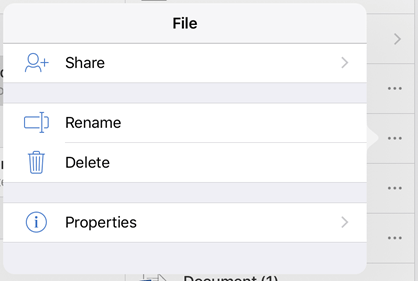
To rename your file in Office on iOS, open your Office app, find your file on the File menu and tap the More button (looks like 3 dots). Select Rename from the context menu, type your new name, and then tap Rename at the top right corner of the dialog box.
You won't be able to rename the file if other people are working on it at the same time as you. Wait until you're the only one in the document, then rename it.
If you found this article helpful, and especially if you didn't, please use the feedback controls below to give us constructive ideas on how we can make it better.

