You can change the look of a line shape by changing its color, line style, or weight. If you are using Excel, Outlook, Word, or PowerPoint, you can apply a predefined Quick Style to quickly change the look of your line.
What do you want to do?
Add a Quick Style to a line
Quick Styles for lines include theme colors from the document theme, shadows, line styles, gradients, and three-dimensional (3-D) perspectives. When you position your pointer over a Quick Style thumbnail, you can see how the style affects your line. Try different Quick Styles until you find one that you like.
Select the line you want to change.
If you want to change multiple lines, select the first line, and then press and hold Ctrl while you select the other lines.
On the Shape Format tab, select the
you want.
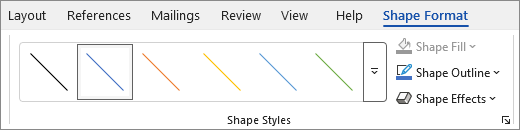
To see more Quick Styles, select the
 More button.
Note
If you don't see the Shape Format tab, make sure you've selected the line.
Top of Page
Change the color of a line
Select the line that you want to change.
If you want to change multiple lines, select the first line, and then press and hold Ctrl while you select the other lines.
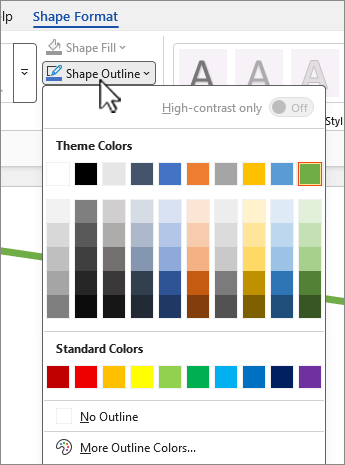
On the Shape Format tab, select
 Shape Outline, then select the color that you want.
Note
If you don't see the Shape Format tab, make sure you've selected the line.
To use a color that isn't a theme color, select More Outline Colors, and then select the color you want on the Standard tab, or mix your own color on the Custom tab. Custom colors and colors on the Standard tab are not updated if you later change the document theme.
Top of Page
Make a line dotted or dashed
Select the line you want to change.
If you want to change multiple lines, select the first line, and then press and hold Ctrl while you select the other lines.
On the Shape Format tab, select
Shape Outline.
Note
If you don't see the Shape Format tab, make sure you've selected the line.
Point to Dashes, and then select the style you want.
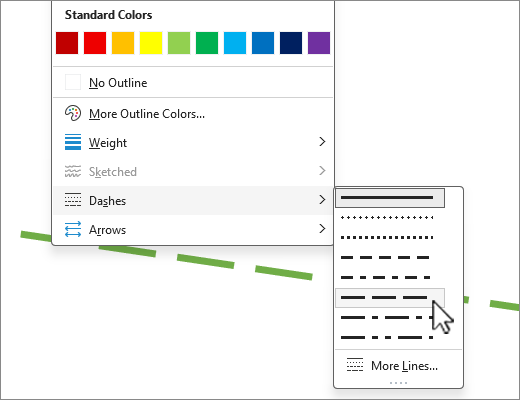
To create a custom style, select More Lines, then choose the options that you want.
Top of Page
Change the weight of a line
Select the line that you want to change.
If you want to change multiple lines, select the first line, and then press and hold Ctrl while you select the other lines.
On the Shape Format tab, select
Shape Outline.
Note
If you don't see the Shape Format tab, make sure you've selected the line.
Point at Weight, then select the line weight that you want.
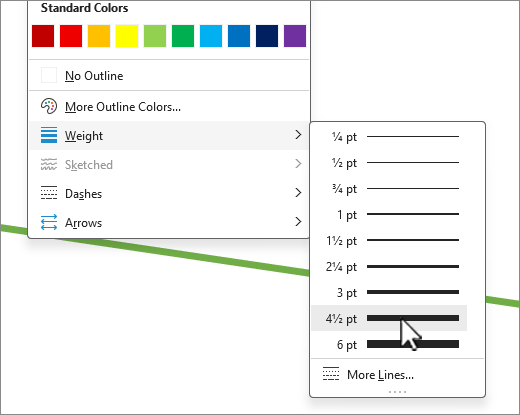
To create a custom line weight, select More Lines, and then choose the options that you want.
Note
To draw a double line, draw a single line, copy and paste a second line next to it, and then group the two lines.
Top of Page
If you want to apply line styles and colors to borders in Excel spreadsheets or tables, see the following articles:
Top of Page
The following options are available in the web apps for Excel, and PowerPoint.
Add a Quick Style to a line
Select the line you want to change.
If you want to change multiple lines, select the first line, and then press and hold Ctrl while you select the other lines.
On the Shape tab, select the quick style you want.
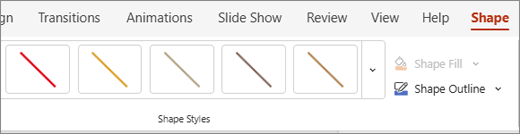
To see more quick styles, select the
 More button at the right end of quick-style gallery.
Note
If you don't see the Shape tab, make sure you've selected the line.
Change the color of a line
Select the line that you want to change.
If you want to change multiple lines, select the first line, and then press and hold Ctrl while you select the other lines.
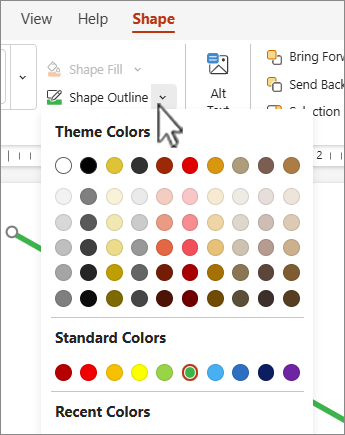
On the Shape tab, select Shape Outline (or, in Excel, just Outline), then select the color that you want.
Note
If you don't see the Shape tab, make sure you've selected the line.
To use a color that isn't a theme color, select More Outline Colors, and then select the color you want in the Custom Colors dialog. (Custom colors are not updated if you later change the document theme.)
Make a line dotted or dashed
Select the line you want to change.
If you want to change multiple lines, select the first line, and then press and hold Ctrl while you select the other lines.
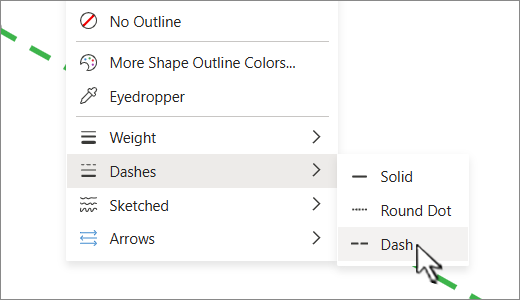
On the Shape tab, select Shape Outline (or, in Excel, just Outline).
Note
If you don't see the Shape tab, make sure you've selected the line.
Point at Dashes, then select the style you want.
Change the weight of a line
Select the line that you want to change.
If you want to change multiple lines, select the first line, and then press and hold Ctrl while you select the other lines.
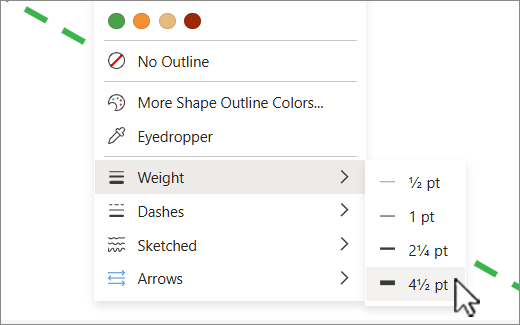
On the Shape tab, select Shape Outline (or, in Excel, just Outline).
Note
If you don't see the Shape tab, make sure you've selected the line.
Point at Weight, then select the line weight that you want.
Note
To draw a double line, draw a single line, copy and paste a second line next to it, and then group the two lines.
What do you want to do?
Add a Quick Style to a line
Quick Styles for lines include theme colors from the document theme, shadows, line styles, gradients, and three-dimensional (3-D) perspectives. Try different Quick Styles until you find one that you like.
Select the line you want to change.
If you want to change multiple lines, select the first line, and then press and hold ⌘ Command while you select the other lines.
On the Shape Format tab, select the Quick Style you want.
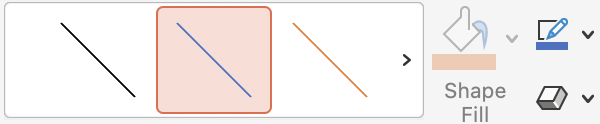
To see more Quick Styles, select
More.
Note
If you don't see the Shape Format tab, make sure you've selected the line.
Top of Page
Change the color of a line
Select the line that you want to change.
If you want to change multiple lines, select the first line, and then press and hold ⌘ Command while you select the other lines.
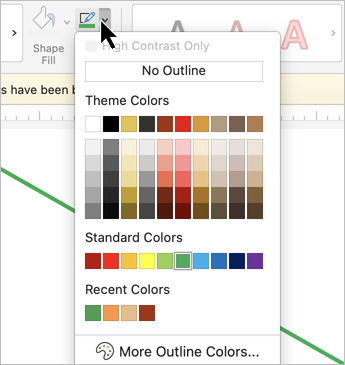
On the Shape Format tab, select Shape Outline, then select the color that you want.
Note
If you don't see the Shape Format tab, make sure you've selected the line.
To use a color that isn't a theme color, select More Outline Colors, and then select the color you want.
Top of Page
Make a line dotted or dashed
Select the line you want to change.
If you want to change multiple lines, select the first line, and then press and hold ⌘ Command while you select the other lines.
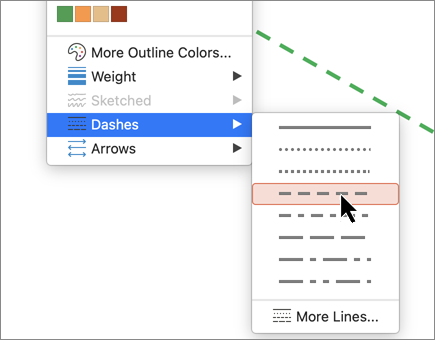
On the Shape Format tab, select Shape Outline.
Note
If you don't see the Shape Format tab, make sure you've selected the line.
Point to Dashes, and then select the style you want.
To create a custom style, select More Lines, then choose the options that you want.
Top of Page
Change the weight of a line
Select the line that you want to change.
If you want to change multiple lines, select the first line, and then press and hold ⌘ Command while you select the other lines.
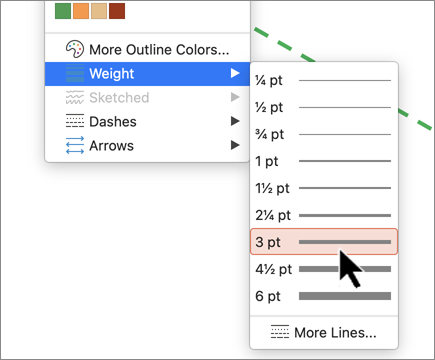
On the Shape Format tab, select Shape Outline.
Note
If you don't see the Shape Format tab, make sure you've selected the line.
Point at Weight, then select the line weight that you want.
To create a custom line weight, select More Lines, and then choose the options that you want.
Note
To draw a double line, draw a single line, copy and paste a second line next to it, and then group the two lines.
Top of Page
See Also
Draw or delete a line or connector
Format the bar chart of a Gantt Chart view in Project

