You can use WordArt with a Transform text effect to curve or bend text around a shape. If you want the text to circle the shape, you can also do this, but it's a little bit more work. You can also insert WordArt multiple times to wrap text around shapes with straight edges.
On the Insert tab, select
 WordArt, and pick the WordArt style you want.
Note
The WordArt icon is located in the Text group, and it may appear different depending on the version you're using and the size of your screen.
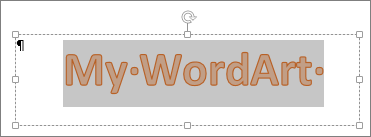
Replace the WordArt placeholder text with your own text.
Select your WordArt text.
On the Shape Format tab, select
 Text Effects, choose
 Transform and pick the look you want.
Advanced techniques
Wrap around a circle
- On the Shape Format tab, select
Text Effects, choose
Transform.
- Select Circle under Follow Path, and drag any of the sizing handles until your WordArt is the size and shape you want.
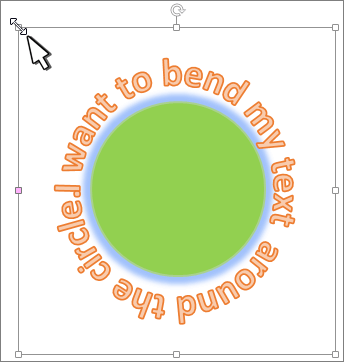
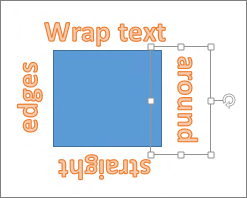
Wrap around straight edges To wrap text around a shape that has straight edges, such as a rectangle, insert WordArt objects for each edge. In this example, WordArt is inserted four times, one for each side of the shape.
Group moves and copy To move or copy multiple WordArt objects as a single shape, see Group or ungroup shapes, pictures, or other objects .
Precise angle control You can control the angle of your WordArt text in relation to your shape with precision by using the Rotate tool.
If you need very precise control or are creating a complex combination of shapes and text, you'll want to use a third-party drawing or graphics program to create the text around your shape and then copy and paste it into your Office document.
Note
You can use Text Effects with Wordart or a regular Text box.