

No matter what version of OneNote you use, you can download or import a copy of any of your OneNote notebooks to your PC or Mac—either as a backup or to upload its contents to another account. This can be done via the OneNote for the web only.
Note
- Exporting notebooks through OneNote for the web is only available for notebooks stored on personal OneDrive accounts.
- It will not work for notebooks stored on OneDrive (work or school) or SharePoint. For information about exporting notebooks to PDF files from OneNote 2016 for Windows, see Export notes from OneNote as a PDF.
Export a OneNote notebook
In a web browser, go to OneNote for the web.
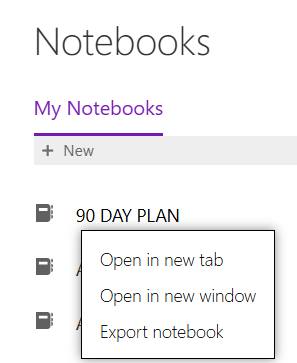
On the screen that opens, select the notebook you want to export and right-click it.
From the menu select Export notebook.
A new pop-up will appear showing you the size of the notebook you want to download. To confirm click Export. Make sure you have enough space to download it. If a download is interrupted because you ran out of storage, you'll need to restart the download again after you've recovered enough hard drive space.

You will be notified when the notebook is downloaded.
Tip
If the process begins but then appears not to finish, you might be low on available space. Manually delete any unnecessary files (including any failed notebook uploads) and then try again.
Open an exported OneNote notebook
If you've exported a notebook and want to view its contents, you can open the downloaded notebook in the OneNote Windows app.
- Go to OneDrive Live and create a new folder.
- Create a new OneNote notebook in that folder, or move an existing OneNote notebook into the folder. Make sure the notebook contains at least a few pages of content.
- Open the folder and select Download.
- The folder will be downloaded as a ZIP file.
- Extract (unzip) the downloaded ZIP file.
- Verify that the extracted folder contains two OneNote files.
- On a Windows device, open the OneNote app and double-click the file named OneNote Table of Contents.
- Verify that the notebook opens successfully and that all sections and pages are accessible.
Note
This process is only supported in OneNote for Windows and isn't supported on iOS.
Import a OneNote notebook
This functionality is now deprecated. To reuse your OneNote pages, see Export notes from OneNote as a PDF.
Troubleshooting
If you're running into any issues while exporting or importing your notebooks, try the suggestions below.
My notebook download doesn't seem to finish
Over time, notebooks can significantly increase in size, especially if you use OneNote to collect embedded documents, image scans, PDFs, or video and audio clips as part of your notes. Before attempting to download large notebooks, make sure you have several gigabytes (GB) of available space on your computer's hard drive. If a download is interrupted because you ran out of storage, you'll need to restart the download again after you've recovered enough hard drive space.
My download contains only an "errors.txt" file, but no notebook folder
Whenever a notebook is downloaded successfully, it is saved as a Zip file that contains a folder with the same name as the notebook. In rare cases, it's possible that a downloaded Zip file doesn't contain any notebook folders but only shows a file called errors.txt. When this happens, something went wrong during the export process. To troubleshoot this issue, open the errors.txt file from the downloaded Zip file in a text editor and read its contents for more specific information.
I got an error message saying my notebook is too large to export
Please move portions of your notebook into separate, smaller notebooks and then try exporting these smaller notebooks instead.
I'm still having trouble and need help
If you've tried the suggested troubleshooting tips in this article but are still having trouble exporting your OneNote notebooks, please report it in the OneDrive account so we can investigate the cause and help you find a solution.
Important
If your exported Zip file contained an errors.txt file, please be sure to include the information it contains.