
File preview allows you to view an attachment in Outlook without opening the attachment in a separate application. You can simply click the attachment icon in the Reading Pane to preview the file.
By default, you can preview files from most Microsoft Office/Microsoft 365 programs including Word, PowerPoint, Excel, and Visio. You can also preview attached Outlook email items, images, and text files.
Note
File preview in Outlook for Mac requires Mac OS X v10.6 (Snow Leopard) or later.
- Open the message or view it in the reading pane.
- Next to the attachment, select V > Preview.
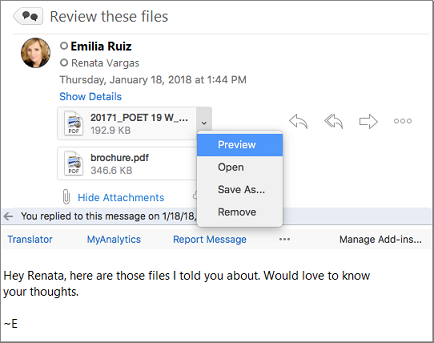
The attachment is displayed in the preview window.
Note
You cannot turn off preview. However, you can turn off the reading pane by selecting View > Reading Pane > Hidden.