If an image in an email message is sideways or upside down, you can rotate it to an upright position.
Note
Outlook for Mac information on this topic is available here.
Rotate an image sent to you in email
- Double-click the message to open it. (You can't edit a message in the Reading pane, so you must open the message in its own window.)
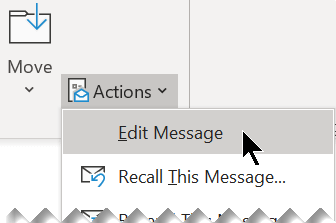
- On the Message tab, in the Move group, select Actions > Edit Message (or, if you don't see Actions, select
 > Edit Message).
- Select the photo you want to rotate.
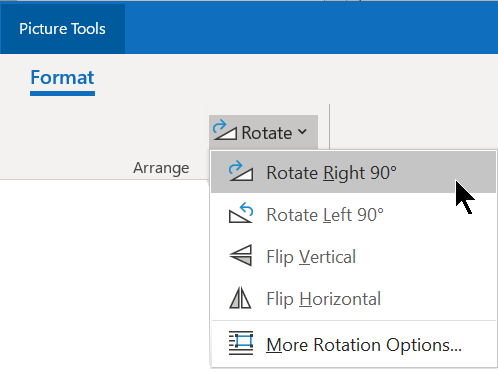
- On the Picture Format (or just Format) tab, in the Arrange group, select Rotate
 , and then choose the rotation option you need (Rotate Right, Rotate Left, Flip Vertical, etc.).
Rotate an image you're sending to someone
- Select the photo you want to rotate.
- On the Picture Format (or just Format) tab, in the Arrange group, select Rotate
, and then choose the rotation option you need (Rotate Right, Rotate Left, Flip Vertical, etc.).
Rotate a picture sent to you in email
- In the email message, right-click the picture, and then select Save image as.
- Give the image a clear name and save it to your hard drive.
- Open File Explorer and navigate to the folder where you saved the image.
- Right-click the image file and select Open with > Photos.
- At the top, select the Rotate button.
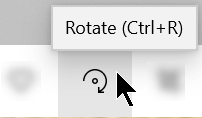
(Each click rotates the image rightward 90 degrees.)
- At the top, select the ellipsis [...], and then select Save as.
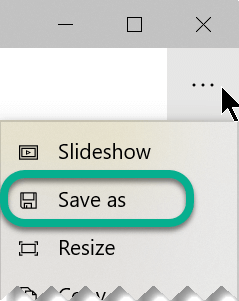
This action saves the rotated image as a separate file from the original image.
Rotate a picture you're sending to someone
Use the Photos app to rotate the image before you insert it in your email message.
Open File Explorer and navigate to the folder where the image is stored.
Right-click the image file and select Open with > Photos.
At the top, select the Rotate button.
(Each click rotates the image rightward 90 degrees.)
At the top, select the ellipsis [...], and then select Save as.
This action saves the rotated image as a separate file from the original image.
Switch to Outlook and insert the rotated image file into your message: Below the message body, near the Save and Discard buttons, select Insert pictures inline:

Navigate to the folder where the rotated image is stored, select it, and then select Open.
