
Overview
Microsoft Copilot helps you triage your email by using natural language commands in Copilot chat. You can manage your emails quickly by typing commands to act on one or more messages without leaving your workflow.
Copilot performs the requested action and updates your mailbox in Outlook automatically.
This article focuses on using text commands in Copilot chat. Voice commands are available only in Outlook for Android and Outlook for iOS and behave similarly.
What you can do with Copilot email triage
By using Copilot, you can:
- Pin and unpin emails
- Flag and unflag emails, set a reminder (start and end date), and mark emails as complete
- Mark emails as read or unread
- Archive, delete, move, or copy emails
- Mark emails as junk or not junk
- Set or clear categories
- Create and list folders
- Create and manage inbox rules with Microsoft Copilot
Where this experience is available
You can use Copilot email triage in the following Copilot experiences:
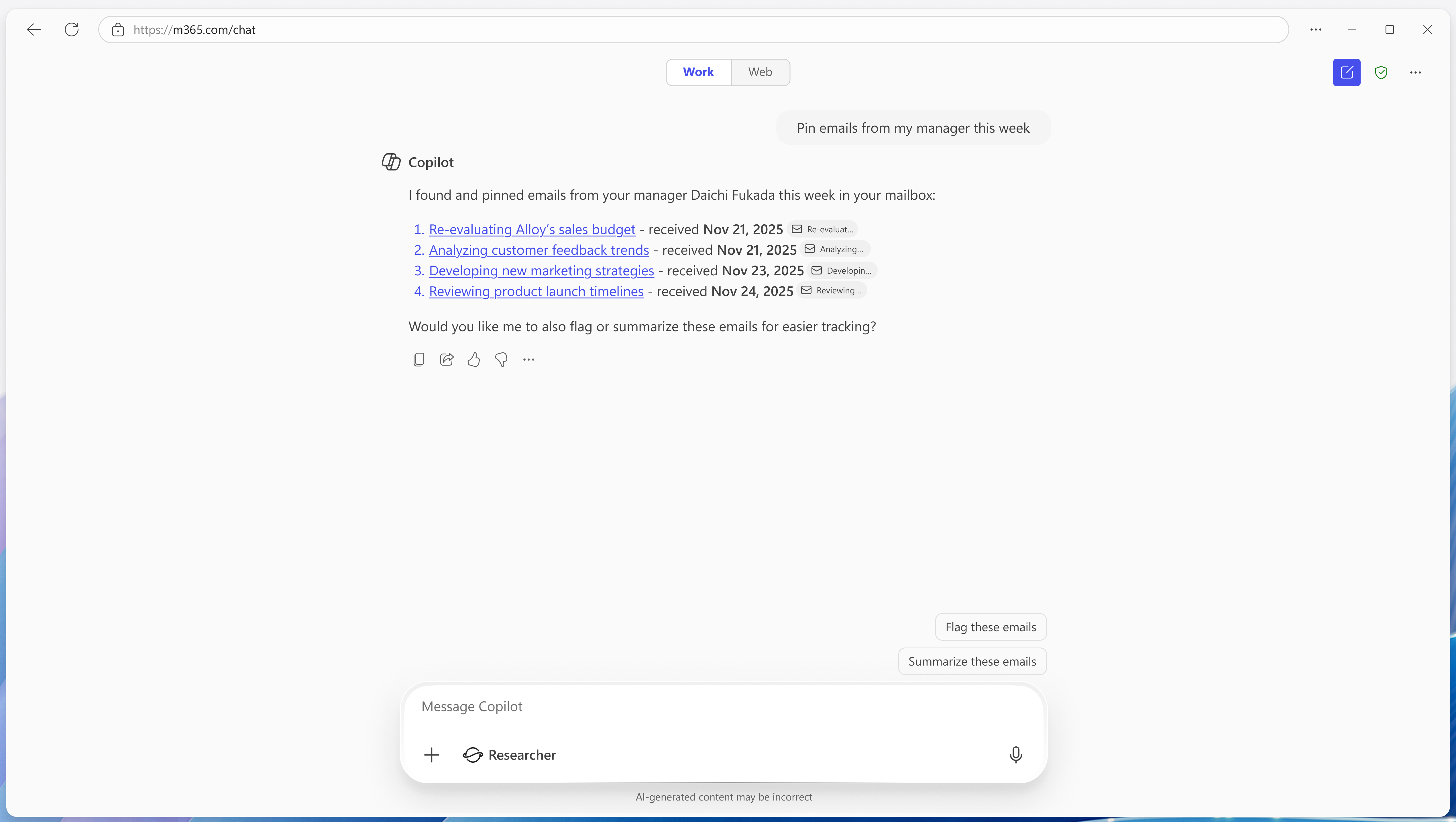
- Copilot full page experience
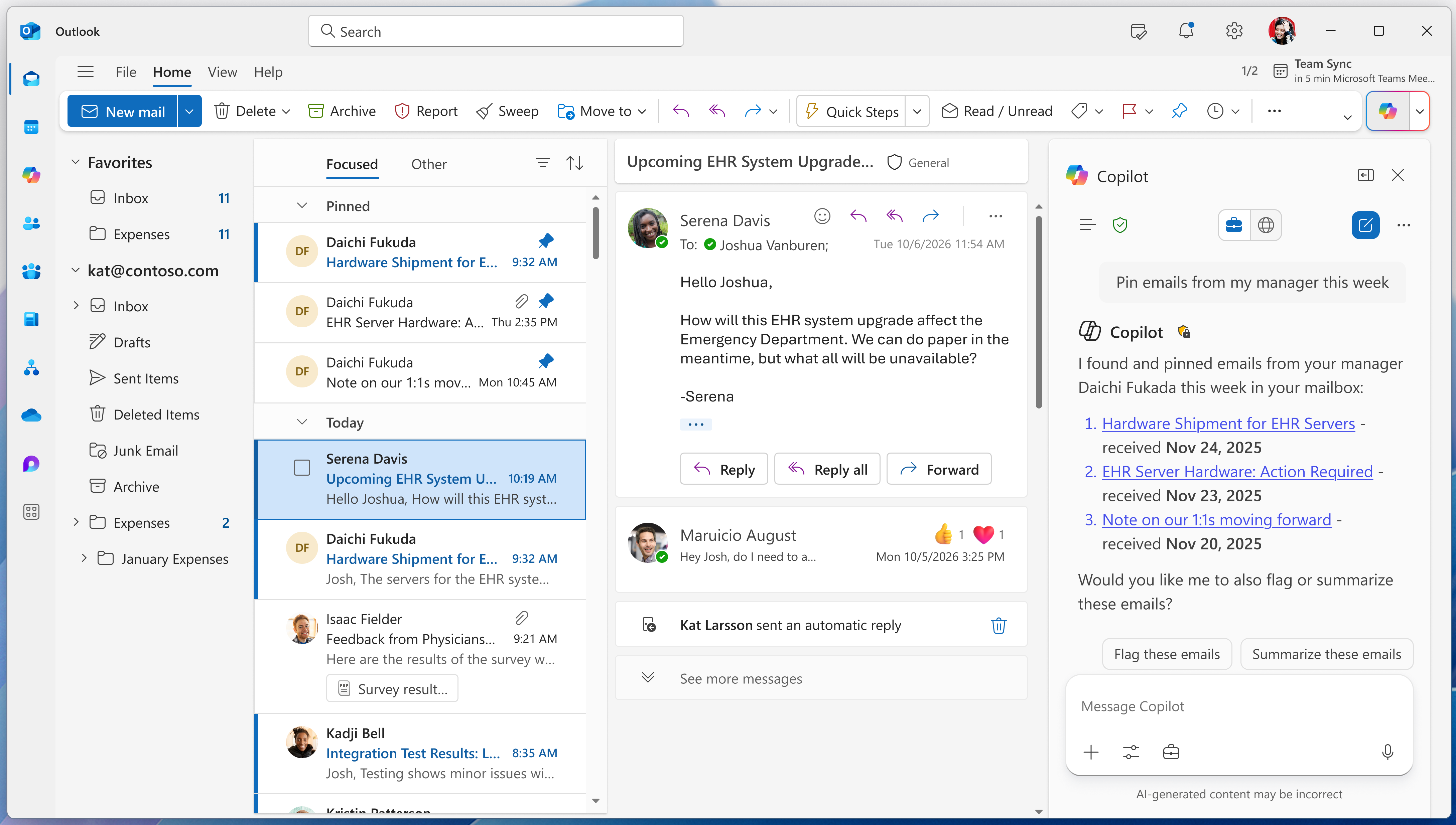
- Copilot side pane
Supported platforms
You don't need to open Outlook to use this experience. Access it through Microsoft Copilot Chat. However, if you prefer to use this Microsoft Copilot experience within Outlook to act on Outlook content, it's available on the following platforms:
- Classic Outlook for Windows
- New Outlook for Windows
- Outlook for the web
- Outlook for Mac
- Outlook for Android
- Outlook for iOS
How to use Copilot to triage email
You can ask Copilot to act on:
- A specific email
- A group of emails
Copilot completes the action and reflects the change immediately in Outlook.
Example commands you can use
You can type or say commands such as:
Act on multiple emails
- "Pin my emails from my manager"
- "Pin the last three emails from Alex"
- "Archive all unread emails from Sarah today"
Act on a specific email
- "Pin it"
- "Mark this email as unread"
- "Flag this message"
Act on emails in a list
- "Show me the latest email from my manager"
- "Pin the most recent one"
- "Pin the second email from the list"
Manage folders
- "Create a folder called Receipts"
Tip: Copilot understands follow-up commands when you refer to previously shown emails.
Confirmation for bulk actions via text commands
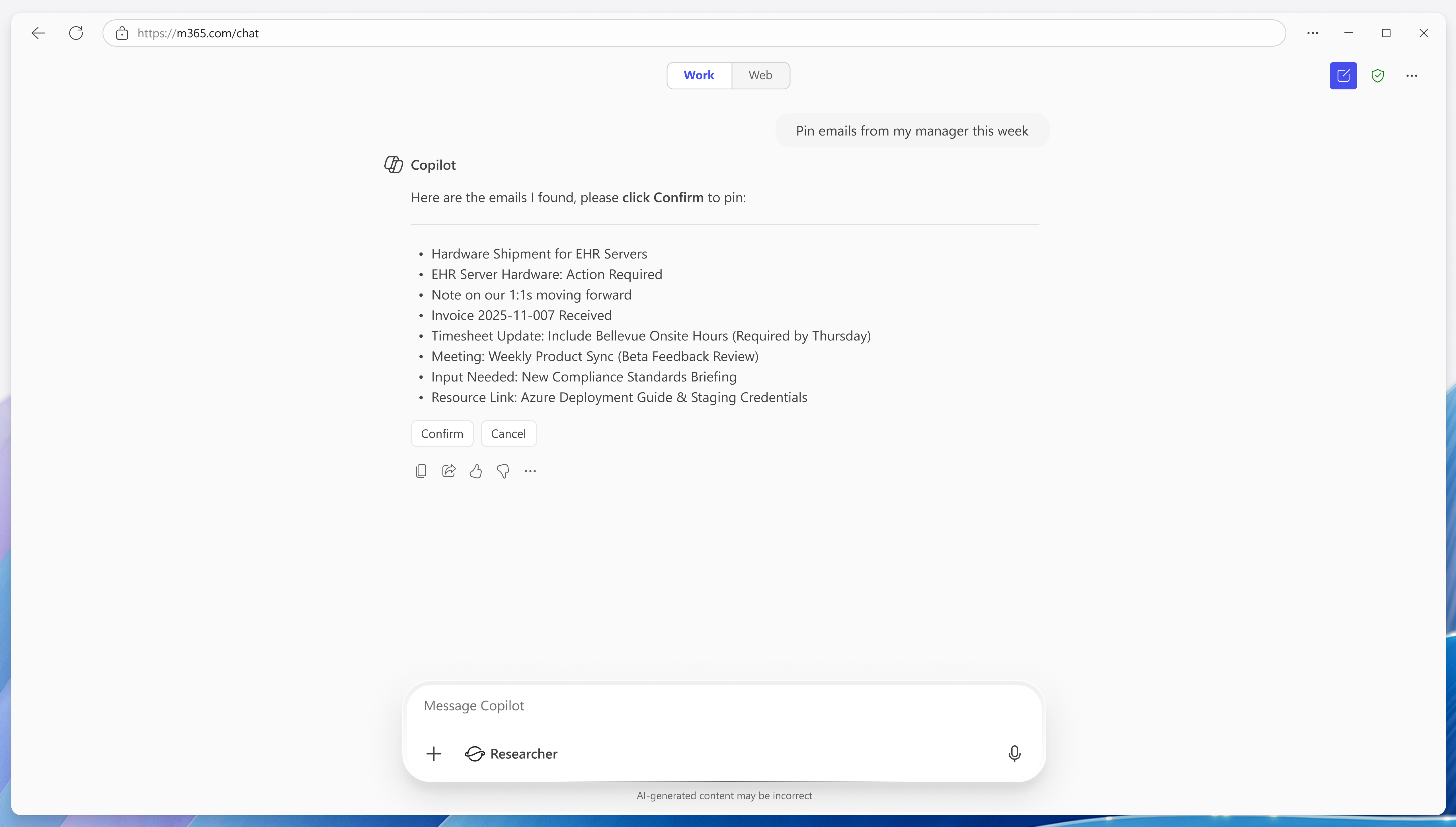
When a command affects multiple emails, Copilot might ask you to confirm the action.
Confirmation required for larger actions
- If the action affects more than five emails, Copilot displays a confirmation card
- Select Confirm or Cancel to continue with the action
- No confirmation is required for actions affecting five or fewer emails
Using voice commands
Voice triage commands are available in Outlook for Android and Outlook for iOS. Voice commands support similar actions as text commands, so you can manage email hands-free while reviewing messages. For more information, see Catch up on your inbox with Copilot voice in Outlook.
Language availability
Language support: These features are currently available only in English. Support for additional languages will be added in the future.