

Reuse work in Microsoft Planner by copying, cutting, pasting, or moving tasks. You can copy, cut, and paste one or more tasks, or move a single task.
Note
This article applies to Microsoft Planner basic plans.
With copy, cut, paste, and move, you can:
- Reuse tasks within the same plan.
- Copy tasks to another plan.
- Move tasks to another bucket or plan.
- Use keyboard shortcuts such as Ctrl+C, Ctrl+X, and Ctrl+V.
- Copy task information to other applications such as Microsoft Excel.
You can copy, cut, and paste tasks from Grid, Goals, and Timeline views:
- Copy and paste tasks within the same plan or to another plan.
- Cut and paste tasks only within the same plan. To move tasks to another plan, use Move task.
Choose the best action
| If you want to | Copy and paste | Cut and paste | Move |
|---|---|---|---|
| Create a copy in the same plan | Yes | No | No |
| Create a copy in another plan | Yes | No | No |
| Move a task within the same plan | No | Yes | Yes |
| Move a task to another plan | No | No | Yes |
Select tasks
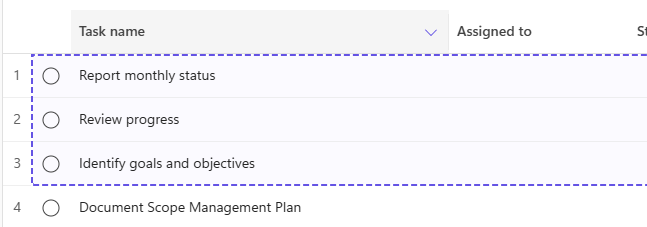
Before you copy, cut, move, or use keyboard shortcuts, select the task rows you want to work with. Copy and cut support one or more selected tasks. Move task supports a single selected task.
Select tasks from Grid, Goals, and Timeline views.
To select one or more tasks:
- Hover over a task row.
- Select the six-dot handle to the left of the task name.
- Select additional task rows if you want to perform an action that supports multiple tasks.
Note
Keyboard shortcuts such as Ctrl+C and Ctrl+X only work when one or more task rows are selected.

Copy tasks
Planner provides two ways to copy tasks:
- Use Copy and Paste to copy one or more selected tasks.
- Use Copy Options to copy a single task and choose which optional fields to include.
What gets copied when you copy tasks
The table applies to both copying methods: Copy and Paste and Copy Options. The Copy and Paste workflow uses the default behavior shown below, while Copy Options lets you exclude supported optional fields.
| Task information | Same plan | Different plan, same group | Different plan, different group |
|---|---|---|---|
| Dates | Copied | Copied | Copied |
| Goals | Copied | Not copied | Not copied |
| Labels | Copied | Not copied | Not copied |
| Assignees | Copied | Copied | Only members of the destination plan remain assigned |
| Attachments and linked files | Copied | Copied | Members of the destination plan might not have access to linked files |
| Comments | Not copied | Not copied | Not copied |
| Task chat | Not copied | Not copied | Not copied |
| AI-generated content | Not copied | Not copied | Not copied |
Copy and paste one or more tasks
To copy and paste one or more tasks:
- Select one or more tasks.
- Select Copy, or press Ctrl+C.
- Navigate to the location where you want to paste the copied tasks.
- Select Paste, or press Ctrl+V.
Planner creates copies of the selected tasks in the destination location.
Copy a task with Copy Options
Use Copy Options to copy a single task and choose which optional fields to include.
Choose what to copy with Copy Options
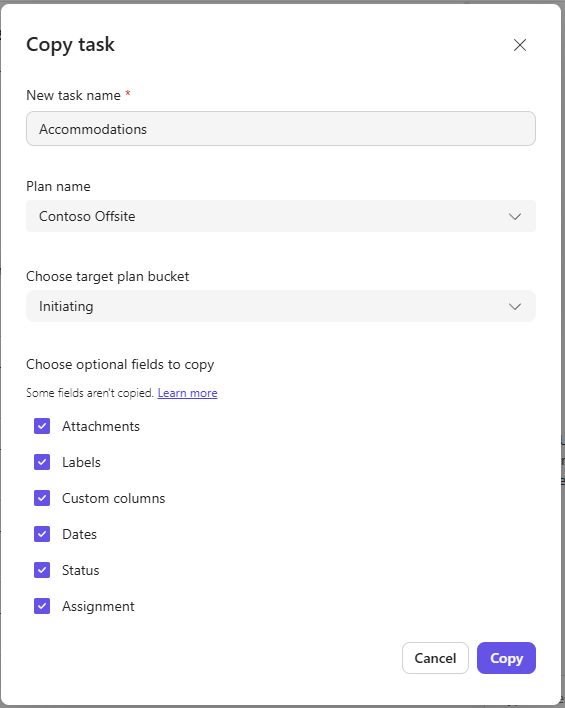
Enter or update the name for the new task. Supported optional fields are selected by default; clear any field that you don't want to include:
- Attachments
- Labels
- Custom columns
- Dates
- Status
- Assignments
You can open Copy Options from task menus or task details.
To copy a task with Copy Options:
- Select or open a single task.
- Open Copy Options under More options (...).
- Select the destination plan.
- Select the destination bucket.
- Choose which task details to include.
- Select Copy.
The original tasks remain in the source plan.
Cut and paste tasks
Cut removes tasks from their current location and places them on the clipboard so they can be pasted elsewhere within the same plan.
Cut and paste one or more tasks
- Select one or more tasks.
- Press Ctrl+X.
- Navigate to the location where you want to move the tasks.
- Select Paste, or press Ctrl+V.
The selected tasks are moved to the new location within the same plan.
Note
To move a task to another plan, use Move task.
Move tasks
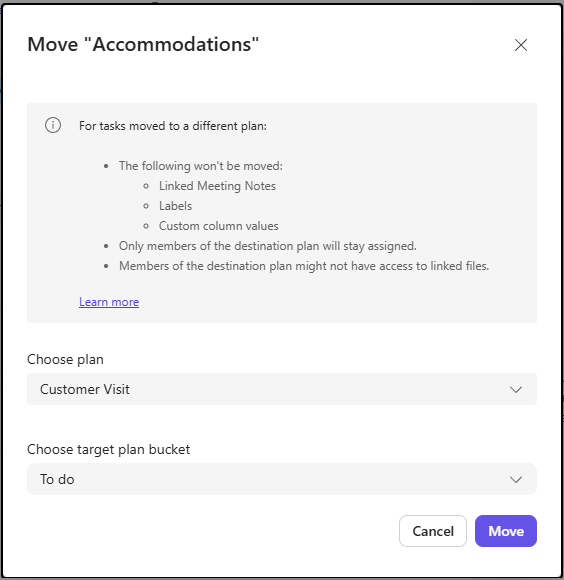
Move a task to a different bucket or plan. What moves with the task depends on whether the destination is in the same plan, a different plan in the same group, or a different plan in a different group.
Move a task
- Select a task.
- Select Move task.
- Select the destination plan if you want to move the task to a different plan.
- Select the destination bucket.
- Select Move.
If you select a different plan, the task is moved to the selected bucket in the destination plan.
What happens when you move a task
Date values, task chat, and AI-generated content are kept in all move scenarios.
| Task information | Same plan | Different plan, same group | Different plan, different group |
|---|---|---|---|
| Comments | Kept | Kept | Removed |
| Goals | Kept | Removed | Removed |
| Labels | Kept | Removed | Removed |
| Custom column values | Kept | Removed | Removed |
| Linked meeting notes | Kept | Removed | Removed |
| Assignees | Kept | Kept | Only members of the destination plan remain assigned |
| Attachments and linked files | Kept | Kept | Members of the destination plan might not have access to linked files |
Copy task information to other applications
You can paste copied task information into supported applications such as Microsoft Excel.
Use this to:
- Export task information for reporting.
- Share task details outside Planner.
- Create custom analysis or tracking spreadsheets.
The information that appears depends on the destination application and the data supported by that application.
Keyboard shortcuts
| Action | Shortcut |
|---|---|
| Copy | Ctrl+C |
| Cut | Ctrl+X |
| Paste | Ctrl+V |
These shortcuts work with individual tasks and multiple selected tasks.
Limitations
- The number of tasks you can paste at one time is limited.