
To give your picture a more polished look, add a border to frame it. PowerPoint for the web has a gallery of picture styles, including a black or white border, a 3D frame, one with faded edges, and several more.
Apply a style to a picture
- Select the picture.
- On the Picture tab, pick a style from the gallery that best suits the image.
Click the More Styles button (as shown below) to open the entire gallery of styles:
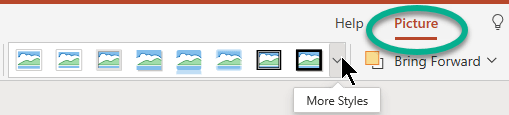
- Select an option to apply it.
If you don't like a style, you can select Home > (Undo) to remove it.
Make a custom border for a picture
You can apply a border of your own choosing to a picture.
Select the picture on the slide.
On the Picture tab, select Picture Border.
The menu gives you options for Color, Weight (line thickness), and line style—including solid and dashed lines.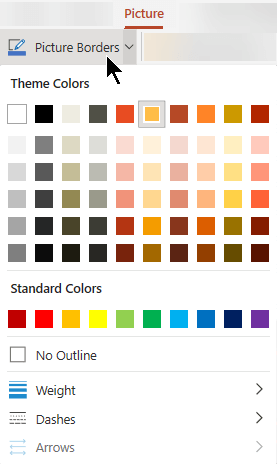
To remove a custom border, you can select No Outline.