You can insert a flow chart into your PowerPoint presentation by using a SmartArt graphic.
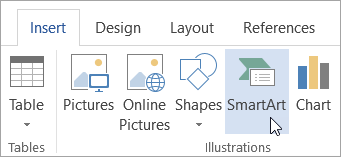
- On the Insert tab, select
 SmartArt.
- In the Choose a SmartArt Graphic dialog box, on the left, select the Process category.
- Single-click a flow chart in the middle pane to see its name and description in the right pane of the dialog box.
- Select the flow chart you want, and then click OK.
- After the flow chart is added to your slide, replace the [Text] placeholders with the steps in your flow chart.

- You can also change the color or style of the SmartArt graphic. While it is selected on your slide, click the SmartArt Design tab on the ribbon, and then click Change Colors or open the SmartArt Styles gallery to see options you can choose from.
For more details about working with SmartArt graphics, see Create a SmartArt graphic.