
You can walk into a meeting room with just a smartphone and present a slide show on a large screen.
Video: Issa wirelessly sends (or "casts") the slide show from his phone to the Surface Hub screen
Click a section heading below to open it and see the details.
What you need to present from your smartphone
A PowerPoint presentation on your phone or stored in a cloud service such as OneDrive.
An Android phone that supports Miracast. For example:
Brand Phone Alcatel A7 and A7 XL HTC U11 Plus and U11 Life LG V30 and V30 Plus Samsung Galaxy S8 and Galaxy Note8 Sony Xperia XA2 and XA2 Ultra Xiaomi Mi 5X Check your smartphone manual or check with the manufacturer to find out about Miracast support on your phone.
PowerPoint for Android installed on the phone.
A large screen that supports Miracast.
Some large wall-mounted monitors (and larger TVs) have Miracast built-in. If the monitor or projector doesn’t have Miracast built-in, an adapter can be used. For example:
To present wirelessly from a Samsung phone to an external screen or projector
The exact steps vary depending on the brand of your phone. This procedure, like the video above, describes the process on a Samsung Galaxy S8 or Note8.
On your phone, slide down from the top of the screen to open Quick Settings.
Tap Smart View to open that app.
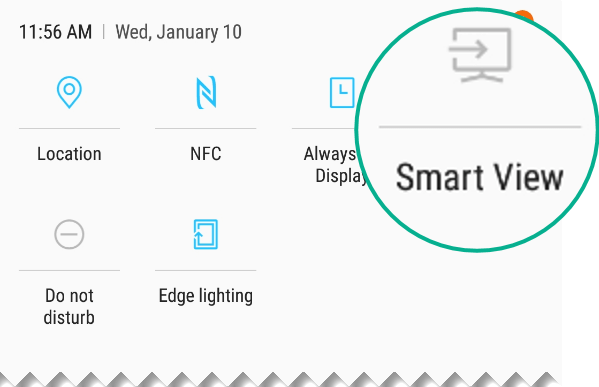
Smart View looks for a nearby monitor that supports Miracast. When it finds the monitor, it connects the phone and the monitor. If multiple screens are available, they'll be listed on your phone screen. Tap a name to connect to it.
When the connection between the phone and the monitor is established, the contents of your screen appear on the monitor.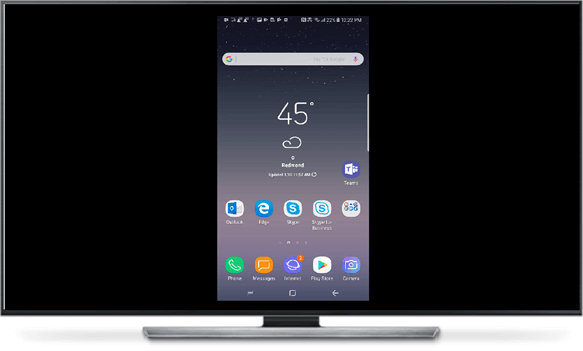
On your phone, switch to PowerPoint and open the presentation. Tap Slide Show
 to begin presenting.
Navigate through the presentation as you normally would, tapping the forward and back arrows on the left and right side of the slide on your phone.
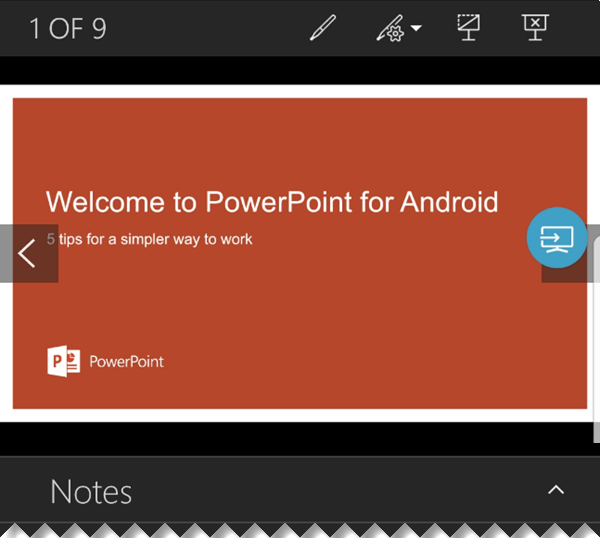
To turn on the laser pointer, press and hold the slide. Once it appears, move the pointer by dragging.
To stop casting your phone to the screen, tap the connection icon
 to open the Smart View controls, and then tap Disconnect.
Please take a brief survey about this new feature
Seel Also
Using a laser pointer on your smartphone when presenting in PowerPoint