
To make a custom theme, start with a built-in Microsoft 365 theme and modify it by changing any of the colors, fonts, or effects:
- Change the theme's color, font, and effect settings.
- Save the settings as a new theme in your theme gallery.
These steps are described below.
Customizing theme elements
Edit a theme to modify the colors, fonts, or effects.
Select a heading below to open it and see the detailed instructions.
Change theme colors
Theme colors contain four text and background colors, six accent colors, and two hyperlink colors. Under Sample, you can see how the text font styles and colors look before you settle on your color combination.
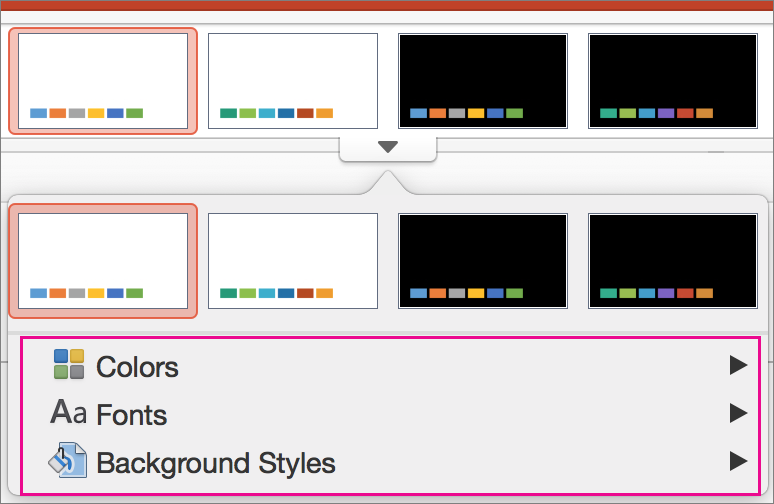
On the Design tab, in the Variants group, select the down arrow that opens the gallery of color variants:

Select Colors, and then click Customize Colors.
The Create New Theme Colors dialog box opens.In the Create New Theme Colors dialog box, under Theme colors, do one of the following:
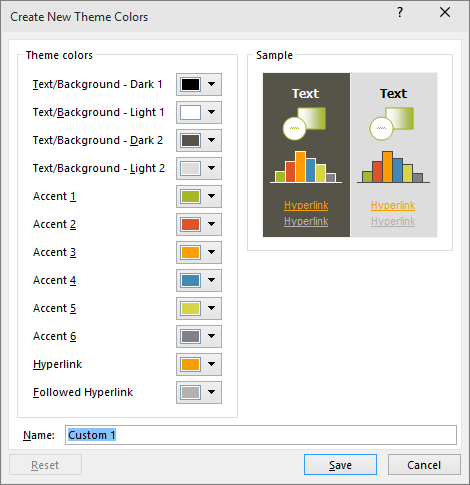
Select the button next to the name of the theme color element (for example, Accent 1 or Hyperlink) that you want to change, and then choose a color under Theme Colors.
-or-
Select More Colors, and do one of the following:- On the Standard tab, select a color.
- On the Custom tab, enter a color formula number for the exact color that you want.
Repeat for all of the theme color elements that you want to change.
In the Name box, type an appropriate name for the new combination of theme colors, and then select Save.
Tip
If you want to return all theme color elements to their original theme colors, select Reset before you select Save.
After you've defined a custom color scheme, it's available on the Colors drop-down menu:

Change theme fonts
Changing the theme fonts updates all of the title and bullet text in your presentation.
- On the View tab, select Slide Master. Then on the Slide Master tab, select Fonts
 , and then Customize Fonts.

- In the Create New Theme Fonts dialog box, under the Heading font and Body font boxes, select the fonts that you want to use.
- In the Name box, type an appropriate name for the new theme fonts, and then select Save.
Choose a set of theme effects
Theme effects include shadows, reflections, lines, fills, and more. While you cannot create your own set of theme effects, you can choose a set of effects that work for your presentation.
- On the View tab, select Slide Master . Then on the Slide Master tab, select Effects
 .
. - Select the set of effects that you want to use.

Save a theme
You’ll want to save the changes that you make to the colors, fonts, and effects as a theme (.thmx file). That way, you can apply this new theme to your other presentations.
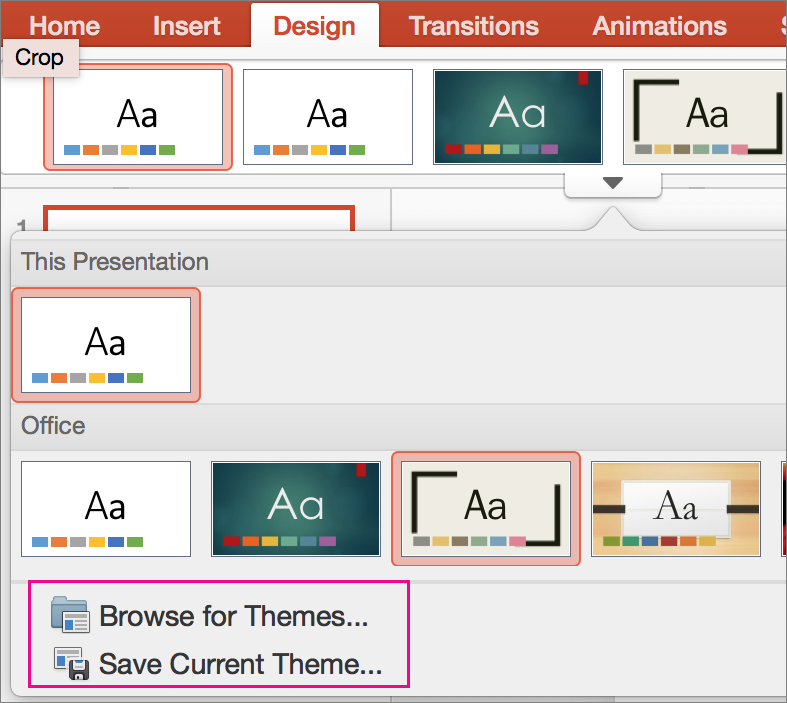
On the View tab, select Slide Master. Then on the Slide Master tab, select Themes.
Click Save Current Theme.
In the File name box, type an appropriate name for the theme, and click Save.
Note
The revised theme is saved as a .thmx file in the Document Themes folder on your local drive, and it's automatically added to the list of custom themes on the

Overview of themes
A theme is a design scheme of colors, fonts, and background that you apply to your slides.
Using a theme gives your presentation a harmonious appearance with minimal effort. Text and graphics automatically take on the size, colors, and placement defined by the theme, which means less manual work as you create individual slides.
After you create a theme, it's located on the Design tab in the Themes gallery. To try out a theme, rest your mouse pointer over a thumbnail in the Themes gallery and notice how the look of your slide changes.
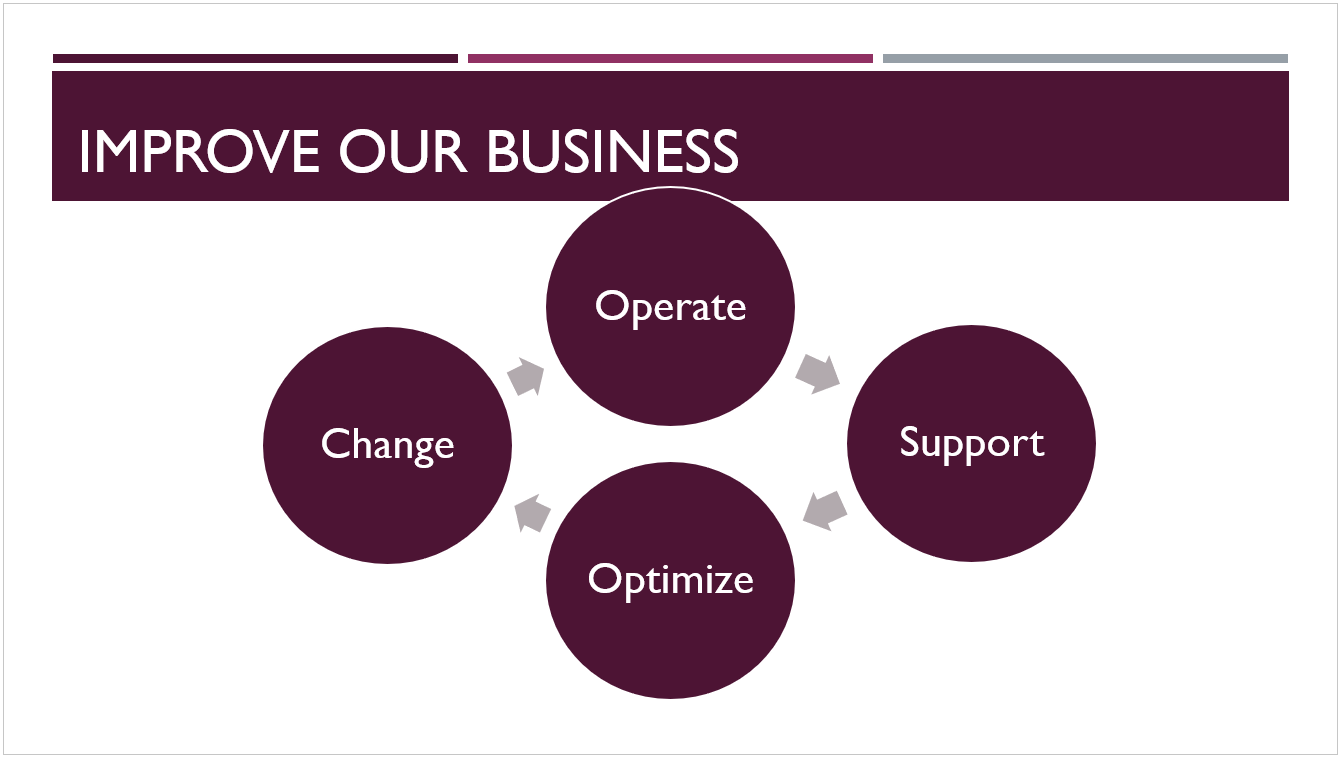
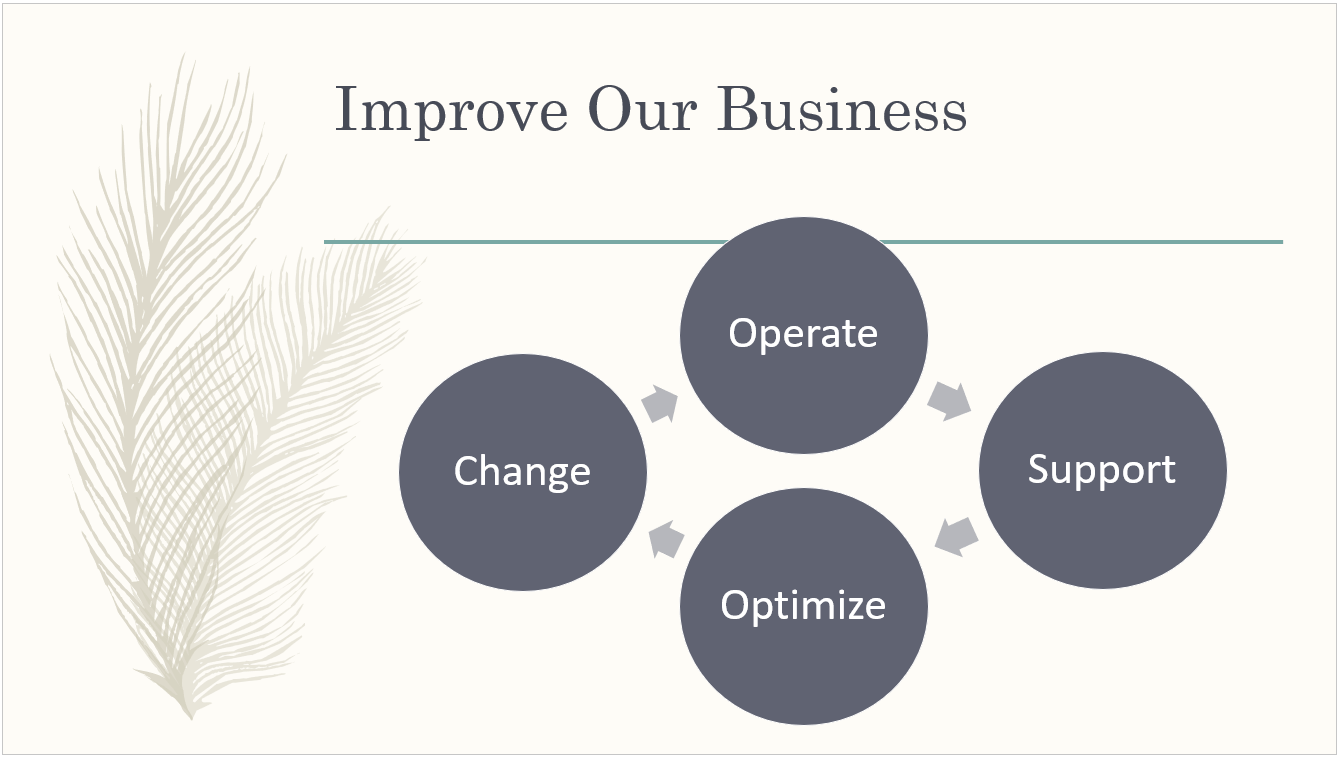
Here are four different themes applied to the same slide:


See Also
Understand the difference between PowerPoint templates and themes
Remove or change the current theme
