

Speaker Coach helps you prepare in private to give more effective presentations.
Speaker Coach evaluates your pacing, pitch, your use of filler words, informal speech, euphemisms, and culturally sensitive terms, and it detects when you're being overly wordy or are simply reading the text on a slide.
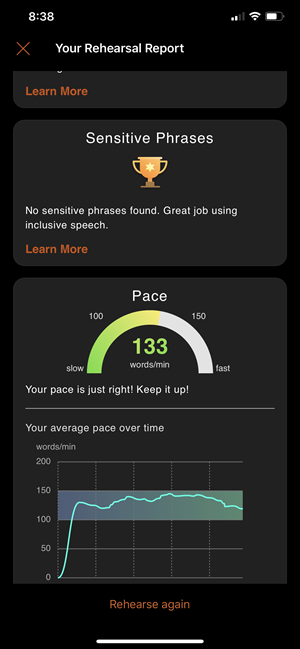
After each rehearsal, you get a report that includes statistics and suggestions for improvements.
Note
Speaker Coach in PowerPoint was previously known as Presenter Coach.
Rehearse with Speaker Coach
Open your presentation in PowerPoint for Windows desktop.
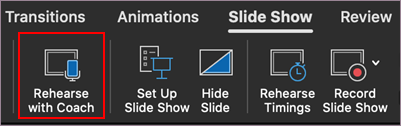
In the Slide Show tab, in the Rehearse group, select Rehearse with Coach. The presentation opens in a full-screen view, similar to Slide Show.

Select Start Rehearsing in the dialog box when you are ready to begin rehearsing. To receive on-screen guidance, check that Show real-time feedback is selected.

Wait to start speaking until you receive a Listening... notification in the dialog box.

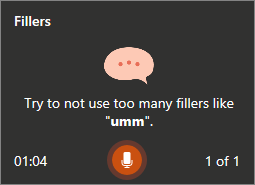
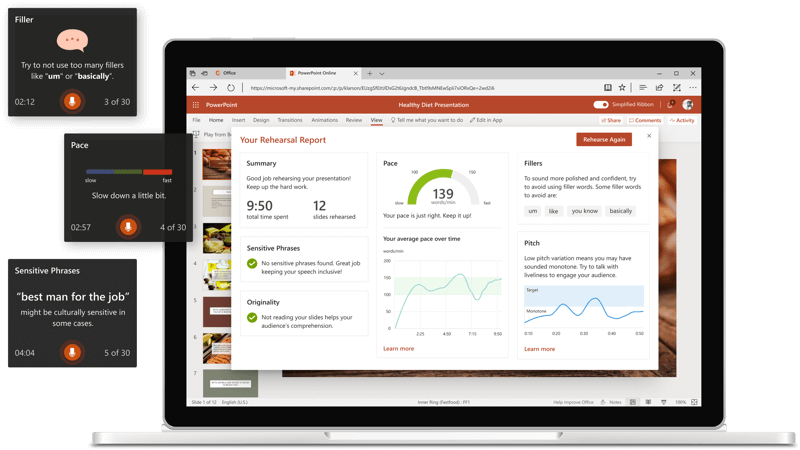
As you speak, Coach gives on-screen guidance about pacing, inclusive language, use of profanity, filler words, and whether you're reading the slide text.
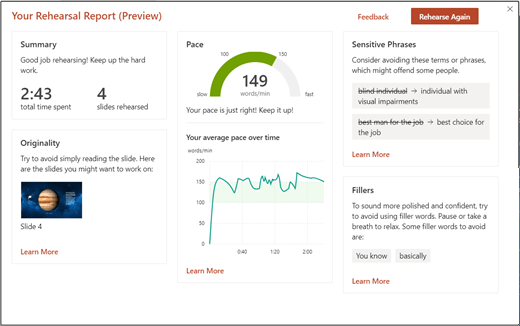
When you're through, exit full-screen view. Coach opens a Rehearsal Report that summarizes what it observed, and offers recommendations. To receive the recommendations, select Learn More in the section of the Rehearsal Report that you want more information about.

After you review your Rehearsal Report, close the window or select Rehearse Again to practice the recommendations you received.


Tips for using Speaker Coach
- Sign in with a Microsoft account (hotmail.com, outlook.com, live.com, msn.com) or a Microsoft 365 work or school account. You can view and edit a presentation for free in a web browser by saving the file to OneDrive and using PowerPoint for the web to open it.
- You need a microphone in your computer that can hear your speech and an internet connection.
- Rehearse in a quiet place with a microphone.
- After you close the rehearsal report, it disappears. If you want to save a copy of it, you must take a screenshot.
Other things to remember
- Currently, Speaker Coach only understands English, and it's only available when your Microsoft 365 user interface language is English. Go to Change the language Office uses for help with the Microsoft 365 user interface language setting.
- Coach works best with one speaker rehearsing. It might not work well if more than one person is rehearsing at a time.
- Coach will continue to learn as people use it, and it will add more kinds of suggestions in the future.
- Unlike the Rehearse Timings feature, Speaker Coach doesn't add timings to your slides. Speaker Coach is for practicing and feedback. It doesn't prepare a slide show to run automatically.
Presentation recommendations
- To relax and slow yourself down when you're nervous, take a deep breath.
- Pause if you need a moment to gather your thoughts. Quiet moments don't adversely affect your presentation.
- Speaker Coach gives you a gentle nudge by suggesting specific replacement terms for certain words. You make the final decision about what words to use in your presentation.
- It's okay to repeat shorter bits of text from a slide, such as a title or bullet point, just try not to read the entire slide.
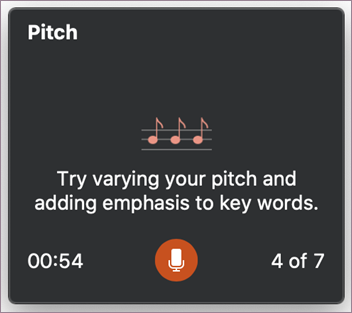
- Speak naturally and vary the pitch of your voice to keep the audience more engaged and focused on your key points.
For more recommendations, go to Suggestions from Speaker Coach.
Important information about Speaker Coach
Speaker Coach is one of the cloud-enhanced features in Microsoft 365 and is powered by Microsoft Speech Services. Your speech utterances are sent to Microsoft to provide you with this service. For more information, go to Make Office Work Smarter for You.
Speaker Coach isn't currently available to government customers hosted in Government Community Cloud (GCC).
Frequently asked questions
What features and critiques are available for the web version?
Web will always have the most up to date features because that's where we make them available first. After we get feedback about the features on the web version, we'll extend their availability to mobile and desktop.
What features and critiques are available for desktop versions?
On desktop apps, you get feedback while you rehearse on pace, monotone, filler words, speech refinement, originality, and inclusiveness.
What features and critiques are available for iOS and Android versions?
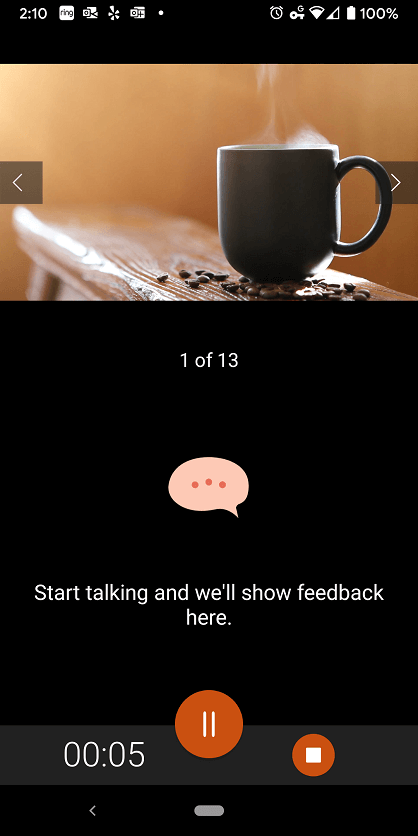
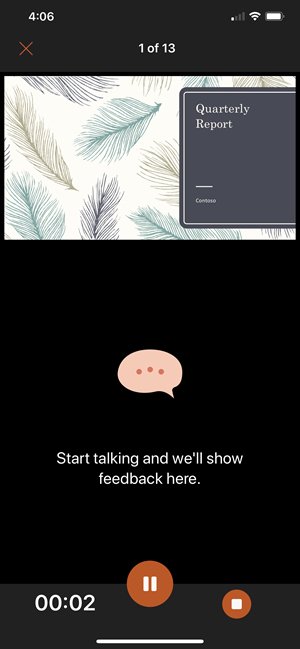
Speaker Coach is now available for iOS on both iPhone and iPad. You get rehearsal feedback on pace, pitch, filler words, speech refinements, originality, repetitive language, and inclusiveness. At the end of the session, you get a summary report optimized for iPhone and iPad. Repetitive language and pronunciation will come soon on these platforms.
Who can use Speaker Coach?
Speaker Coach is currently available to everyone in free preview—even if you don’t have an Office subscription. You can try out Speaker Coach on the Web or on an Android or iOS device.
In which languages and markets is Speaker Coach now available?
Speaker Coach is available for all English-speaking markets. The team is working now to expand to new languages, including Spanish, French, and Japanese.
In which languages and markets are body language, pronunciation, and repetitive language critiques available? Will they be made available in other languages and markets in the future?
Pronunciation is currently available only for the US English market. The rest of the features are available for all English-speaking markets. The team is working to expand these features to more languages and markets soon.
Where can I get more information about Speaker Coach?
Go to the support article Suggestions from Speaker Coach.
Related articles
Present with real-time, automatic captions or subtitles in PowerPoint