On a PC or a Mac, if you have a particular PowerPoint slide that you want to use in different presentations, you can save it separately from the rest of the presentation. This article describes how to quickly and easily to move your slide from one presentation to a new one.
You can also save a slide as a picture that you can use in other applications.
Save a slide as a new PowerPoint presentation
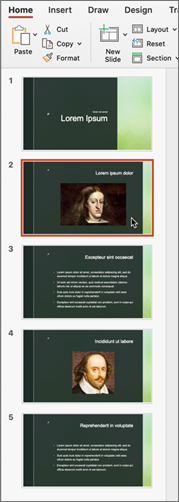
In the slide thumbnail tab, on the left side of the PowerPoint window, select the slide you want to save.

Note
If you don't see the Slide tab, select View > Normal.
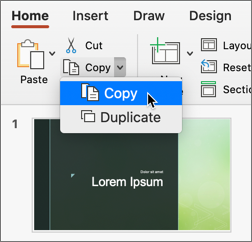
On the Home tab select Copy.

Select File > New, then select Blank Presentation.

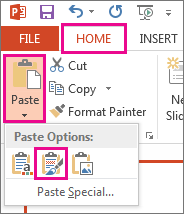
On the Home tab select Paste to open the drop-down menu and select the Keep Source Formatting button. This will paste the slide into your new presentation as the second slide.
Tip
You can hover over the Paste icons to see what each paste option does.
Select the blank slide in the new presentation. Press the Delete key.
Select File > Save. Navigate to the folder where you want to save your slide.
Type the name of your slide image in the File name text box. Select Save.
Save a single slide as an image
In the slide thumbnail pane, on the left side of the PowerPoint window, select the slide you want to save.
Select File > Save As (or Save a Copy if your presentation is saved on OneDrive or SharePoint). Navigate to the folder where you want to save your slide.
Type the name of your slide image in the File name text box.
Select to open the Save as Type drop-down menu. Select one of the following image formats for your slide.
- JPEG File Interchange Format (.jpg)
- PNG Portable Network Graphics Format (.png)
- GIF Graphics Interchange Format (.gif)
- Scalable Vector Graphics Format (.svg)

Select Save. Review the PowerPoint dialog box and select Just This One to save your selected slide as an image.

Note
You can select All Slides to save each slide in your presentation as an image. Each slide will be saved as a separate file.