If you've already jotted down an outline of your presentation in Word and now need a quick way to add it to your slides, you can import a Word outline into PowerPoint.
Create an outline in Word
Open Word.
Select View > Outline. This automatically generates an outline and opens the Outlining tools:
If your document has headings (any heading levels from H1-H9), you'll see those headings organized by level.
If your document doesn't have headings and subheadings yet, the outline will appear as a bulleted list with a separate bullet for each paragraph or body text. To assign or edit headings, heading levels, and set up your document structure:
- Select a bulleted item. Or press the Ctrl key to select several lines.
- In the Outline Level box, select a heading Level 1 for slide titles, Level 2 for bullet points on that slide.
- When finished or to edit your document, select Close Outline View.
Save an outline in Word
To save your document, select File > Save, name your file, and then select Save once more. Select Close to close your document.
Note
Your Word document must be closed to insert it into a PowerPoint presentation.
Import a Word outline into PowerPoint
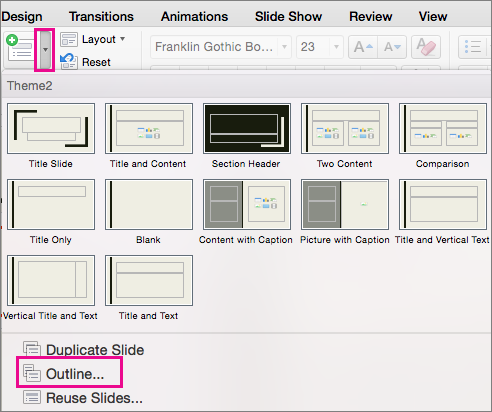
Open PowerPoint and select New Slide > Slides from Outline.
In the Insert Outline dialog box, find and select your Word outline and select Insert.
Note
If your Word document contains no Heading 1 or Heading 2 styles, PowerPoint will create a slide for each paragraph in your content.
Guidelines for importing an outline
PowerPoint can import an outline in .docx, .rtf, or .txt format.
- If your outline is a Word document Apply a heading format to any text you want to include in a slide. For example, if you apply the Normal style to a block of text, Word won't send that text to PowerPoint.
- If your outline is a .txt file Use indentation to indicate heading levels. Any unindented lines of text will become titles of new slides.