

Gridlines help give you visual cues when you're formatting in PowerPoint.
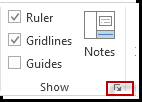
To turn on or off the Gridlines, go to the View tab and select the Gridlines checkbox.

The default horizontal and vertical gridlines make a grid of one-inch squares. You can't change that grid size. However, you can change the space between the dots that make up each gridline by using the Spacing option. With this setting, you can adjust the precision of the object's alignment.
Turn on the snap-to options
- Select View on the ribbon, and in the Show group, select the dialog-box launcher.
The Grid and Guides dialog box appears. - To position shapes or objects to the closest intersection of the grid, under Snap to, check the Snap objects to grid box.
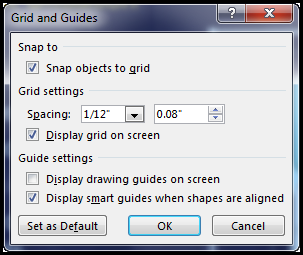
- To see the grid on your screen, under Grid settings, check the Display grid on screen box.
To change the measurement units in PowerPoint, see Change the ruler units from inches to centimeters.
Turn off the snap-to options
- Select View, and in the Show group, select the dialog box launcher.
The Grid and Guides dialog box appears. - Clear the Snap objects to grid box.
Make these settings the default for all presentations
If you want the current settings in the Grid and Guides dialog box to be the default settings for all presentations you open, select Set as Default.
Tips about grids and guides
- To temporarily override the snap-to options, hold down Alt while you're dragging an object on the slide.
- To show drawing guides on your screen, under Guide settings, check the Display drawing guides on screen box.
Drawing guides are a pair of dotted guidelines, one vertical and one horizontal, that intersect at the center of the slide. When drawing guides are on, objects will snap to these lines when dragged within a threshold of a few pixels. - When Display smart guides ... is turned on, guides appear to aid you in aligning and spacing one object in relation to others.
- If the Snap objects to grid box is checked, you can draw in straight lines when you draw a freeform shape
 .
.
See Also
Show or hide gridlines in Word, PowerPoint, or Excel
Change the ruler units in PowerPoint from inches to centimeters