
To access your privacy settings when you open any Office application:
- Select Account in the bottom of the left pane, and under Account Privacy, choose Manage Settings.
If you already have an Office application open:
- Go to the File tab, select Account (or Office Account in Outlook) in the bottom of the left pane, and then choose Manage Settings.
To access your privacy settings in the new Outlook for Windows:
- On the View tab, select View settings and then choose General.
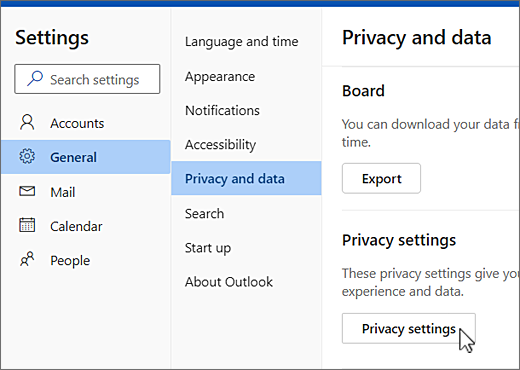
- Select Privacy and data then choose Privacy settings.
This opens the Account Privacy settings dialog box where you can select your privacy options.
Note
- This applies to Version 1904 or newer of Microsoft 365 apps or Office.
- If you're using Microsoft 365 apps or Office with a work or school account, your administrator may have configured what settings you can change.
On Windows these settings apply to Word, Excel, PowerPoint, Outlook, OneNote, Access, Project, and Visio.
More details
On opening an office app, or selecting File, look for Account or Office Account towards the bottom left corner of the window.
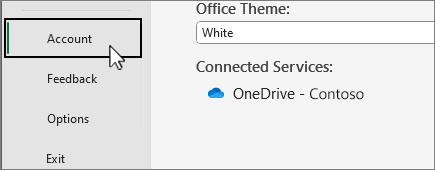
Select Manage Settings under Account Privacy.

For the new Outlook for Windows:
On the View tab, select View settings.
On the General tab, choose Privacy and data and select Privacy settings.
Note
Users with a personal account will have additional settings on this screen, but the button for Privacy settings remain the same.
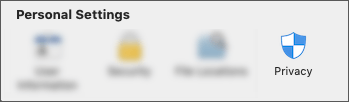
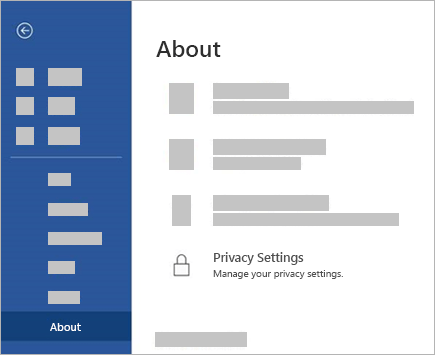

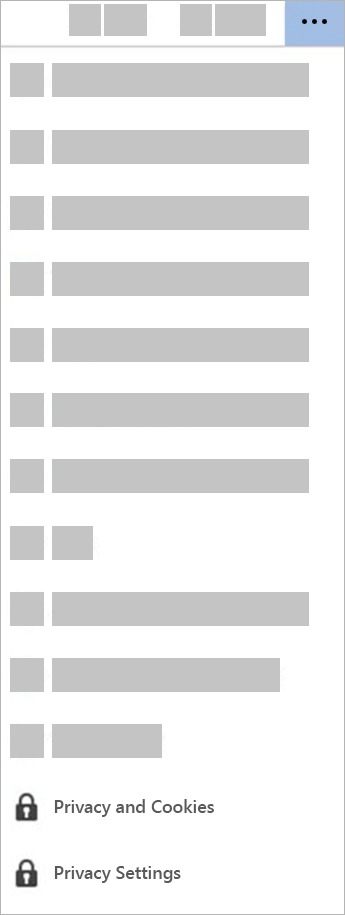
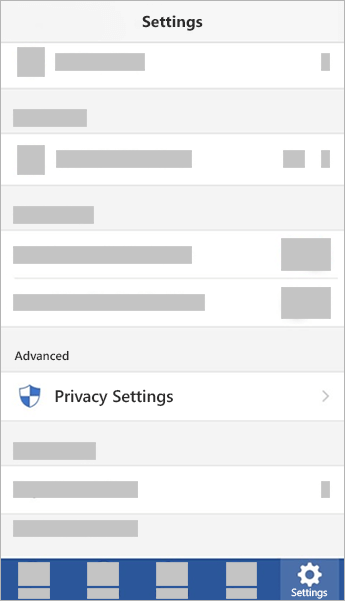


Your settings go with you
When you adjust your privacy settings, turning things on or off, those settings will roam to all of your Windows, Mac, Android, and iOS devices. If you decide to turn off experiences that analyze your content on your Windows desktop computer, for example, the next time you sign into a Microsoft 365 app on your phone that setting will be applied there as well. If you turn the setting back on, the next time you sign into a Microsoft 365 app on the desktop, it will be turned back on there as well. Your settings travel with you.
Note that on Mac only the settings for Word, Excel, PowerPoint, OneNote, and Outlook will roam.
Important
The settings are associated to your account so they only roam if you sign into the other devices with the same personal, work, or school account.
The exception to this is if you turn off the setting that disables all non-essential connected experiences. The service that roams your privacy settings across devices is also turned off by that switch, so when that setting is off your settings will not roam to, or from, that particular device. If you have other devices where that switch is not turned off, they will continue to roam your settings among themselves.
If you want to turn off all non-essential connected experiences on all of your eligible devices, you'll need to turn it off on each of them.